
Context
Qualtrics is a platform that allows you to create and send surveys. DSST uses Qualtrics for network surveys such as the Mid and End of Year Survey, and the Network Pulse Survey. Any survey that will require a Polaris dashboard to display survey responses, will be required to be sent using Qualtrics. If you do not need a dashboard, you can still use Qualtrics (or Google Forms) to send your survey. In this article you will find information on how to track your survey responses.
Please note: If you want your survey data to be reported in a Polaris Dashboard, please complete this form prior to following the steps below.
Steps
Track your Survey Data
If your survey data will be reported in Polaris, then navigate to Polaris to view your data.
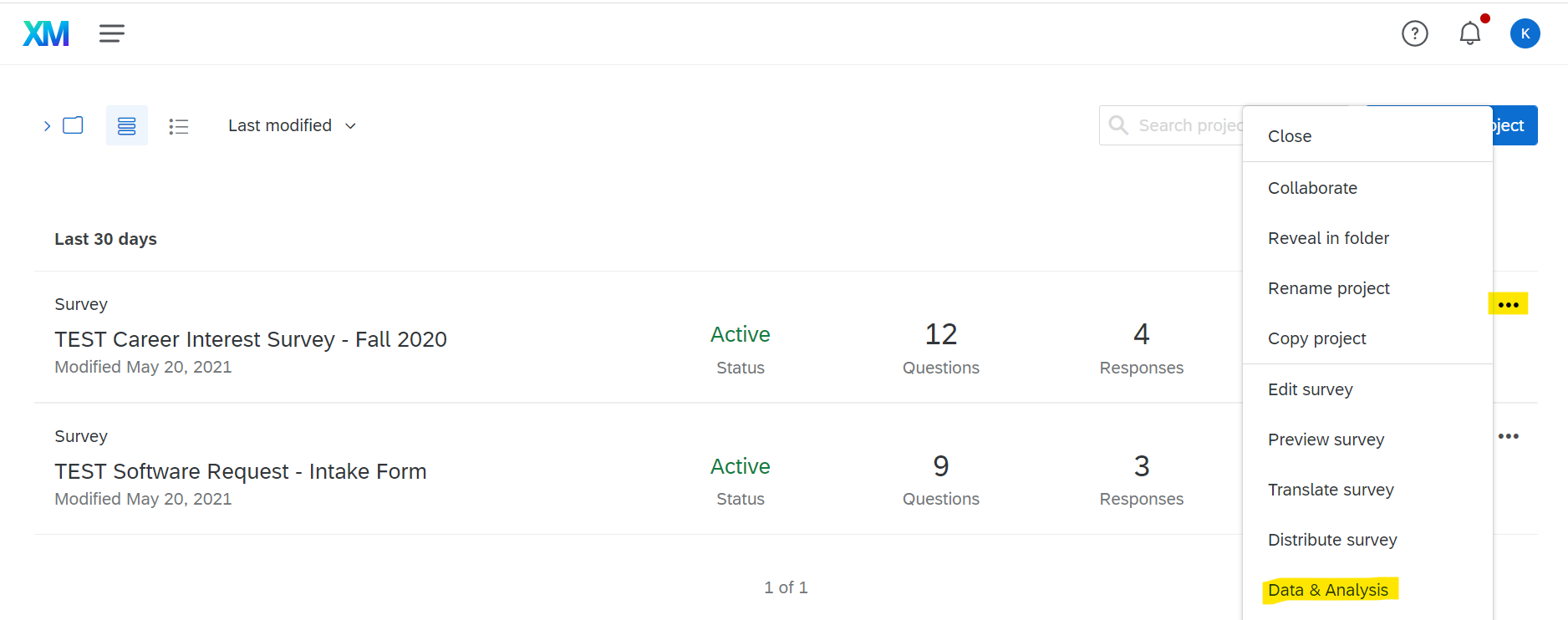
To view your raw survey data in your Qualtrics account, navigate to the survey and select Data & Analysis.
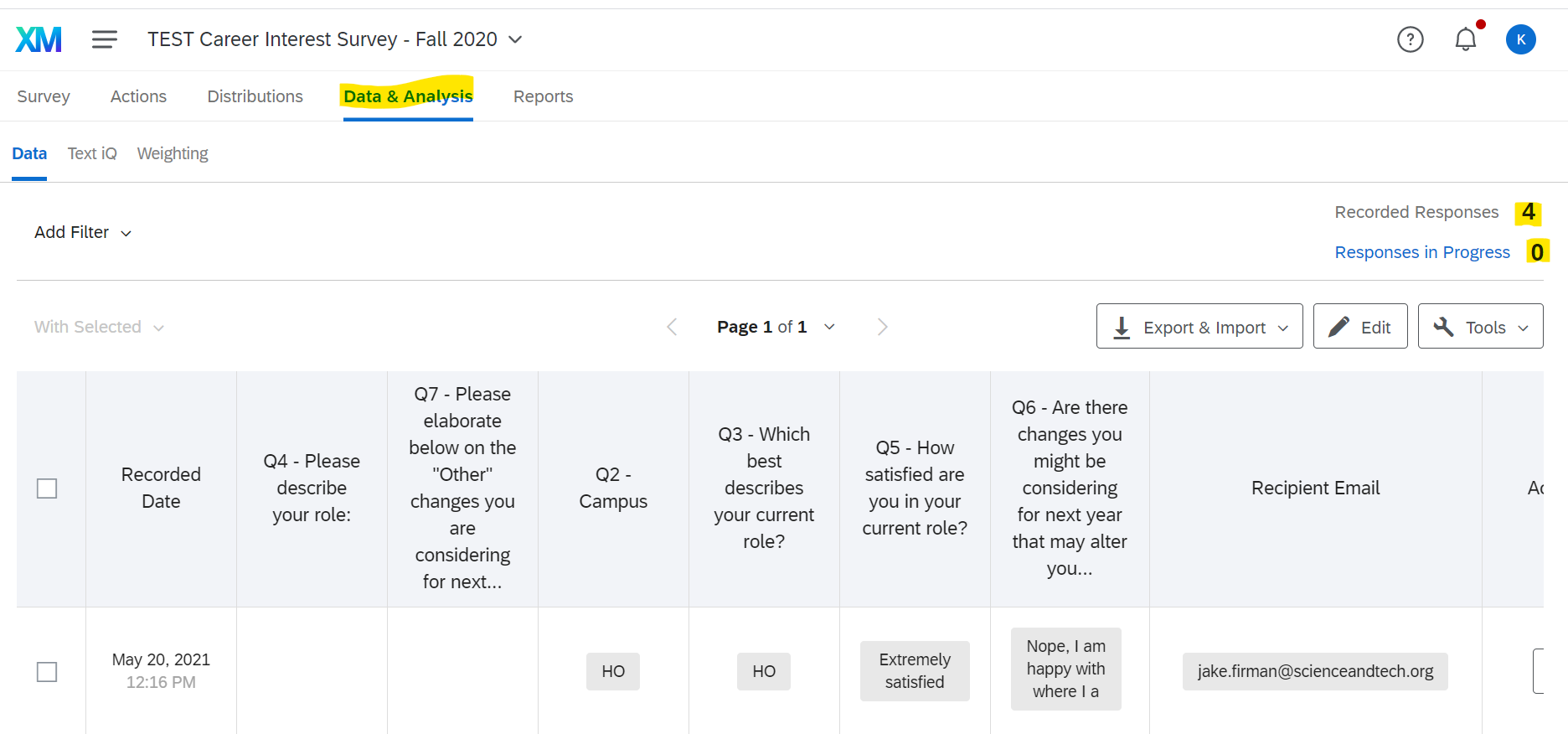
You will be taken to the following page. On this page you can view:
- Number of recorded responses
- Number of responses in progress
- Exportable table of responses (Export & Import)
- Individual responses (learn more about how to customize your columns here)
- Filtered data (learn more about filtering your data here)
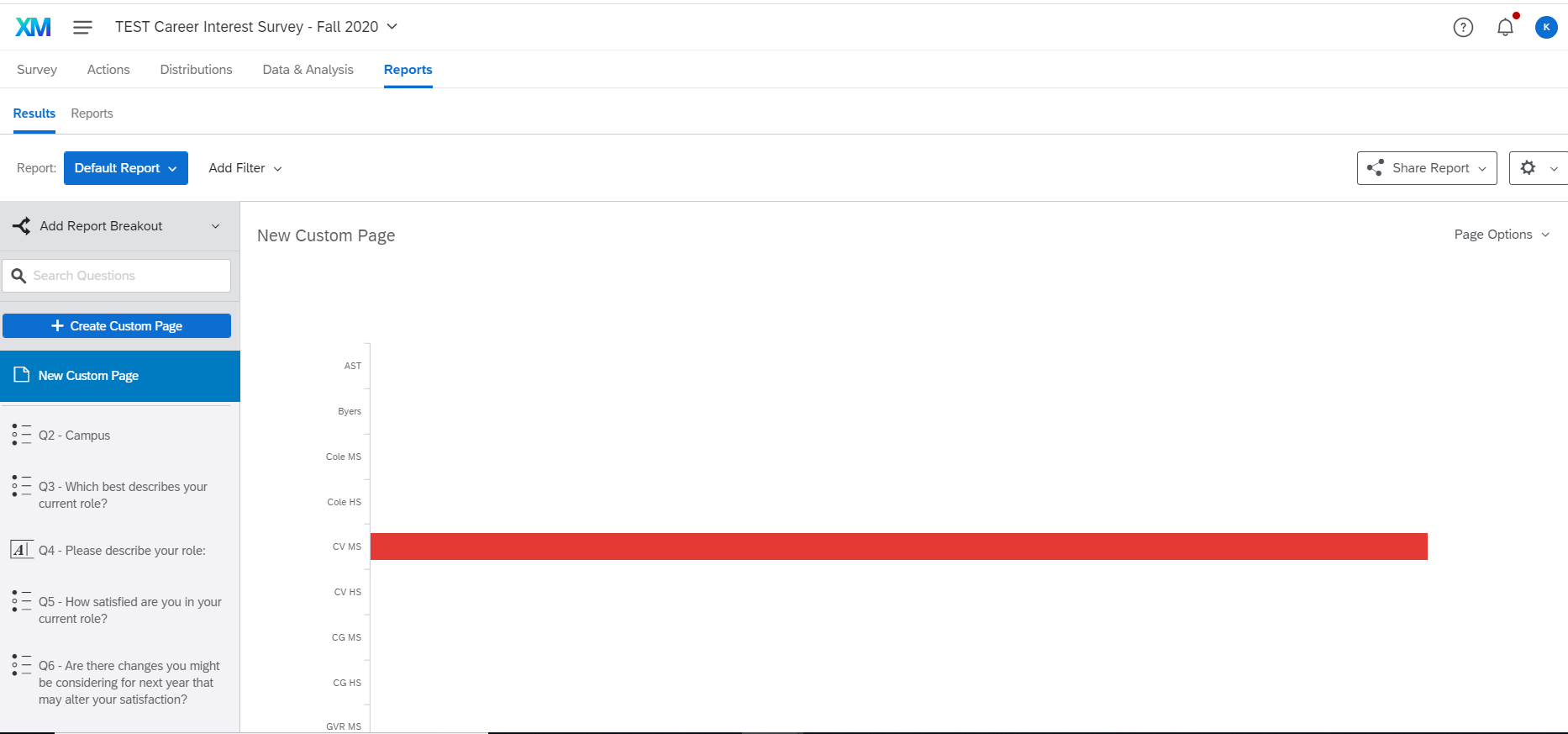
To view your data graphically, click the Reports tab at the top of the page. On this page you can customize how you want to visualize the data from your survey. Want to learn more about how to view your data? Read this linked article.
Track your Survey Response Status
There are a variety of ways you can track your survey responses. If you distributed your survey using an anonymous link, you will not be able to track who has and has not submitted your survey. To learn more about Qualtrics's survey link types, read this article.
1. View the number of responses submitted and in progress in your survey's "Data & Analysis" tab

2. View the number of responses sent, started and submitted in your survey's "Distributions" tab
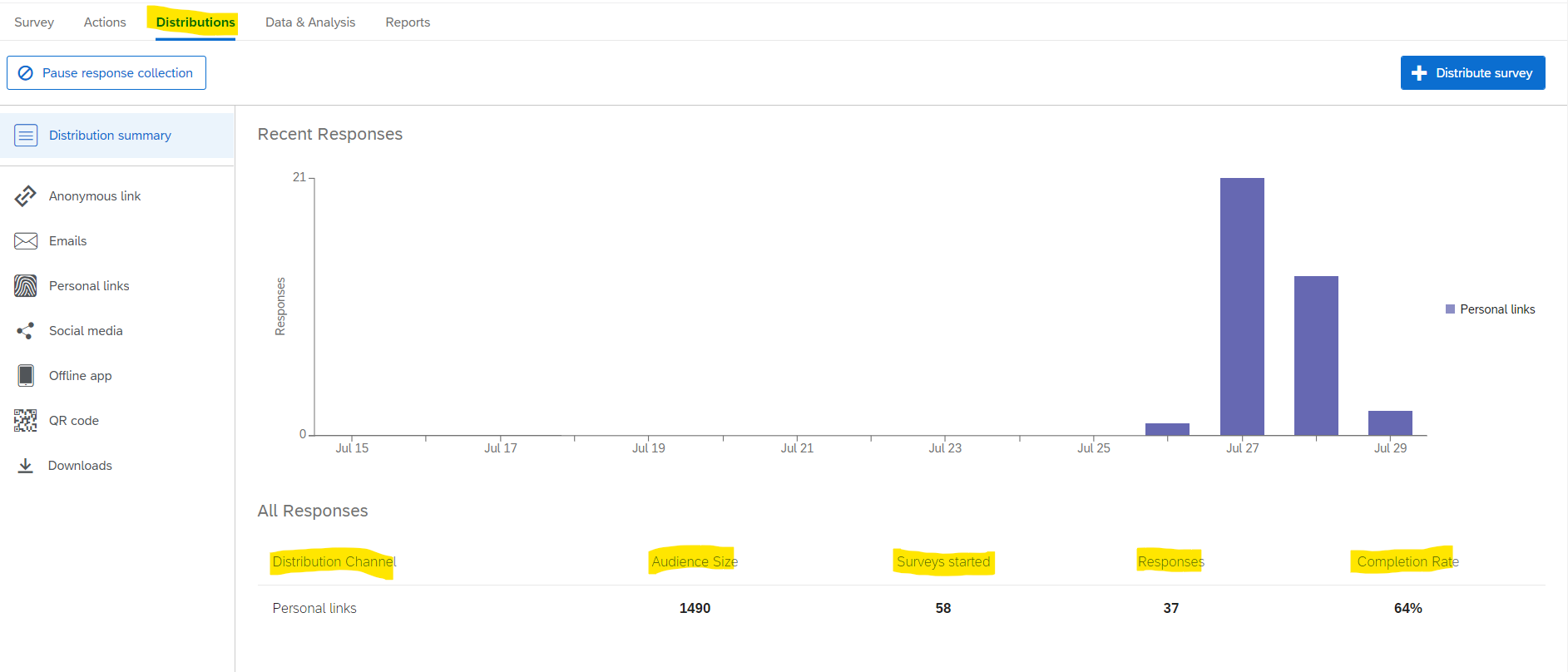
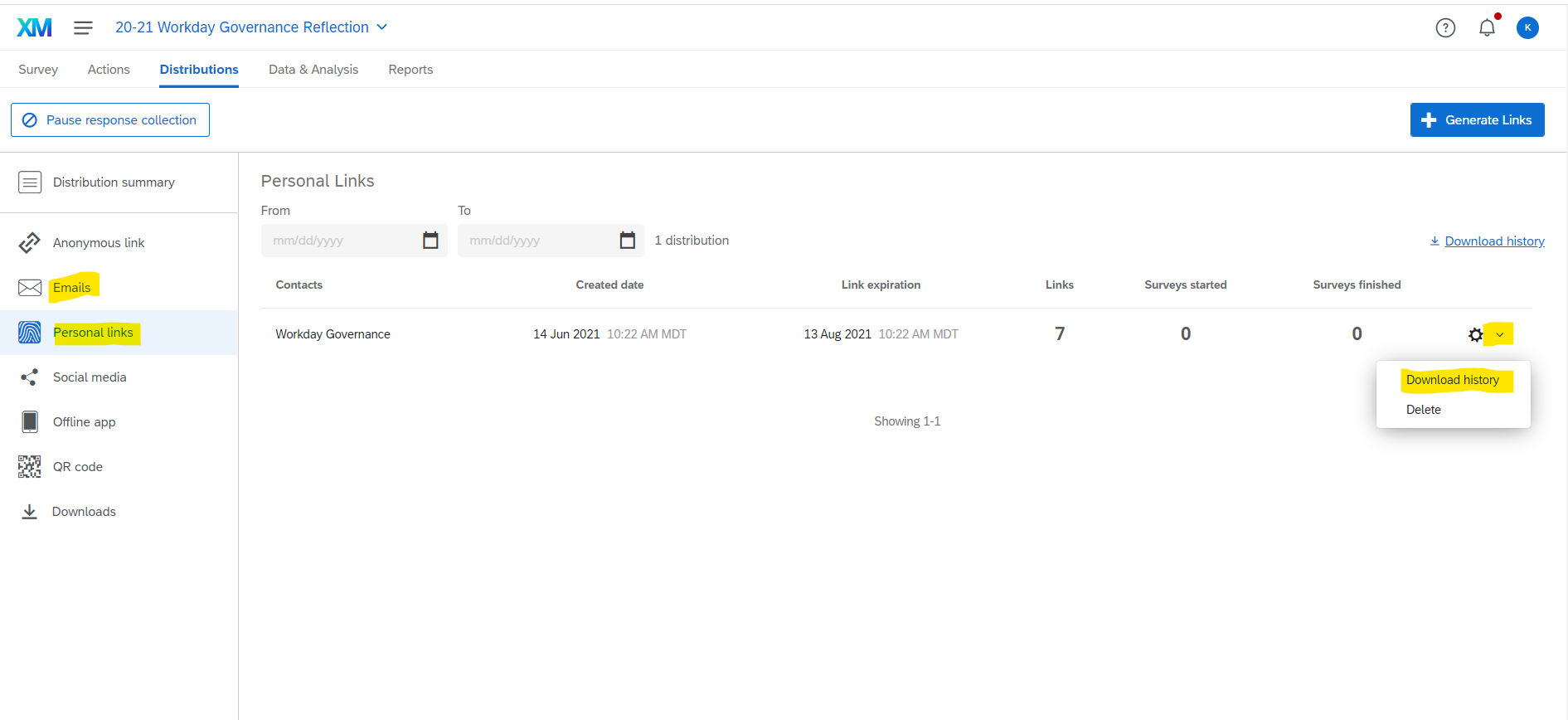
3. If you distributed your survey via Qualtrics Mailer (email) or a personal link, you can view exactly who has and has not submitted your survey. Go to your survey's "Distribution" tab and depending on how you sent your survey, select either "Email" or "Personal Link."
Navigate to the "Settings" icon (cog) located on the right hand side of the contact list you sent your survey to and select "Download History." A CSV file will automatically download on your computer.
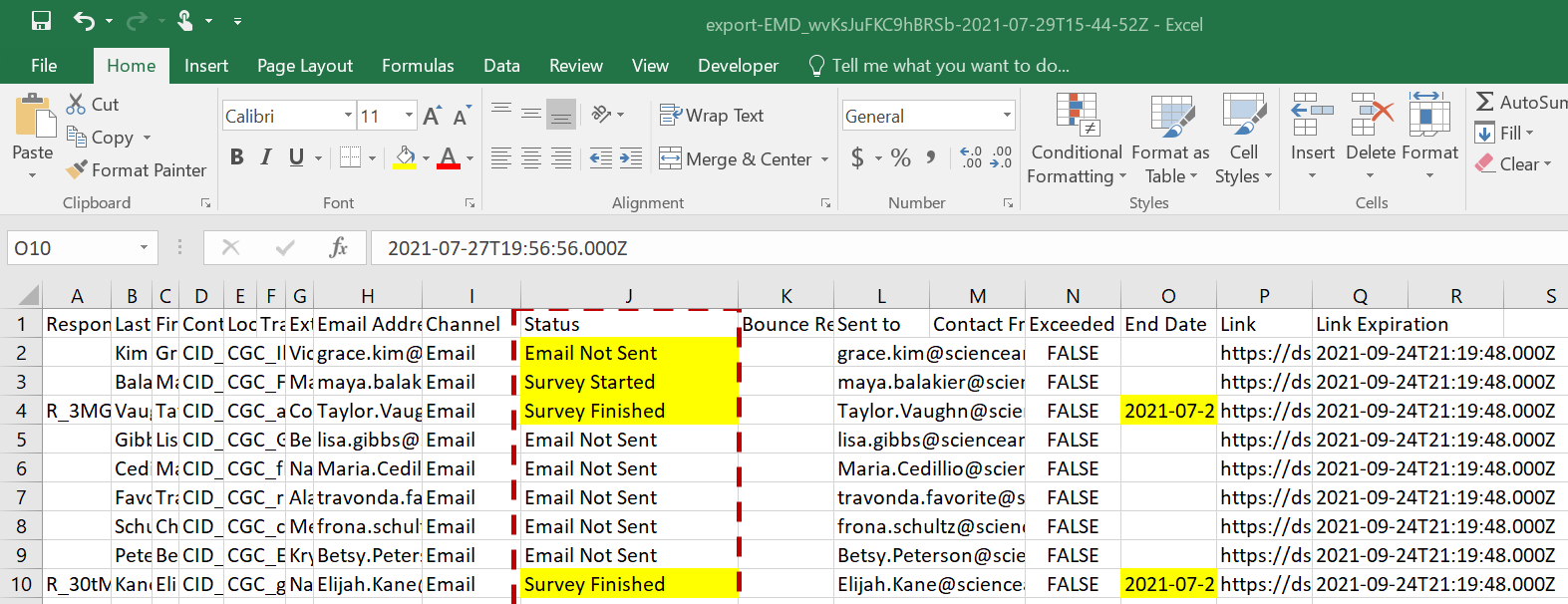
In the CSV file you can find the status of your survey by respondent by viewing the "Status" column.
Comments
0 comments
Please sign in to leave a comment.