
Overview
Google Classroom is updated nightly with all system syncs. Typically any changes before one in IC will sync to Google Classroom by the next morning. At most, it should take 36-48 hours to see changes in IC depending upon when the changes were made and when our district partners have shared that data.
- Please wait 48 hours to see changes in Google Classroom before submitting a DSST Help Desk ticket. This ensures that we don't slow down support with issues that fix themselves with time.
- If you have a new student please ensure that they are enrolled in their classes in IC and you've allowed the systems to sync for the 48 hours before reaching out for support.
Teachers must "accept" their Google Classrooms before they will be available to students and other staff members. This must be completed by the "Primary" teacher that is in IC.
Please see the steps and supports below to accept your Google Classrooms classes, learn how to add Co-Teachers and more.
Teachers must use the classes that are auto-created via the automated roster sync. Using these allows us to share and report on this data in powerful ways for families, teachers, and school leaders.
Accepting Classes at the beginning of the term
When you are marked as a primary teacher on a class section in IC, you'll see that class appear in your Google Classroom dashboard within 24 hours. These new classes will appear like the screenshot below, asking for you to "Accept" ownership of that class. The class will not be usable or visible to students until it is "Accepted" by the primary teacher.
Archiving Classes at the end of the term
Once a term has been completed you can archive the classes that you will no longer be using. For example the shift from S1 to S2 at the HS level. Follow the steps below to archive classes so they will no longer appear for students and yourself as the teacher.
Archiving classes remove the class from your main Classroom home page (making your page cleaner and easier to navigate). Essentially it freezes the class so no new changes can be made to it (especially helpful if you choose not to remove students from the old classes). It still allows you to copy and reuse old posts and assignments from the archived class in your new classes.
|
 |
Steps that may be helpful but are not required
Return Student Work
|
|
|
|
|
 |


Un-Enroll Students from Old Courses
This is recommended for you if you prefer not to have students accessing content from your class in the future.
|
Removing Old Class Calendars
|
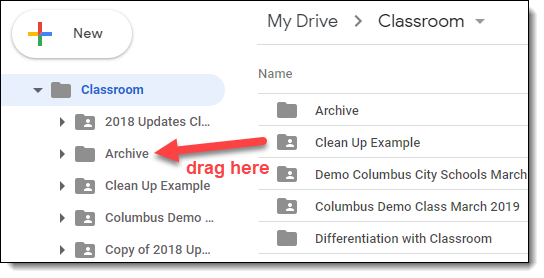
Move Old Class Files in Drive
|
 |
Remove Old Class Files from "Shared with me" in Google Drive
Before you complete this step make sure you have returned all the assignments to your students first before you delete anything out of "Shared with me" (see Tip #1 above). Remember that you actually become the owner of a file when a student turns it into you. If you have not returned the file yet, then you are technically the owner of the file, and if you delete the file, it really gets deleted.
On the other hand, if you are not the owner of a file, and you delete it from "Shared with me" it does not really delete the file. It simply removes it from the "Shared with me" list. The file will still show up in your "Classroom" folders, even when you remove it from "Shared with me".
|
 |
Frequently Asked Questions:
1. Can I add a co-teacher who's not on the section in Infinite Campus?
- Yes! Unlike students, any teacher who is added to a section within the Google Classroom interface will not be removed by the nightly sync. They will stay on the course until they're removed within Google Classroom.
2. Can I add a student who's not on the roster in Infinite Campus?
- No. The student roster for these sections will always sync up each night to match the IC roster exactly. So if a student is added in the Google Classroom interface who is not in the IC roster, they will be removed the next night.
3. How do I know which of my sections are auto-rostered?
- The auto-rostered sections will always be named with the convention:
[Course Name] - [Teacher Last Name] - [Section Number]
4. Can I change the name of my auto-rostered courses?
- No. In order to ensure consistency for students and families, the names of auto-rostered courses will always default to
Comments
0 comments
Please sign in to leave a comment.