
Overview
Clever is our Single Sign On Software for all DSST schools. Clever allows users to have one sign-on for a variety of online applications and software. DPS also uses Clever so it is important that you see "DSST Public Schools" at the top. If you see Denver Public Schools, you are in the DPS version of Clever NOT the DSST version that includes all apps. Follow the steps and supports below to learn how to log into Clever.
Student Access
Clever is set as the homepage for all student laptops. Students should access Clever through their homepage or go to https://clever.com/in/dsst.
1. Go to the Clever at https://clever.com/in/dsst
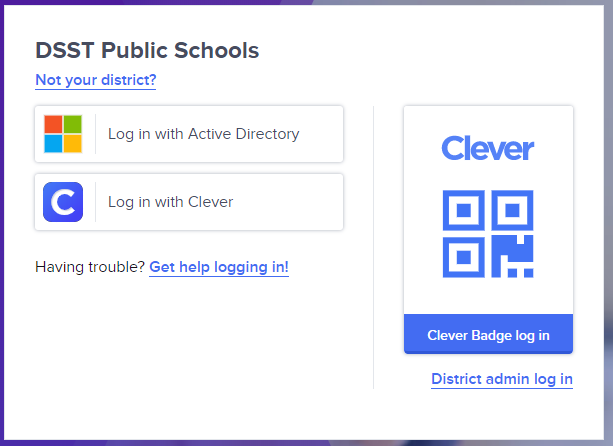
Note: You should see "DSST Public Schools" at the top. If you see Denver Public Schools, you are in the DPS version of Clever NOT the DSST version that includes all apps. If you see another school besides DSST at the top, please sign out and sign back in using the above URL.
2. Click on "Log in with Active Directory".
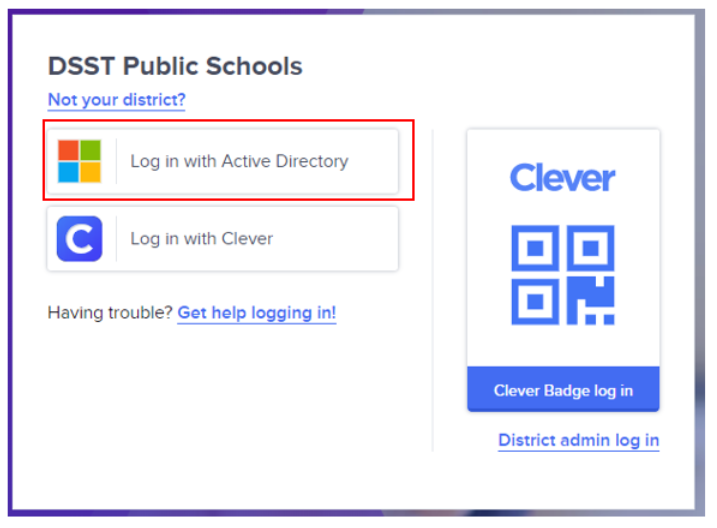
3. Select "Teacher" or "Staff" depending upon what access you need. You will be taken to the Dashboard. Click on the App you would like to access.
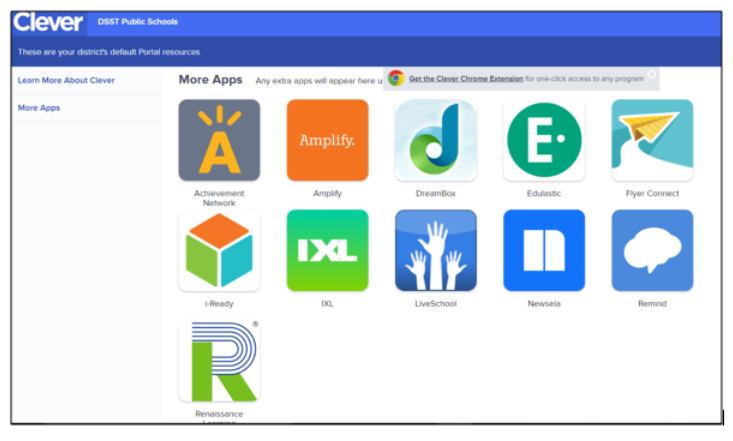
Teacher or Staff Access
1. Go to the Clever at https://clever.com/in/dsst
2. Click on "Log in with Active Directory".
3. You will be taken to the Dashboard. Click on the App you would like to access.
Admin Access
1. Go to the Clever at https://clever.com/in/dsst
2. Click on "Log in with Active Directory".
3. As an admin you will most likely have the option to log in as staff along with your district or school admin account. Select "Log in as admin"

Comments
0 comments
Please sign in to leave a comment.