
Reasons why you would want to impersonate a student's account:
- To troubleshoot with the student to see the students' view
- To check to see if an assessment was assigned
- Note: You will not be able to take an assessment from this view, you can only view if an assessment was assigned.
Teachers can impersonate any student account in Edulastic. HOWEVER, ANY CHANGES THAT IS MADE BY A TEACHER WHEN IMPERSONATING A STUDENT ACCOUNT IN EDULASTIC, WILL BE REFLECTED IN THE STUDENT'S ACTUAL EDULASTIC ACCOUNT.
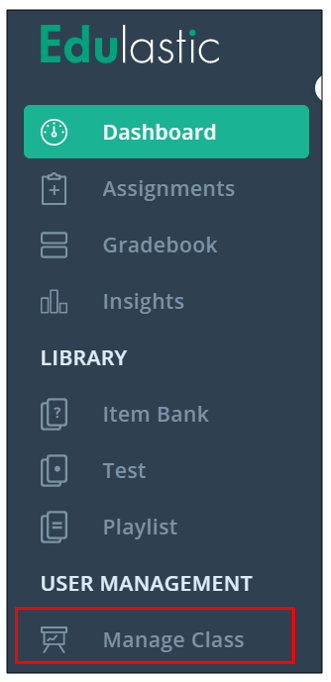
1. Click on the "Manage Class" tab.
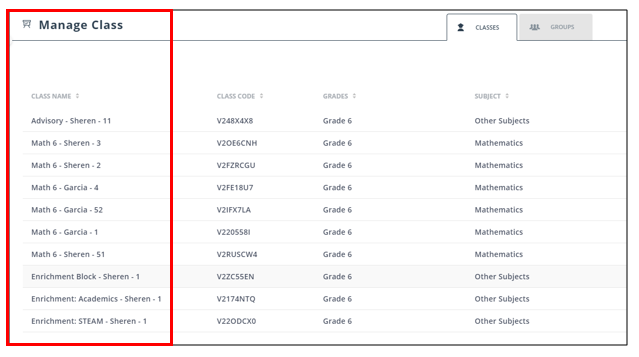
2. Click on your preferred class and section.
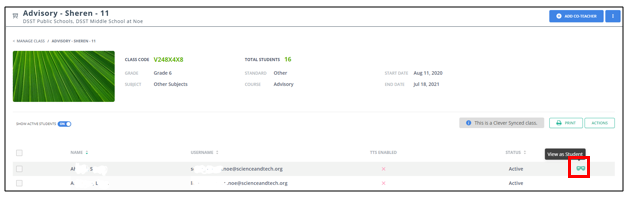
3. Find the student you would like to impersonate. Hover to the right of the "Status" until you see the mask icon pop up.
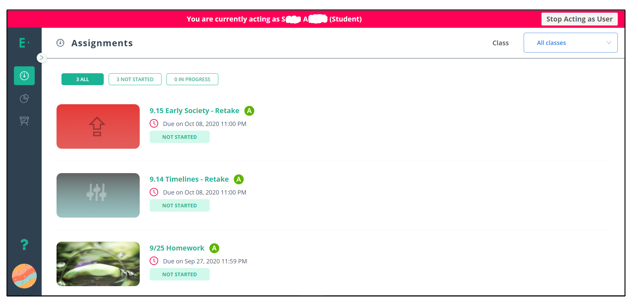
4. Click on the Mask icon and it will take you to the student's Edulastic account. You will be acting as the student and any changes you make while impersonating their account will be reflected in their account when they sign in.
Comments
0 comments
Please sign in to leave a comment.