
Context
Qualtrics is a platform that allows you to create and send surveys. DSST uses Qualtrics for network surveys such as the Mid and End of Year Survey, and the Network Pulse Survey. Any survey that will require a Polaris dashboard to display survey responses, will be required to be sent using Qualtrics. If you do not need a dashboard, you can still use Qualtrics (or Google Forms) to send your survey. In this article you will find tips & tricks to:
- Make a Submit Button
- Make a Back Button
- Save questions, blocks and surveys
- Allow Respondents to Finish Later
- Change the End of Survey Message
- Allow Respondent to Retake a Survey
- Close Your Survey
Tips & Tricks
Making a Submit Button
Adding a submit button to your survey can make it clear to respondents that they are on the final page of a survey. This lets respondents in surveys with back buttons know this is their last chance to make edits. It can also reassure respondents who are fatigued and considering quitting that they have only a few more questions to go.
This setup ensures the submit button is only on the last page of your survey, not every page of your survey.
- At the bottom of your survey, click Add Block.
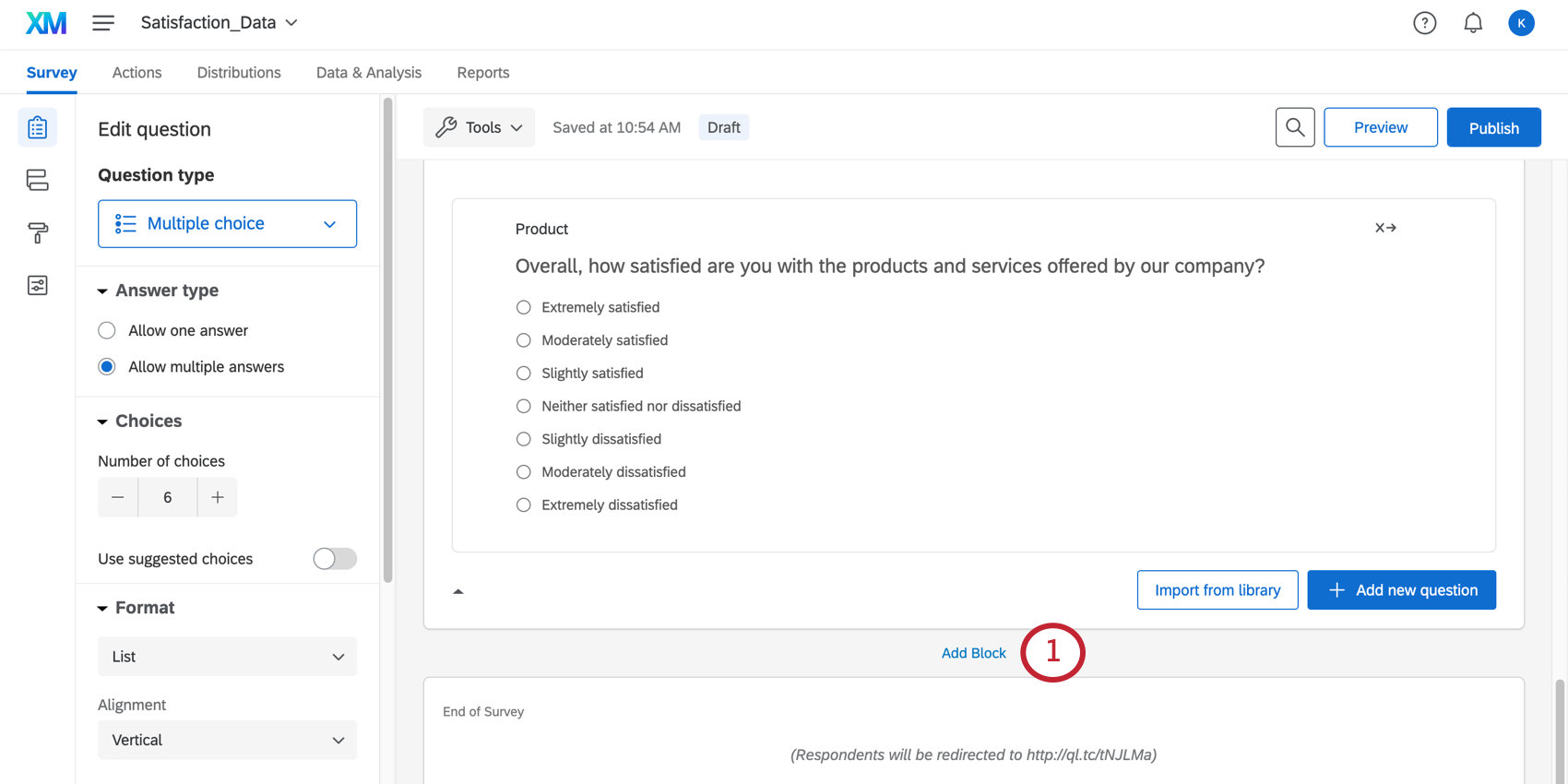
- Move the question or questions that appear on the final page of your survey to this block. Question can be dragged and dropped.
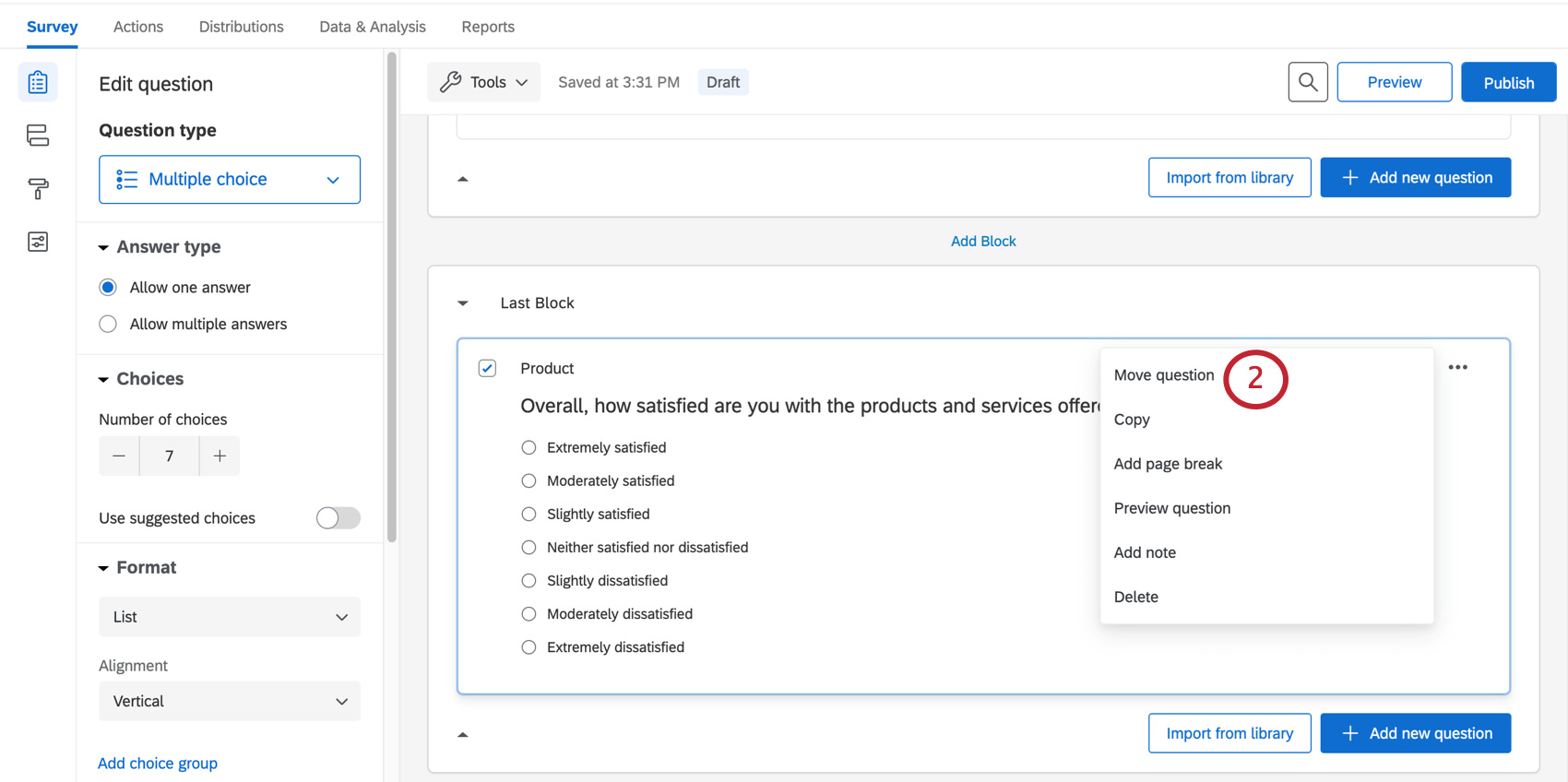
- Click your final block
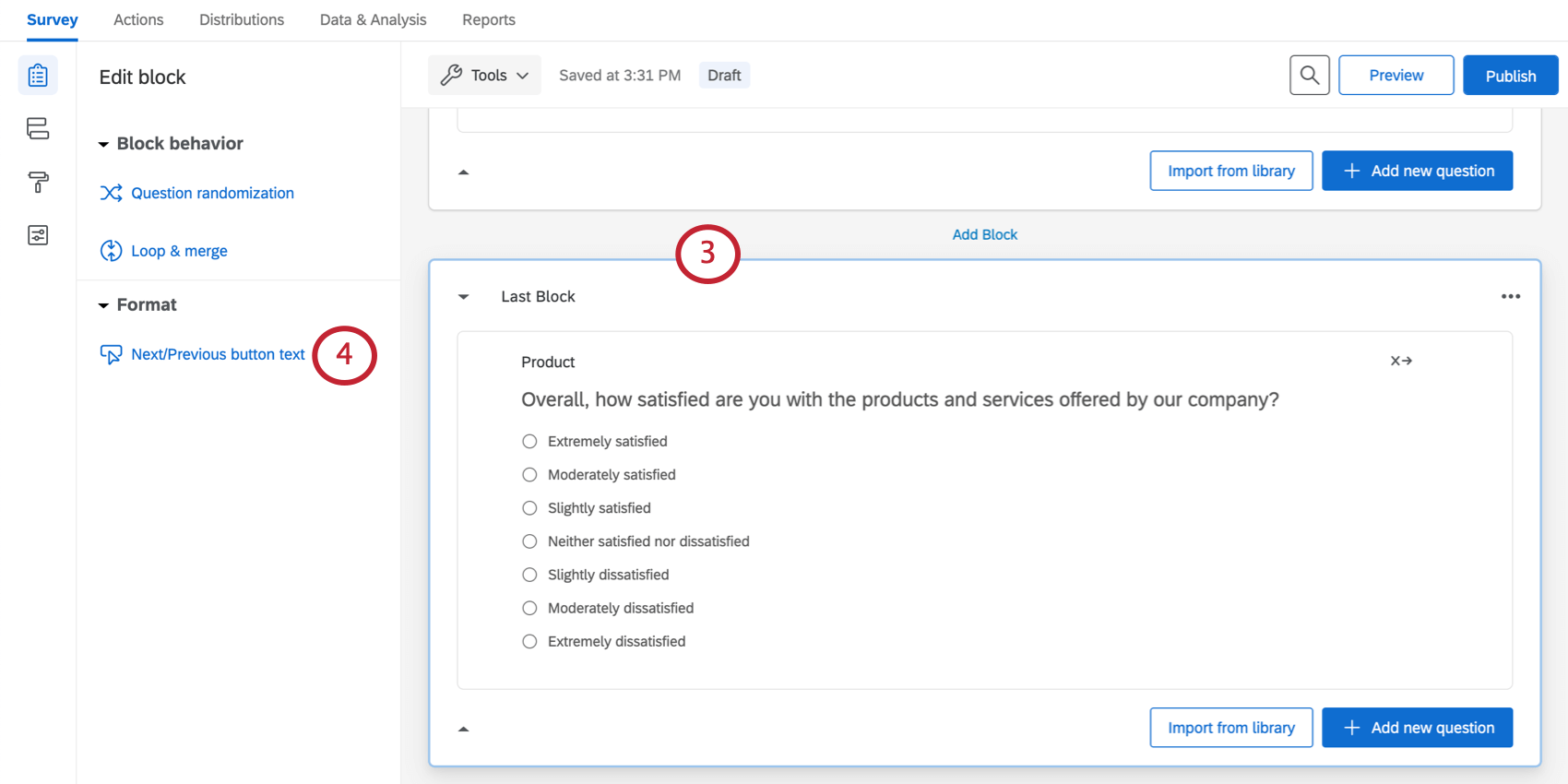
- Click Next / Previous button text.
- In the Next Button Text field, type Submit
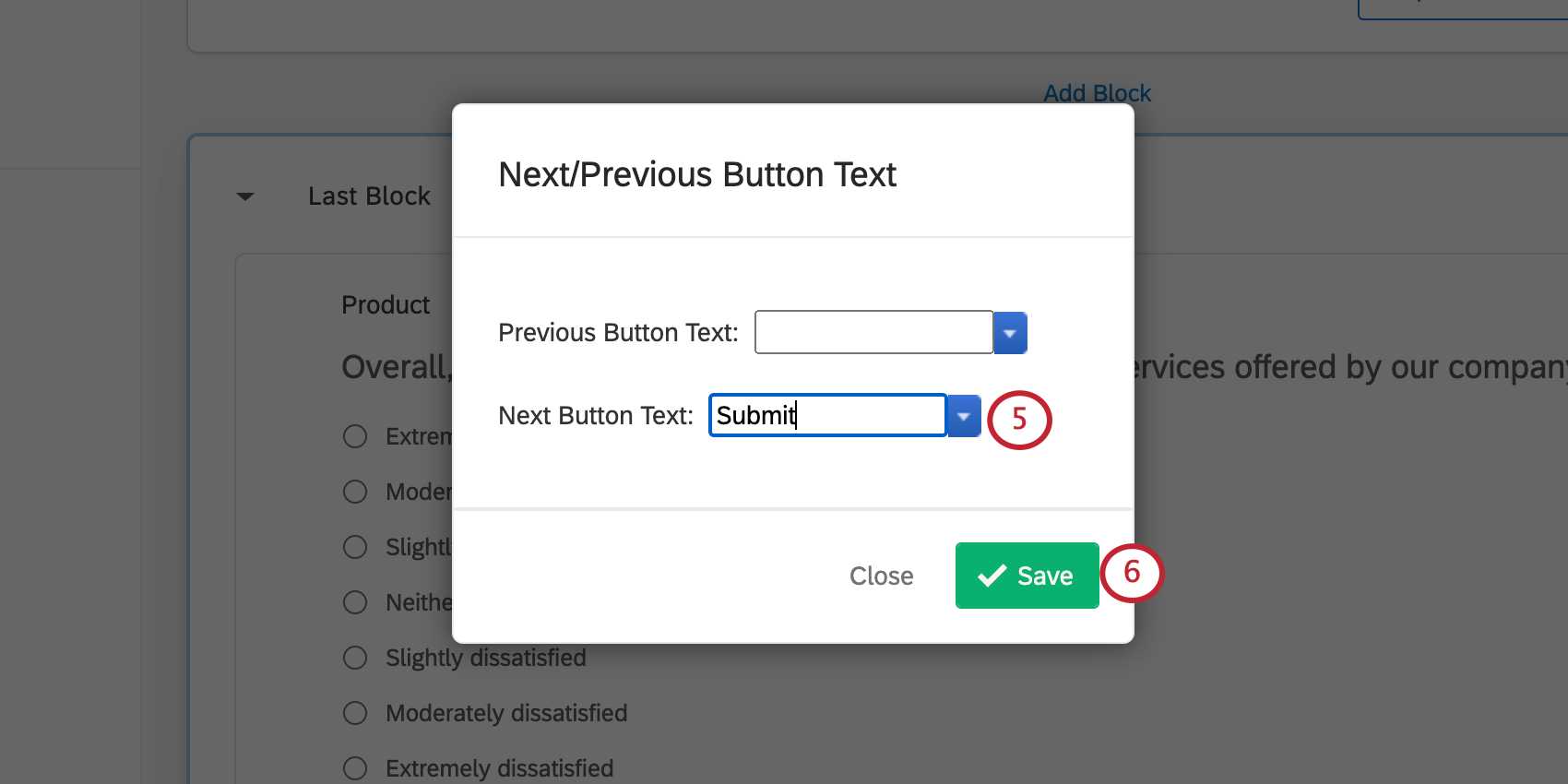
- Click Save
Making a Back Button
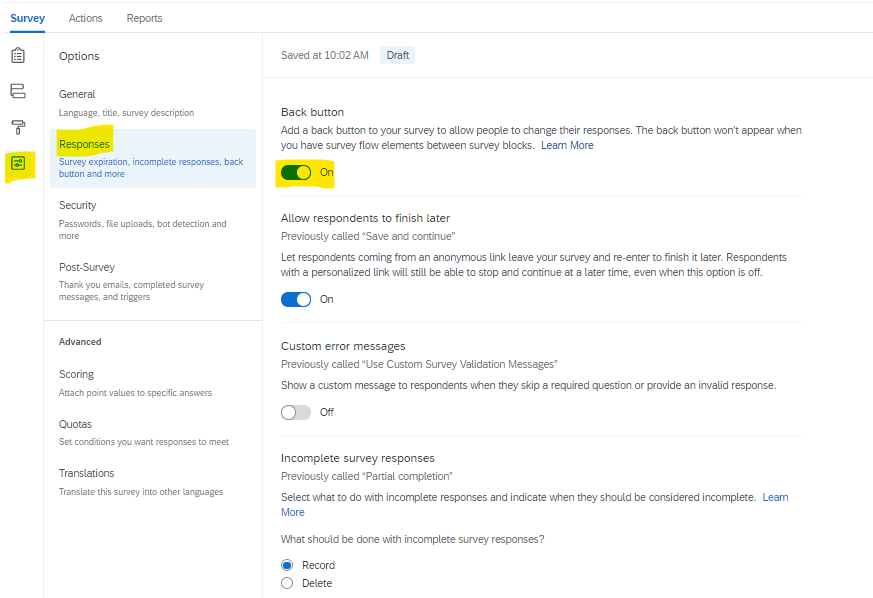
With a back button, respondents can return to pages they have already visited in your survey and update their responses.
1. Navigate to the "Survey Options" tab on the left hand panel and select "Responses"
2. Turn the "Back Button" option "on" or "off"
Saving Questions, Blocks and Surveys
Your Survey Library stores templates of surveys, blocks, and questions for later copying, editing, or referencing in other projects. Saving content to your survey library is a great way to help minimize repetition in your work. To copy content to your Survey Library follow the steps below.
- Click the navigation menu in the top left corner.
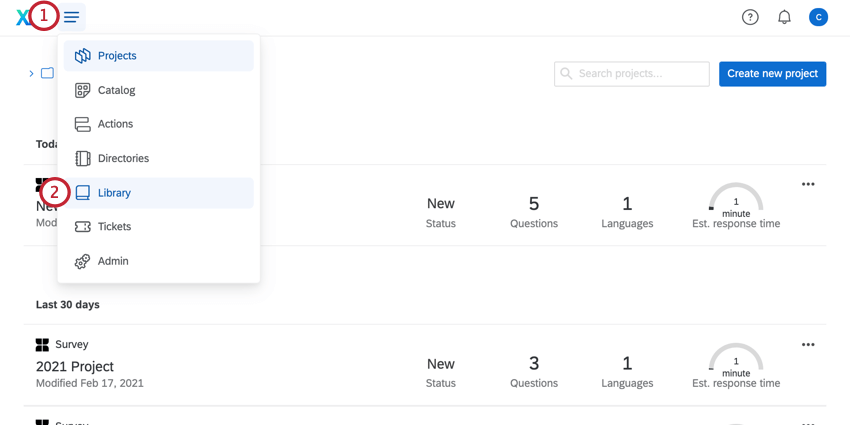
- Select Library.
- Select the Survey Library.
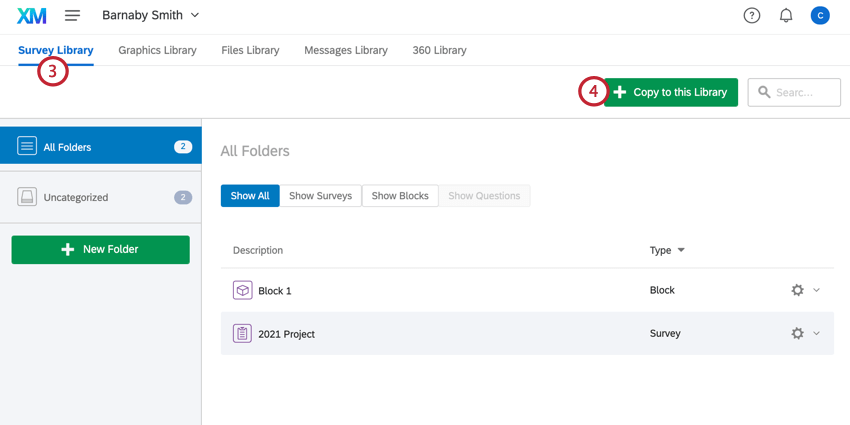
- Click Copy to this Library.
- Choose the type of element to copy (survey, block, or question).
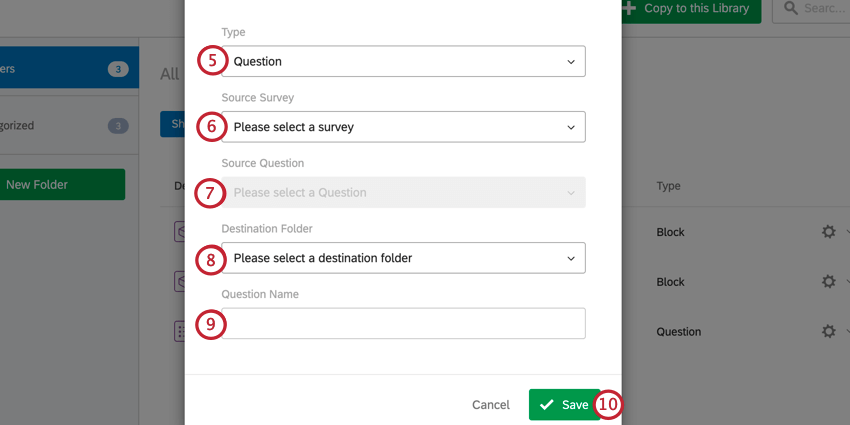
- Select the survey you want to copy, or the survey that contains the question or block you want to copy.
- If you chose to copy a question or block, choose the question or block to copy.
- Select the destination folder in your survey library where the copy will be saved
(if no folder is selected, it will automatically be added to the default “Uncategorized” folder). - Name the copy.
- Click Save.
To learn more read this article.
Allow Respondents to Finish Later
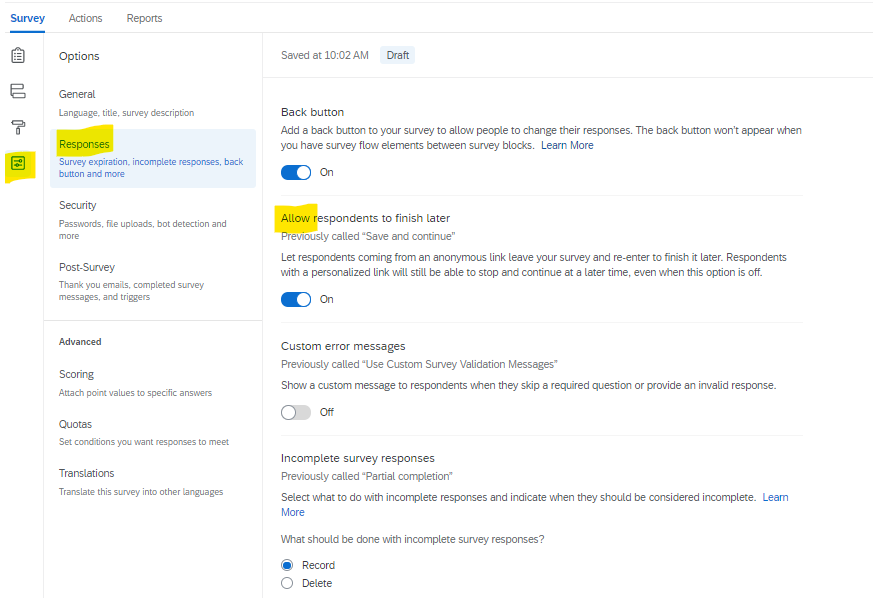
This setting allows respondents to leave the survey and resume their progress later, so long as they return on the same browser where they started the survey.
1. Navigate to the "Survey Options" tab on the left hand panel and select "Responses"
2. Turn the "Allow respondents to finish later" option "on" or "off"
Changing the End of Survey Message
By default, each respondent sees the following message upon successful survey completion: “We thank you for your time spent taking this survey. Your response has been recorded.” However, you can create a custom message to tailor the survey completion experience to your respondents.
1. Scroll to the bottom of the survey builder and click End of Survey.
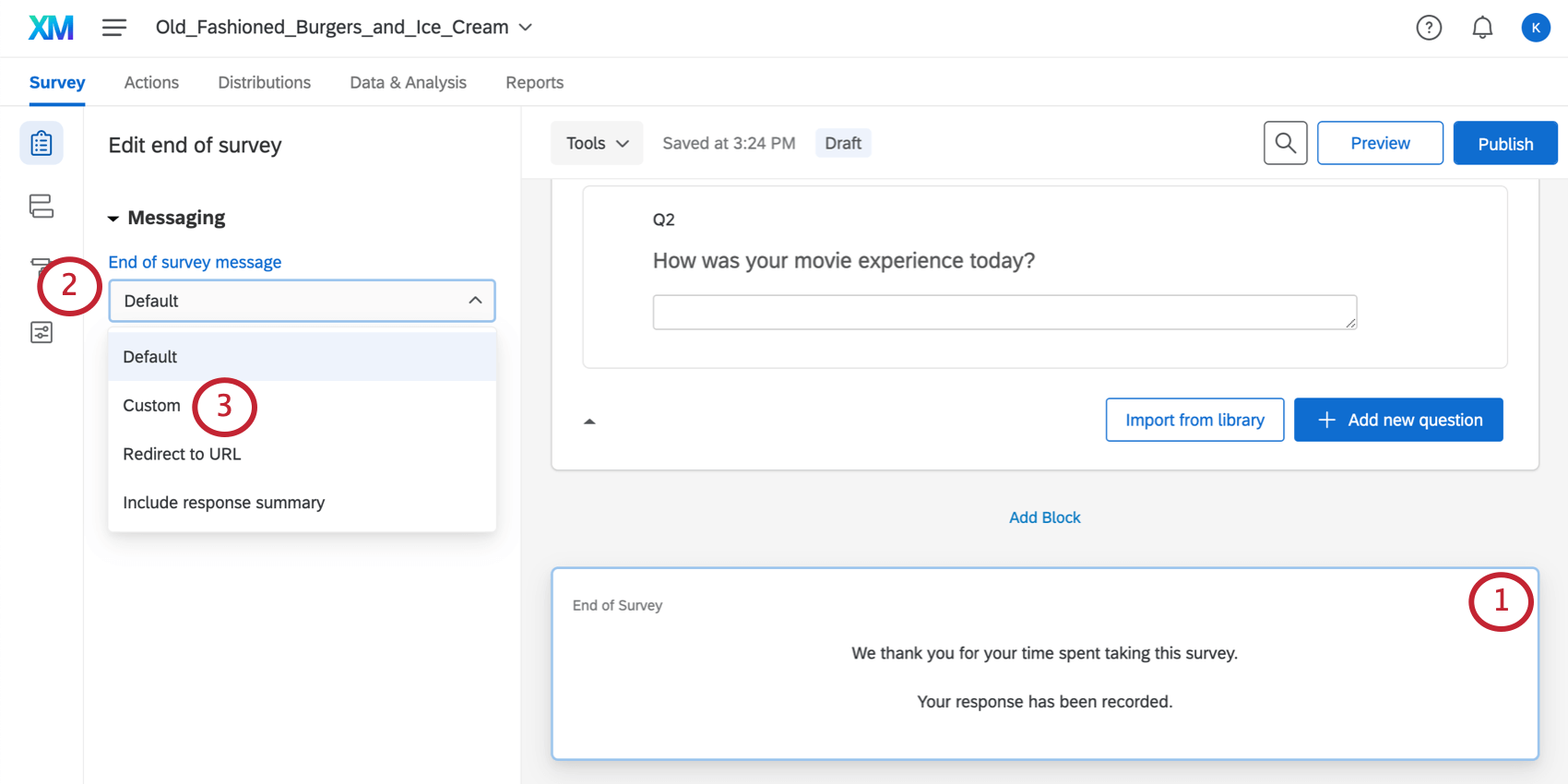
2. On the left under Messaging, click the dropdown.
3. Select Custom.
4. Click Load a Saved Message.
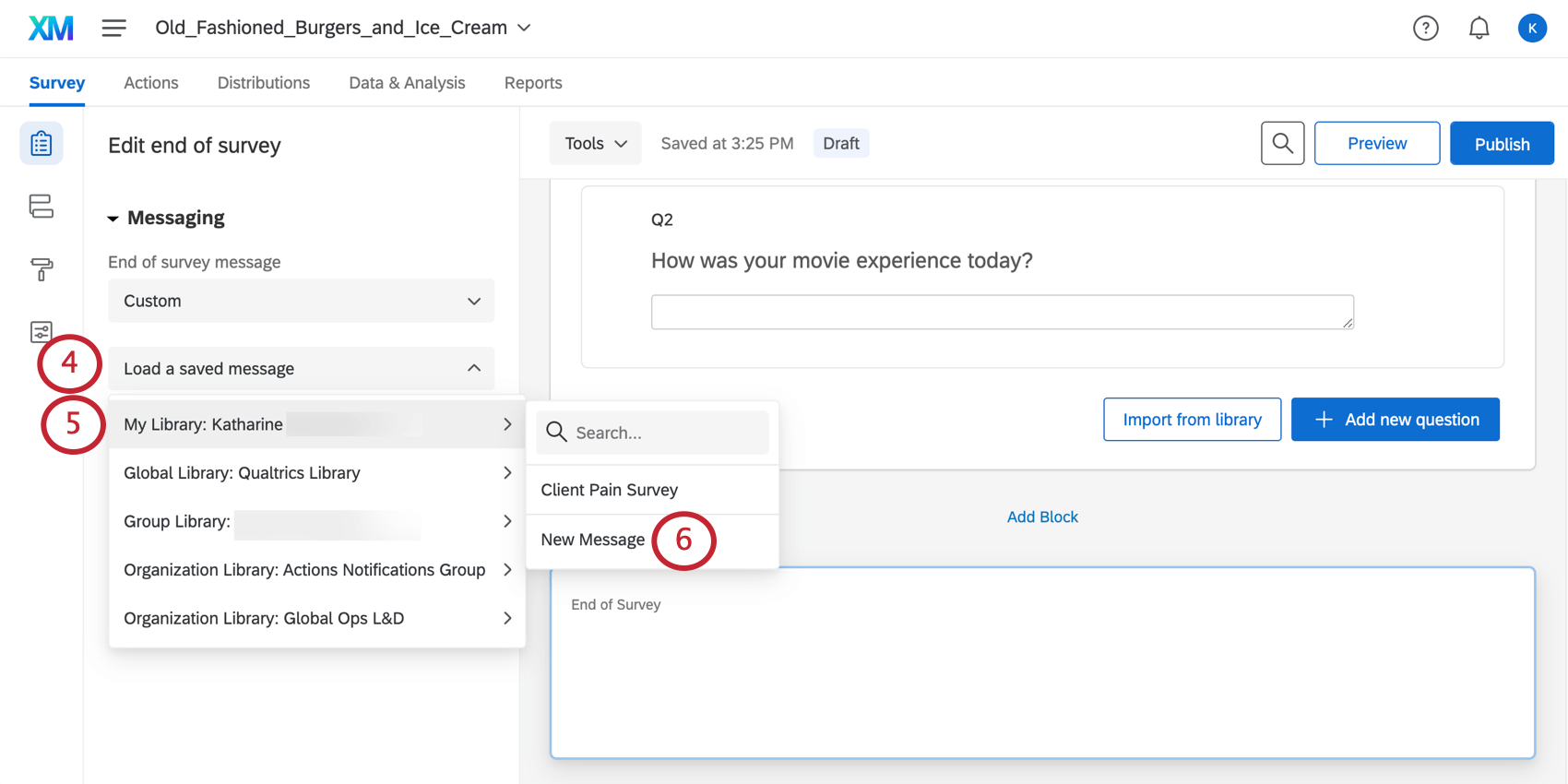
5. Hover over the library you would like the messages to be saved in.
6. Click New Message. (Qtip: Alternatively, if you have messages that you have saved previously, select an existing message for use.)
7. Enter a description for your message.
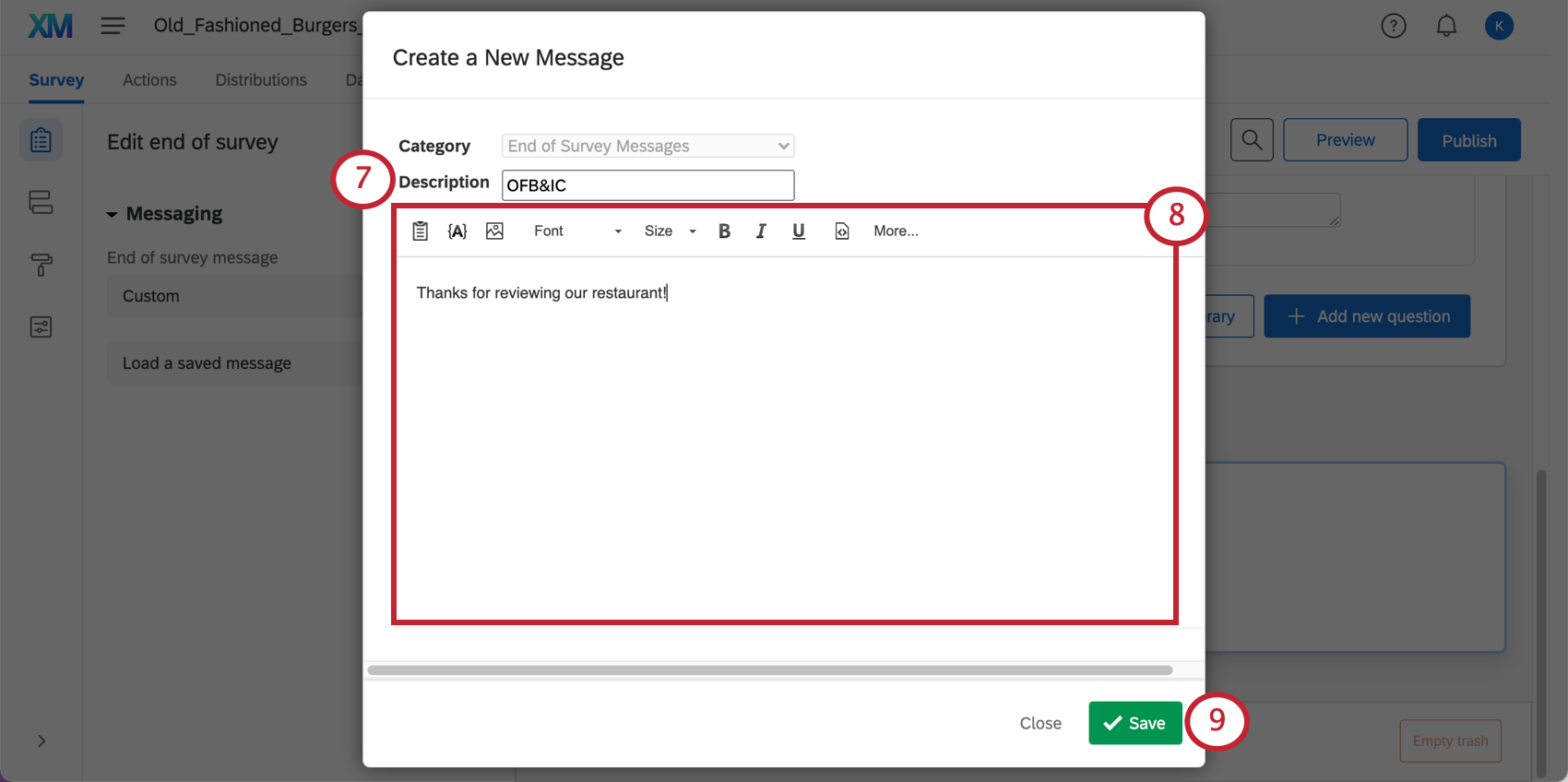
8. Type your message as you would like it to appear to your respondents.
9. Click Save.
Qtip: End of survey messages can also be created and edited in the messages library.
Retake Survey Link
Retake survey links allow you or your respondent to go back into a survey response and edit it after it has been submitted. This is useful if a respondent wants to change their answer to a question, or if the respondent’s incomplete response was closed because of inactivity, but they would like to finish the survey. Learn how to send a retake link here.
Close Your Survey
Pausing response collection turns your survey “off” so that it no longer accepts new responses. No one will be able to start your survey while it is paused. The anonymous link will be disabled, and any other survey links you’ve distributed will also be disabled (so anyone who hasn’t started their survey yet will be unable to do so).
For responses in progress (i.e., participants who have started their surveys but not yet finished), you can choose to close their survey sessions or let those participants finish. You can pause response collection from either the Projects page or the Distributions tab. It does not matter which method you choose to pause response collection.
TO PAUSE RESPONSE COLLECTION FROM THE PROJECTS PAGE
- Navigate to the Projects page by clicking the XM logo in the top left corner.
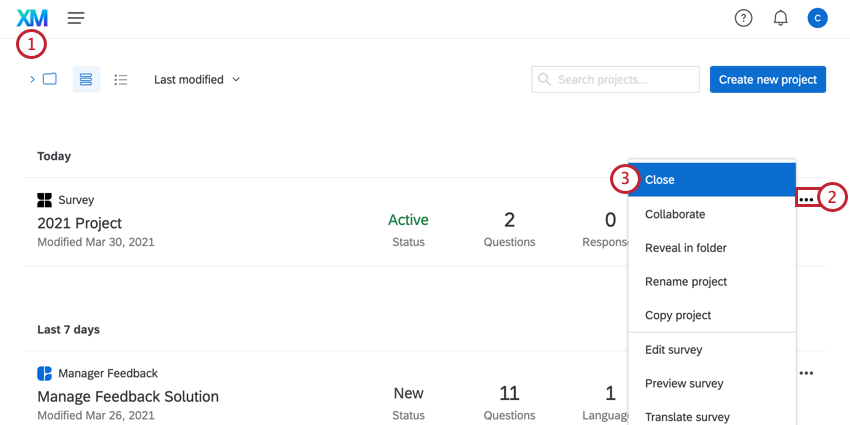
- Click the three dots next to the project you want to close.
- Select Close.
- Choose what happens to responses in progress when response collection is paused:
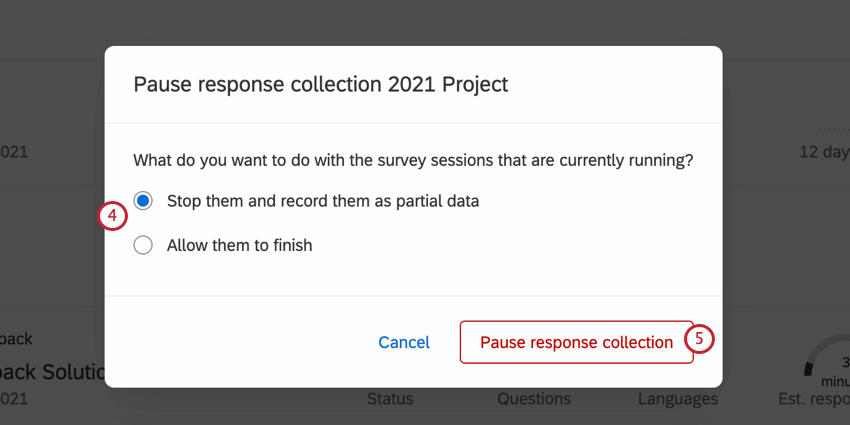 Stop them and record them as partial data: This option will close and record any responses in progress. Note that if your incomplete survey response settings are set to delete incomplete responses, then your responses will be deleted! Allow them to finish: This option allows responses in progress to be finished by the respondent. Respondents won’t be able to start new survey responses; they will only be able to finish existing ones. Note that even if you choose to allow active survey sessions to be finished, respondents need to complete their response before the time frame specified in the survey options.
 - Click Pause response collection.
Learn more about Collecting Responses in this article.
Comments
0 comments
Please sign in to leave a comment.