
Overview
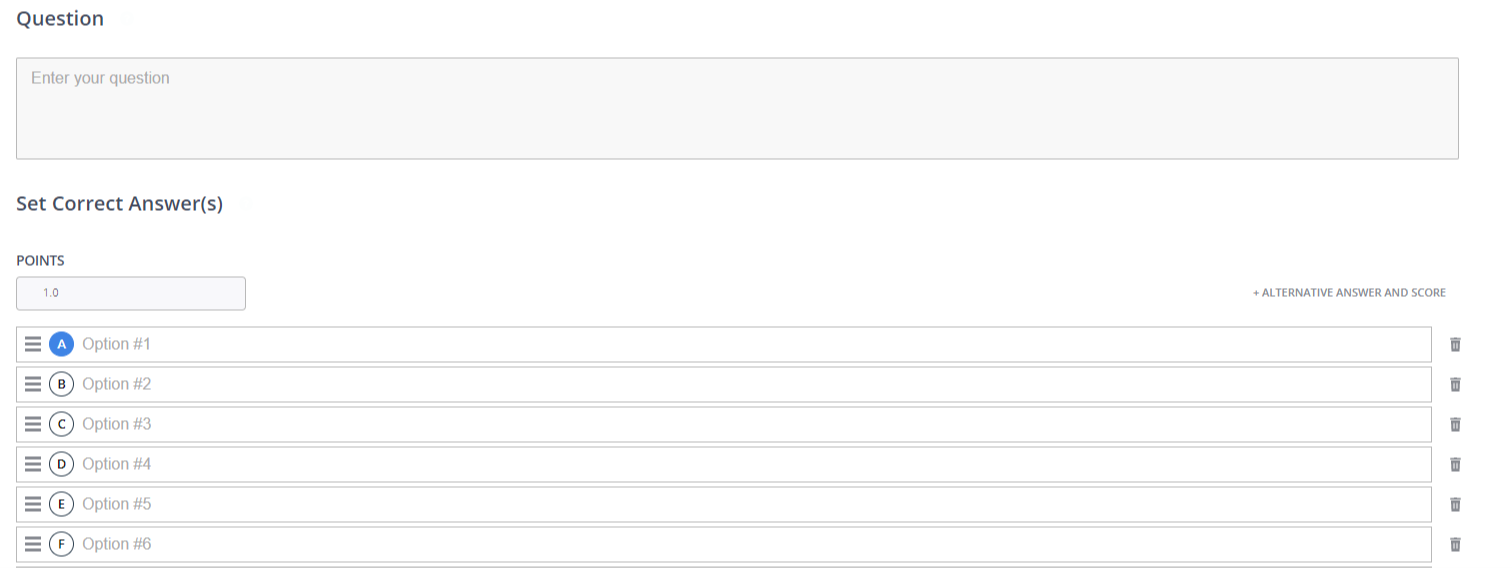
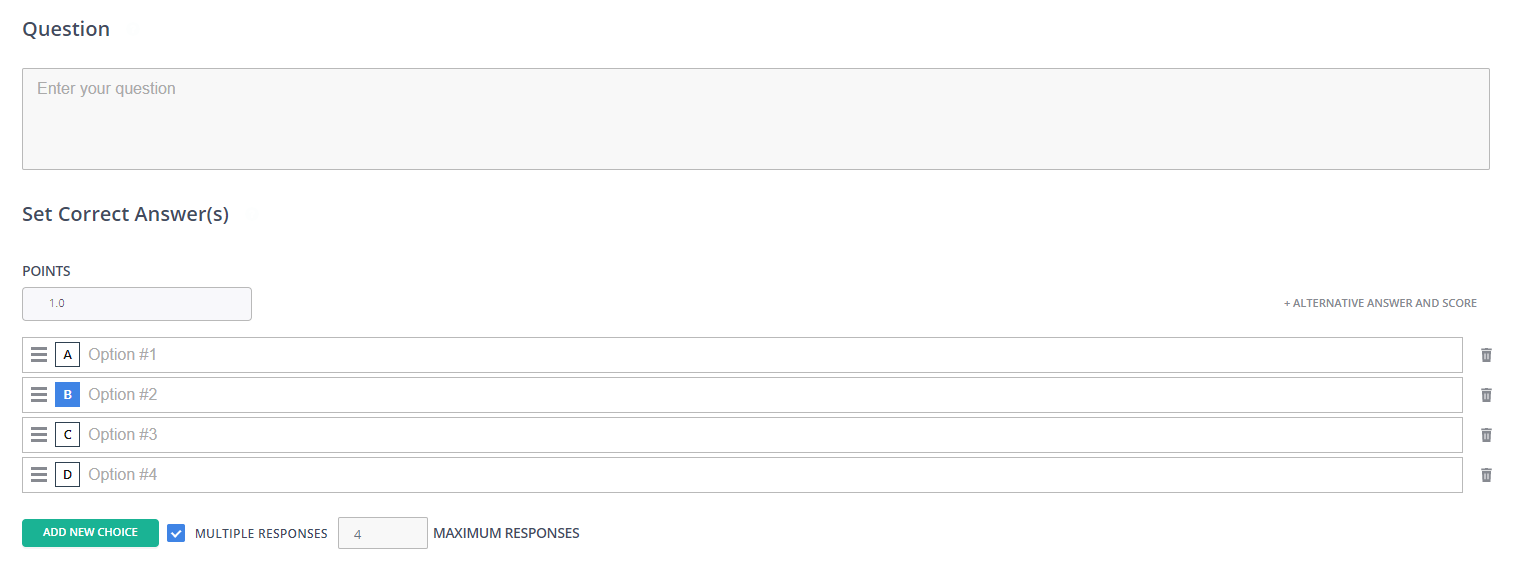
Edulastic has a variety of multiple-choice question types and designs to best suit your assessment and your students. Follow these steps and supports below to create multiple choice questions:
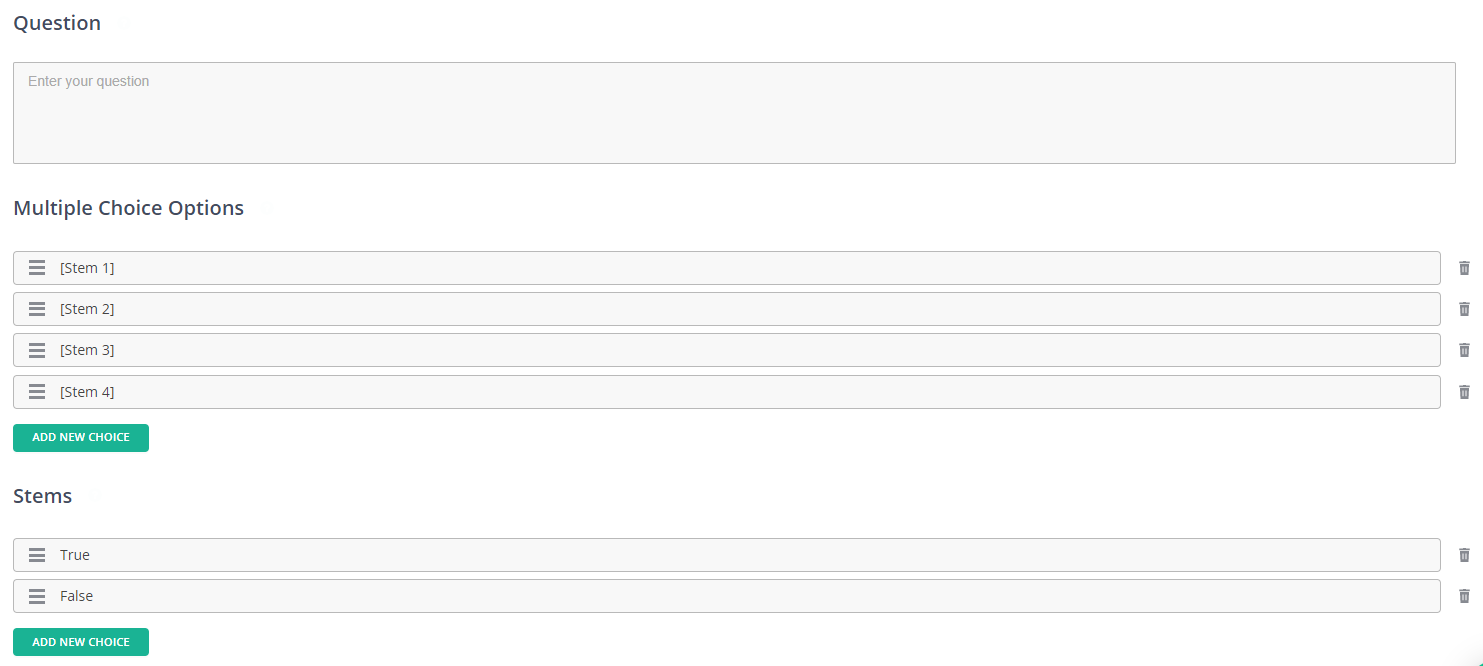
- Create your question in the "Question" box. When you click in a text field, you’ll see a Text Editor toolbar pop up. This allows you to format (bold, underline, bullets, etc.), as well as enter math symbols (square root icon), embed video, or insert an image into any question that you create.
- Create your answer options. For more of the types of multiple-choice questions, you can add as many options as needed for your answer selection.
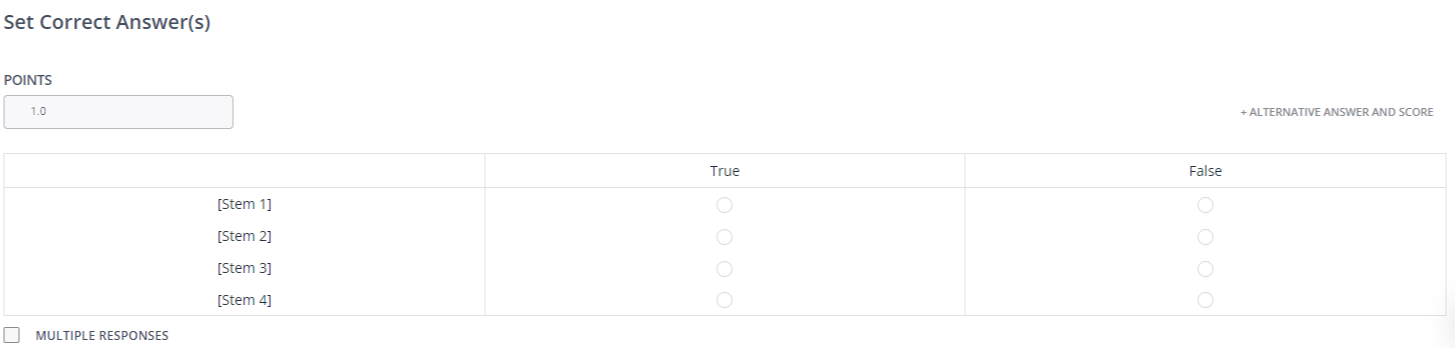
- Choose your correct answers. For multiple-choice you simply need to choose the answer. For matching questions, you will create the matches.
- Choose your point values. This is the number of points the question is worth.
- When you're finished you can "Preview" the question which will give you a look at the student interface view. Lastly, you can go to the "MetaData" tab to align the question to a particular standard or DOK Level. When you are finished creating your question click "Save" in the top right-hand corner.
You can also find "How To" videos in Edulastic for each question type as you create them. Just look for the small video icon on the left-hand side of your screen.
You can see screenshots of each of the types of questions by clicking the links below.
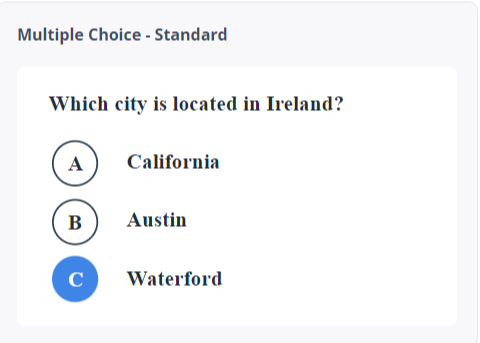
- Multiple Choice Standard
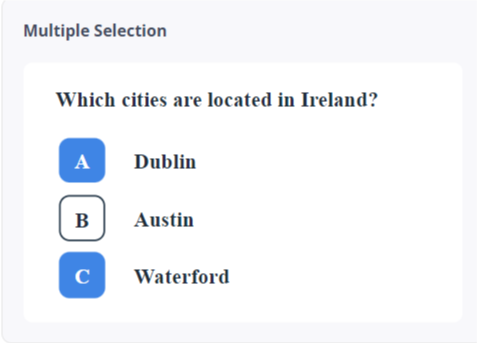
- Multiple Selection
- True or False
- Multiple Choice Block Layout
- Match Table Standard
- Match Table Inline
- Match Table Labels
Multiple Choice Standard

Multiple Selection
True or False
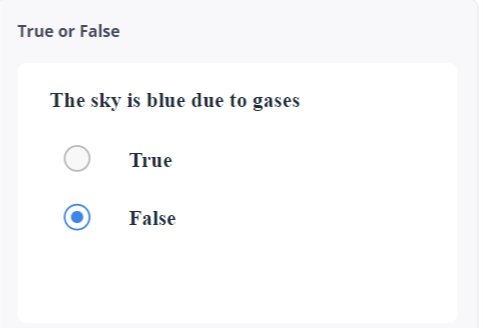
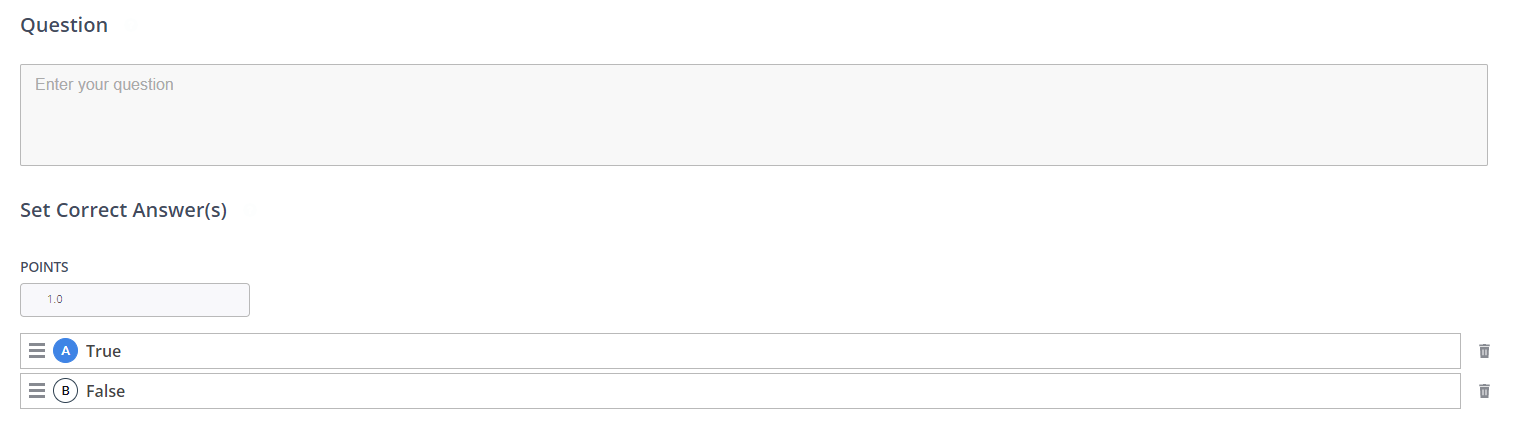
Multiple Choice Block Layout
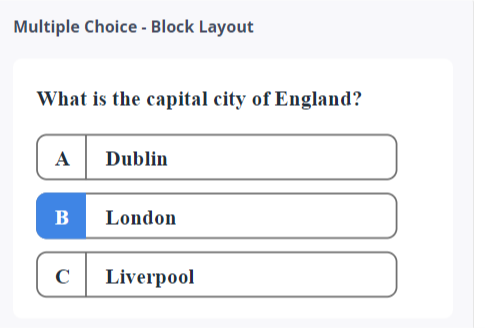
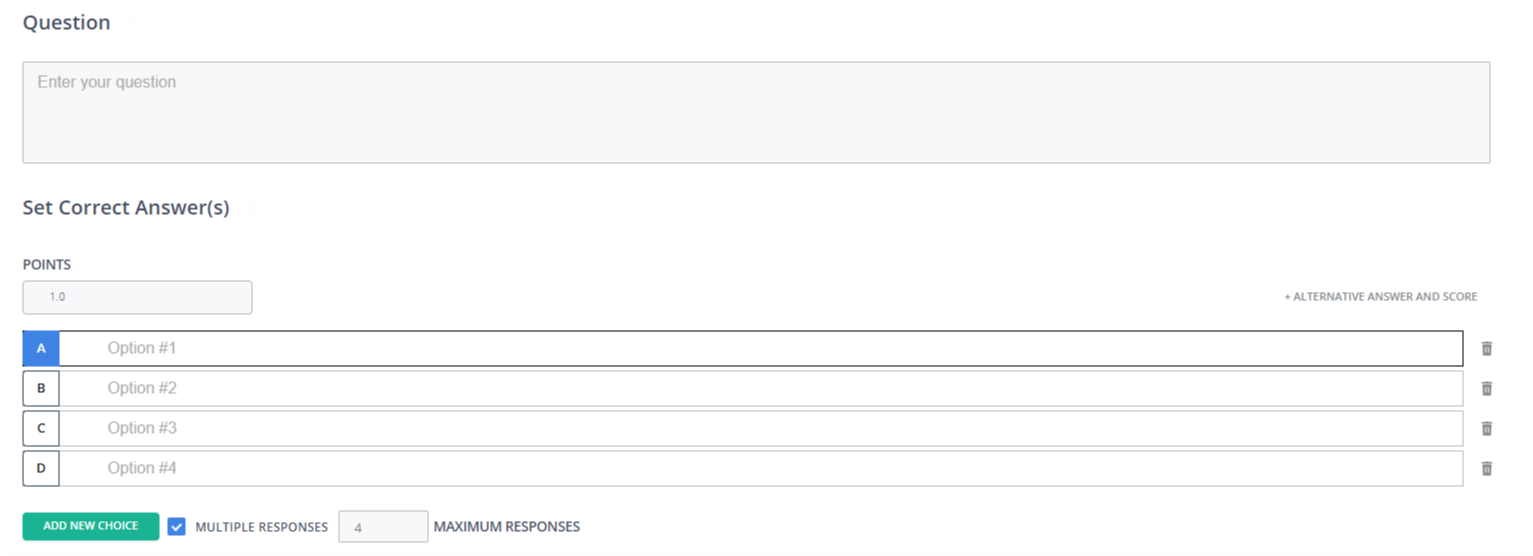
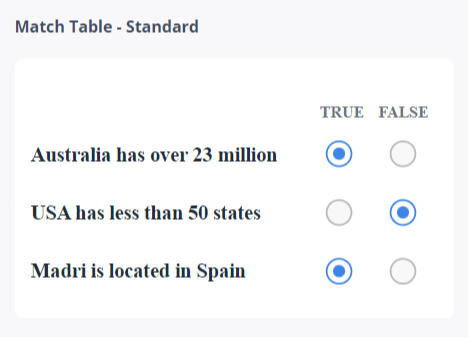
Match Table Standard
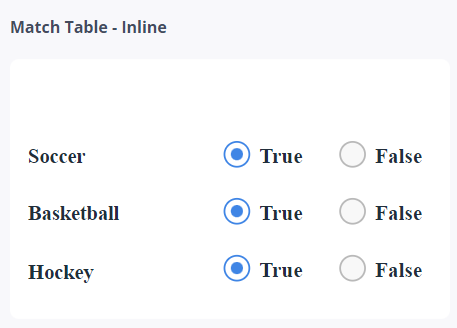
Match Table Inline
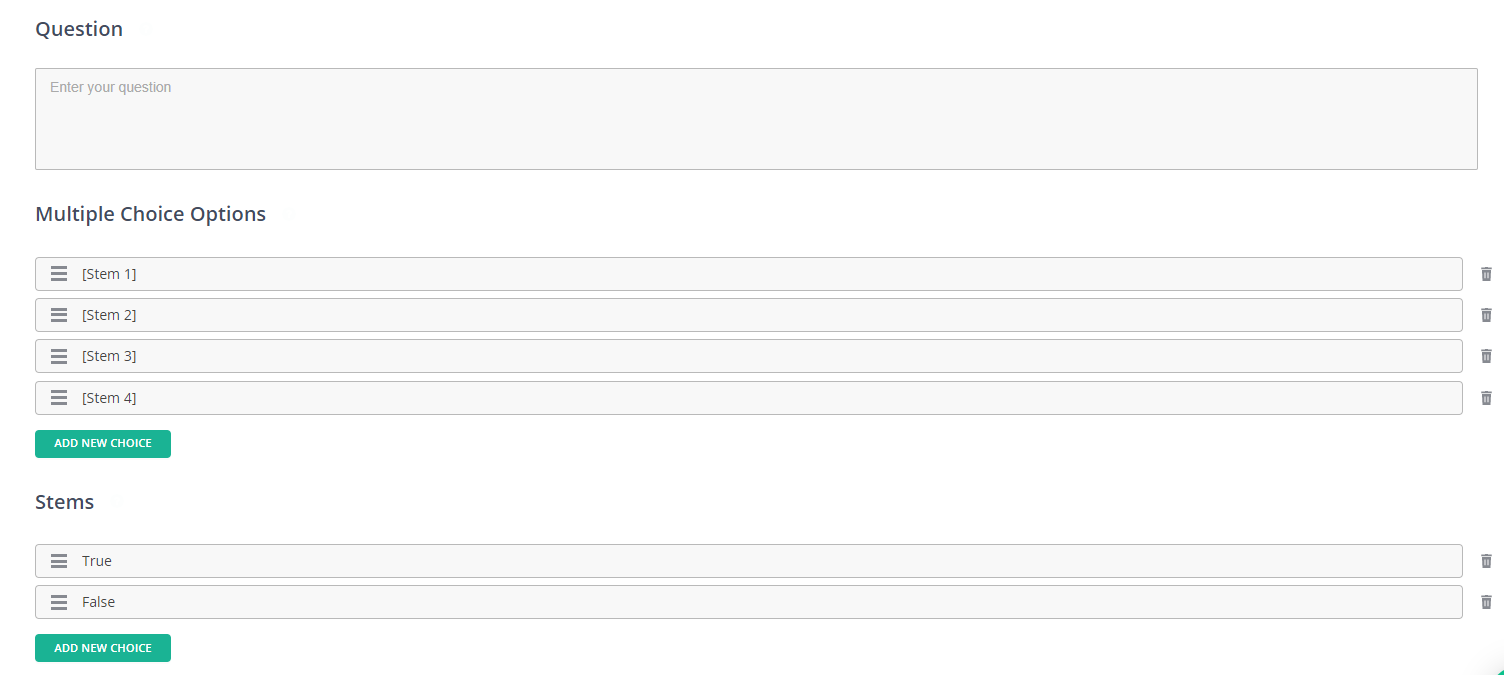
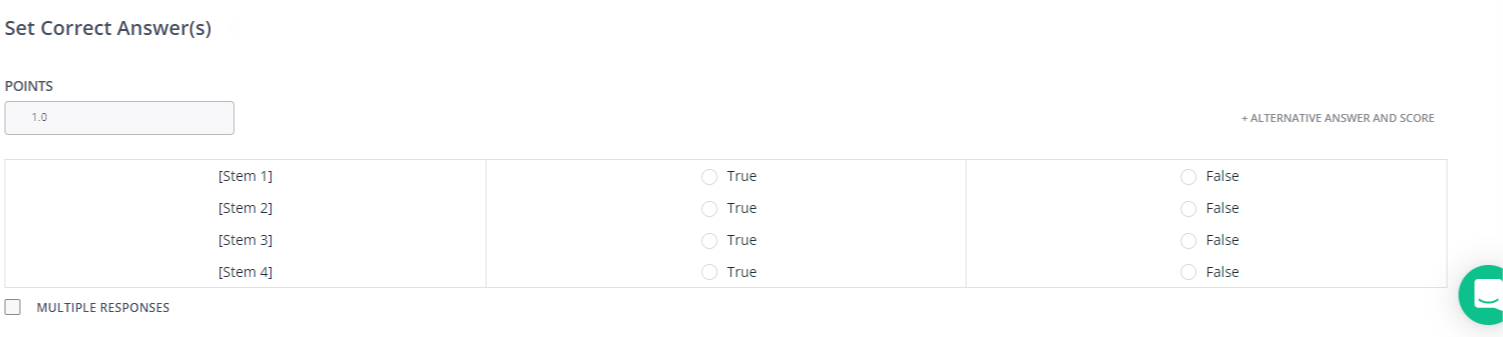
Match Table Labels
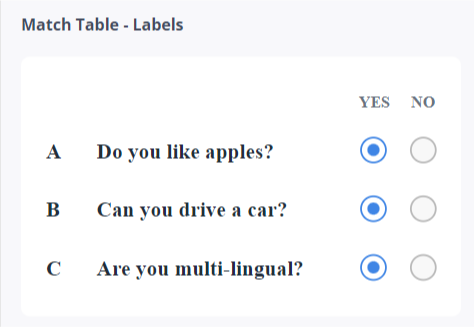
Comments
0 comments
Please sign in to leave a comment.