
Overview
Schoology is a Learning Management System used by DPS. Special Service Providers will use Schoology to access a variety of online and asynchronous training. These trainings are required in order to gain access to various systems and specific credentials. Follow the steps and supports below to learn how to log in to Schoology and access the courses you're registered for in the Learning Center.
IMPORTANT NOTE: It can take up to two hours for the course that you registered for to appear in your Schoology account. If you log in and do not see the registered course you will need to wait and try again later.
Step One
Open your browser and go to https://schoology.dpsk12.org.
Step Two
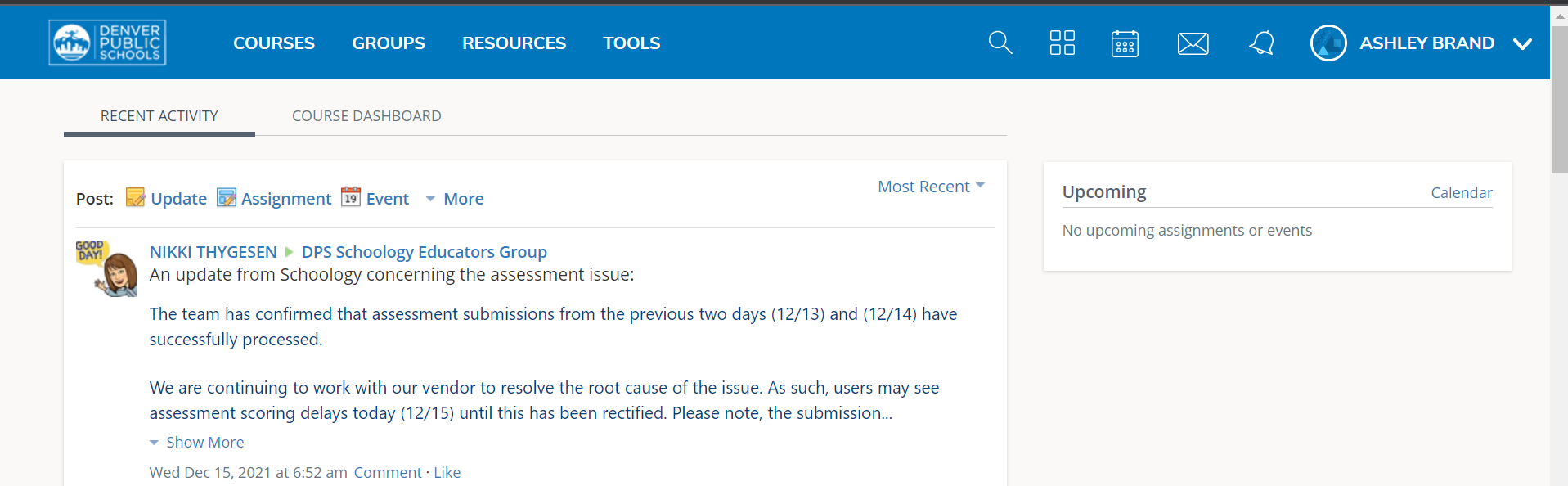
You should be able to login using your DPS Gmail address (remember this is different from your DSST email). DPS Gmail conventions typically follow firstname_lastname@dspk12.net. You should then be redirected to the Schoology home page.
There may be times when the blue DPS Window (see image below) will appear asking you to log in first. This usually happens when you have not logged into DPS' systems for some time or your Duo Verification has timed out.

In this case, you will need to enter your DPS username firstname_lastname and your password. You will then be redirected to the Schoology homepage.
Step Three
Remember that courses can take up to two hours to appear once you registered in the Learning Space. If you have not registered for your course you can find support in this Help Center Article.
At the top left of your screen, you will see the "Courses" option. Click "Courses" to expand the menu. If you see your course listed you can select to enter the course or you can go to "My Courses" for a full list of your courses.

Once you select the course you will be redirected to the course home page. Here you find all the necessary information, directions, and assessments needed to complete the course.
When you are finished you will receive a certification and your Learning Space will show your score as well.
Comments
0 comments
Please sign in to leave a comment.