
Purpose: All Paraprofessionals, Office Assistants, and Center Program Support Specialists must track their time worked for overtime time purposes only. This is not meant to have you track your exact hours worked.
Step 1 – From your Workday homepage, click on the “Time” Worklet.
Note: All eligible employees should have this worklet assigned to their homepage. If you do not, email humanresources@scienceandtech.org for support. You can also access time entry directly by typing “Enter My Time” in the top search bar.
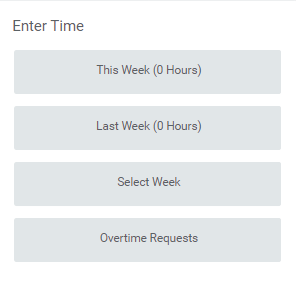
Step 2 – Click on “This Week” to enter your hours for the current week
Step 3 – Find the “Actions” dropdown towards the top right of the calendar. Click on it, then select either "Auto-fill from Prior Week" or “Auto-fill From Schedule”

Step 4 – This can serve as a template to fill your week in. If you select auto-fill from schedule the time will auto-populate for 8 hours every day of the week. If there is a holiday during the week, it won’t let you enter in time for that day, so you’ll need to uncheck any holidays for that week if applicable. Hit “OK”.
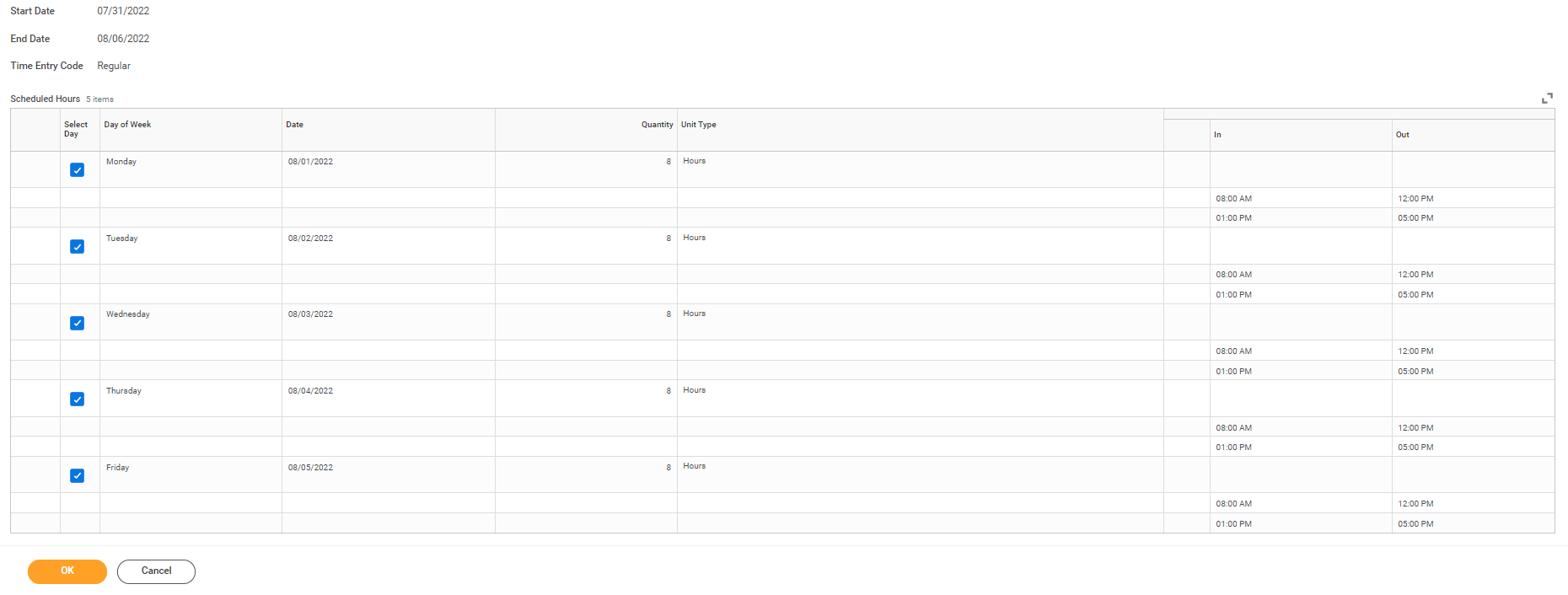
Step 5 – Remember, the reason we’re tracking hours is to pay your overtime if necessary. While the schedule defaults to 8am to 12pm and then 1pm to 5pm, you do not have to change this to say you actually came in at 7:30 and left at 4:30. The purpose is solely to capture if you’re due overtime hours in a given week.
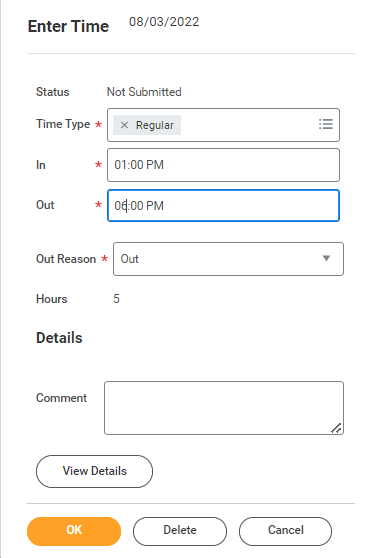
If you worked more than the scheduled 8 hours in a day, you can come back in and edit your hours to reflect that. In this example, we’re assuming you worked an extra hour on Wednesday. Click on the 1 – 5pm time block on Wednesday to edit it.
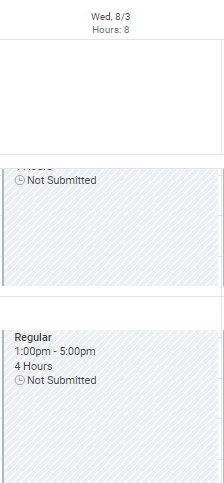
Change the time you clocked out from 5pm to 6pm to account for your extra hour and hit “OK”
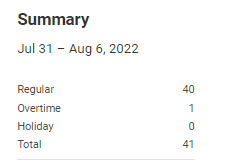
Step 6 – After the week is complete, you can submit your hours to your manager for approval. Notice your total hours summary on the right showing your one overtime hour worked. Hit Review.
Step 7 – Verify all data before clicking Submit.
Step 8 – A window pops up in the middle of the screen confirming you submitted hours and it is now pending approval by your manager. All hours must be approved by your manager before any overtime hours can flow to payroll. The payroll team does check reports that show any time sheets submitted but not approved and will follow up with the appropriate managers, so there is no action required on your end after this.
FAQs
- At what rate is my overtime hours paid?
- Your hourly rate is calculated by Workday and is simply your annual compensation divided by 52 weeks, then divided by 40 hours, or annual compensation divided by 2080. Overtime is paid 1.5 times your hourly rate. For example, a Paraprofessional making $32,000 annually would be paid overtime at a rate of $23.08 per hour.
- Why do I have to track my hours, but other staff don’t?
- All Paraprofessionals, Center Program Support Specialists, and Office Assistants are classified as Salaried, Non-Exempt employees. This means you are always guaranteed your base compensation, no matter what hours you work during the week, but you are also entitled to overtime pay for any hours over 40 in a week or over 12 hours in one day. To pay this properly, we need to have you track your hours so we can pay you appropriately. Other staff do not get compensated an automatic overtime rate for working over 40 hours in a week.
- Why haven’t I seen my overtime pay yet?
- In order for overtime to flow to payroll, your hours must be approved. All overtime will automatically be paid on the next payroll that completes after your hours are approved. The payroll team runs reports to show any timesheets that been submitted but not approved for more than one week and will follow up with the approvers if necessary. If at anytime you have any questions on your overtime pay, please email payroll@scienceandtech.org.
Comments
0 comments
Please sign in to leave a comment.