
Overview
A new insight tool in Edulastic allows you to view your new students’ academic history, giving you a quick understanding of what they’ve mastered and what they might have struggled with in the previous year. This insight can help you determine which students might need challenging work and which could use extra support, so you can plan accordingly.
Follow the steps and supports below to learn how to use the new "Historical Reporting" feature for Standards Mastery Reports in Edulastic.
To learn more about how to use reports like this and others click here.
Step One
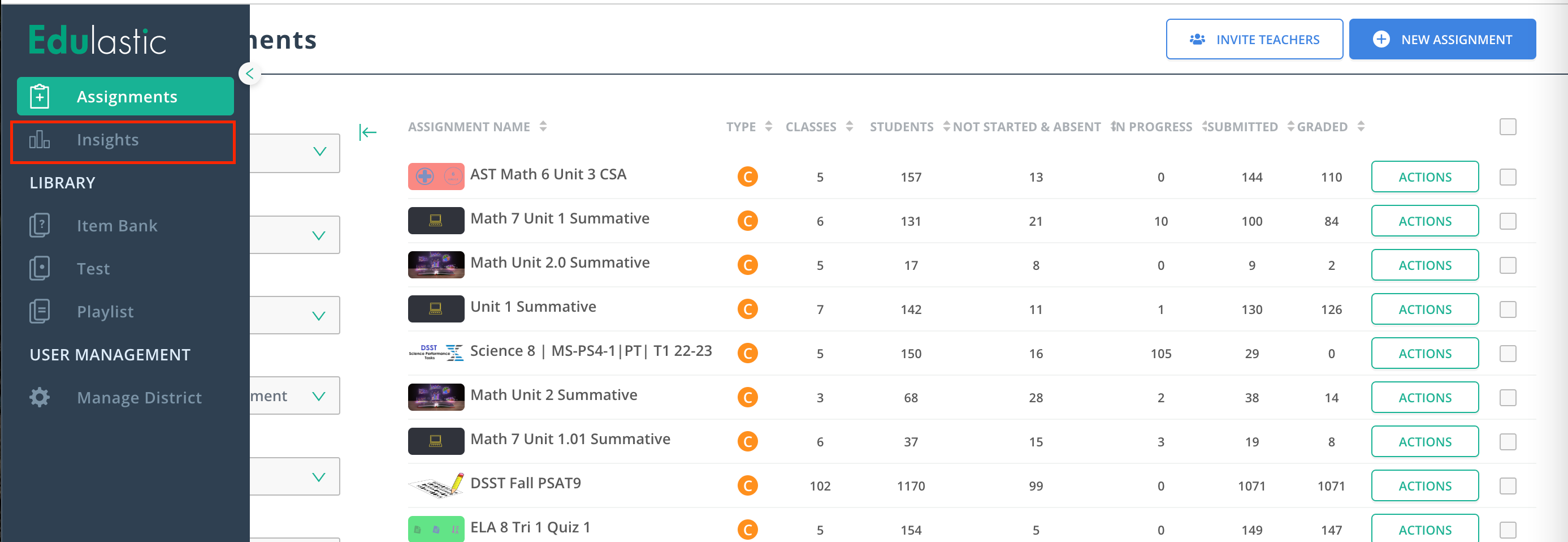
Log into Edulastic and select "Insights" from the left-hand menu
Step Two
Scroll down to the "Standards Mastery Reports" section. There are three reports you can choose from.

The links below will provide more information about the specific reports and how you can use them to support your students.
- Student Performance Survey: View an aggregate of overall mastery on all domains assessed in a subject, filtered by individual, class, or group.
- Student Gradebook: View a summary of proficiency on all standards assessed on one or more tests. Can be filtered by individual, class, or group.
- Standards Progress: View a summary of proficiency levels on a specific standard across one or more assessments. Can be filtered by individual, class, or group.
Any of these reports can provide historical standard data. Choose the report that best fits your needs. In this walkthrough, we will be using the "Standards Progress" report.
Step Three
You will now see the filter window for your selected report. In order to access historical information, the two filters you need to specifically use are the "School Year" and "Grade".
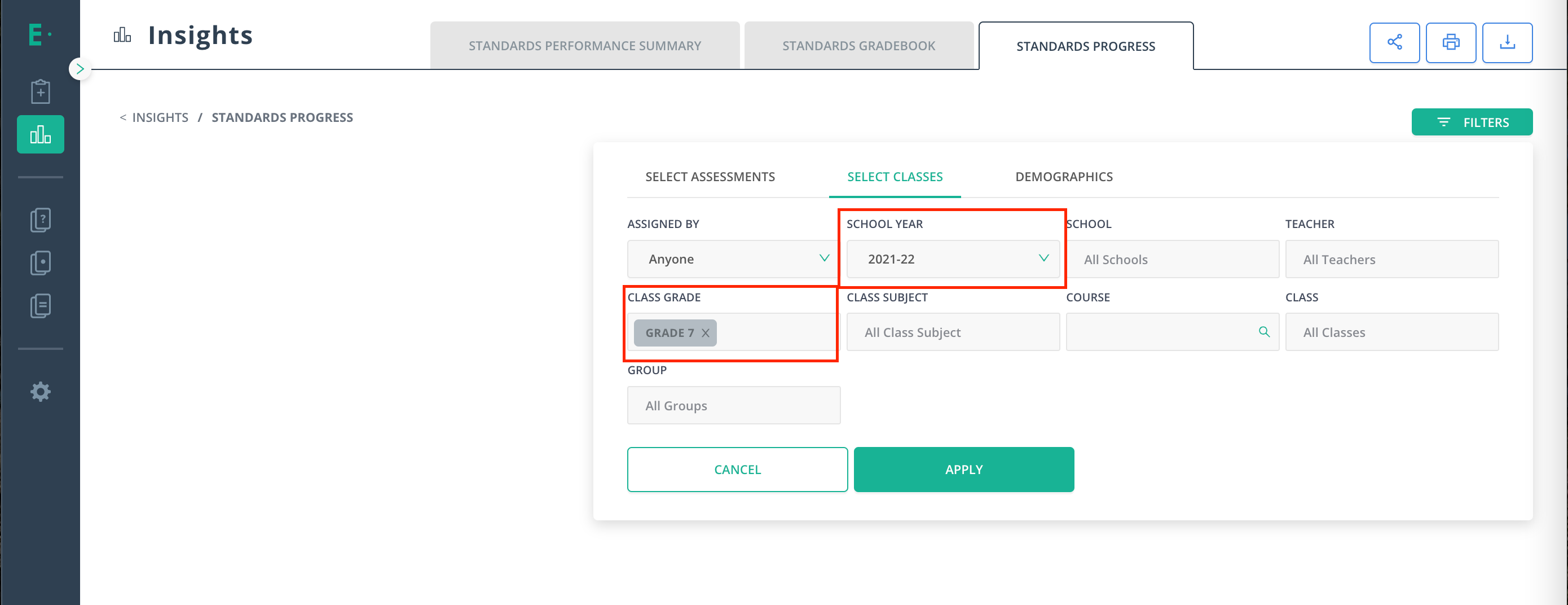
You will need to select the prior school year and the grade that the students would have been in during that year. You can then use the other filters to focus on specific assessments, courses, or class subjects. When you have selected your filters click, "Apply".
Step Four
Once your report has been compiled you can navigate through additional features such as specific standards, classes, etc. Each report will provide an overview at the top and when you scroll down you can compare by groups, classes, or individuals. This provides users with more specific information!
Please Note: It is recommended that users familiarize themselves with these reports and get comfortable with using the filters. This will allow users to utilize reports for their specific needs and to support their student's growth.
Comments
0 comments
Please sign in to leave a comment.