
We recommend that teachers create class meetings using Outlook, and then use meeting links to allow students and school leaders to join their class meetings. The following steps walk through how to create these meetings. See the end of this article for questions about the tradeoffs of this method vs. "Channel Meetings"
Create an Outlook Meeting
In, Outlook, open a meeting. Set the name, the date, and the time of the first meeting.
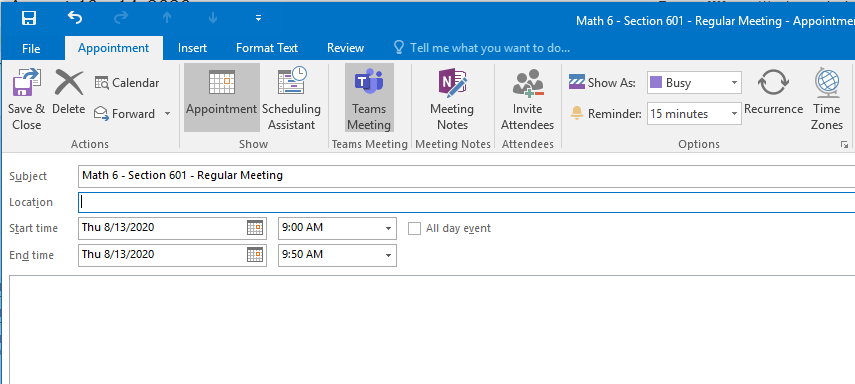
Add a Teams Meeting to the Meeting
Within the Outlook invite that you just created, click "Teams Meeting"
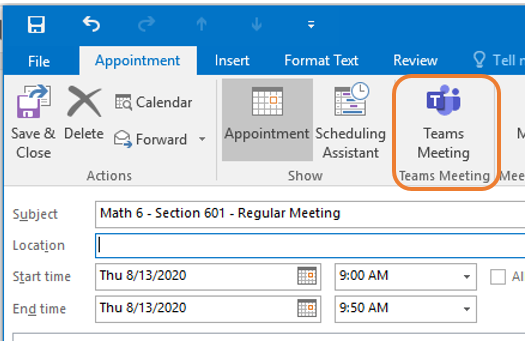
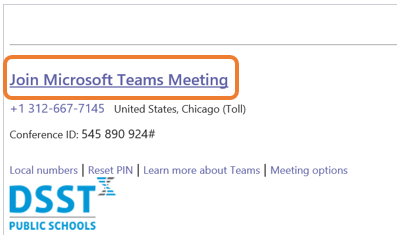
The link that this button creates in the body of your outlook invitation (with the text "Join Microsoft Teams Meeting" can be used by any DSST account (student or staff) to log into your class meeting.
More information can be found in this document: Document from March 2020
Can't I Use Channel Meetings in My Class Teams?
Yes, it is possible to start class meetings through channel meetings. However, while there are advantages to scheduling and starting meetings through channel meetings in Class Teams, channel meetings have several disadvantages.
- Channel meetings prevent non-rostered students, but also prevent admins from joining the meeting. In other words, the link cannot be shared with all school leaders or substitute teachers to "drop in" on the course. Instead, any leader or substitute teacher would need to be added as a member of that team in order to join the meetings. This would result in school leaders having dozens, if not hundreds of "Teams" in the Microsoft Teams list.
- Channel meetings default all users to participants - allowing the students to mute the teacher as well as other students. This can only be changed for all users at one time, thus changing for students as well as any co-teachers.
- Channel meetings pop up only in the channel. It does not push the meeting to students.
Campuses can choose to use channel meetings, if the campus leaders are aware of the trade-offs.
Comments
0 comments
Please sign in to leave a comment.