
Purpose
Each week on Tuesday nights, a process occurs that auto-generates a progress report for every student, and drops those PDF progress reports on the I Drive, sorted by advisor and by week.
While this adds convenience, there are also times when teachers or school leaders need to generate a 1-off progress report for a given student, outside of the cadence of the weekly auto-generation. This could be because data has changed recently, and the teacher wants a fresh report card to send home. It could also be scenarios where the auto-generation experiences issues.
The "Student Weekly Progress Reports Links" tool is created to allow teachers and school leaders to generate a fresh progress report anytime.
Using the Tool
- Go to http://reports.dsstpublicschools.org/Reports/report/Report%20Cards/Student%20Trimester%20Report%20Card%20Links.
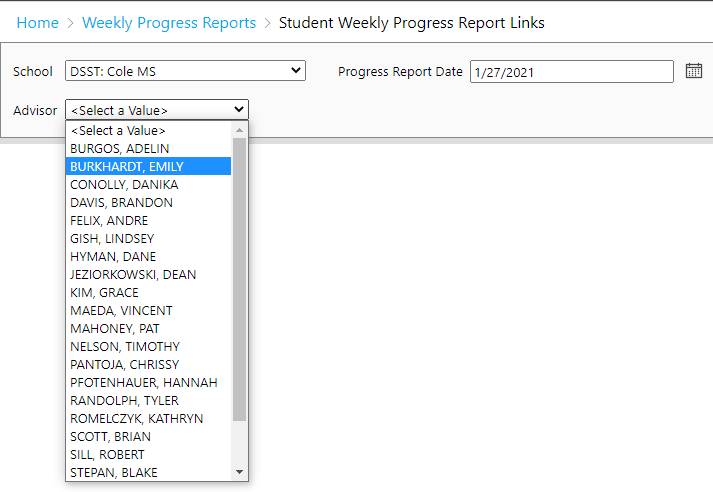
- Enter your school, the effective date that you'd like the progress reports to reflect, and the advisory that you'd like to see report card links for.
- Click "View Report" on the right hand side of the toolbar.
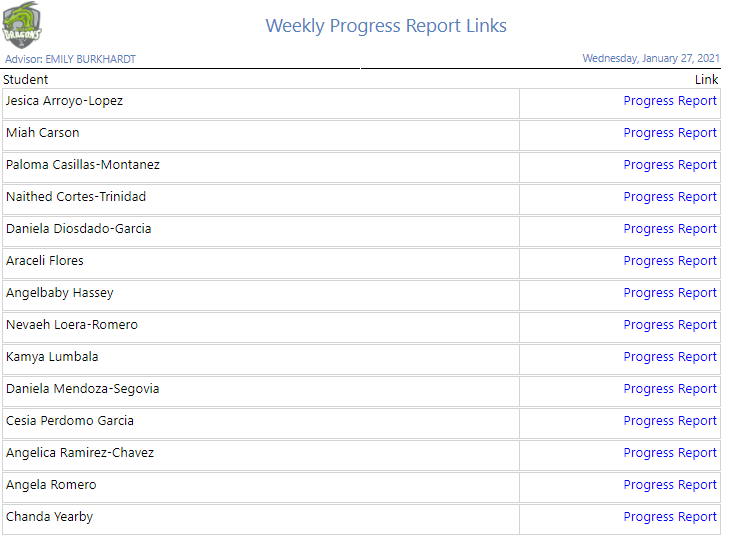
- Once the list generates, it will show links for every student in the advisory. To download a PDF of a given students progress report, just click the "Progress REport" link next to the students name:
- After 15-30 seconds, a PDF progress report for the given student should be downloaded.
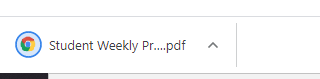
Note: Each progress report may take between 15 and 30 seconds to generate. This lengthy load time is one of the reasons we auto-generate the reports each Tuesday night.
Settings
Each progress report will be generated using your school-wide settings that your school leadership has chosen. These are the same settings that are used when weekly progress reports are auto generated. To change these settings (e.g. show/hide a given section of the report, etc.), please reach out to your school leadership team, who can change your school wide settings by reaching out to helpdesk@scienceandtech.org.
Comments
0 comments
Please sign in to leave a comment.