
Technology for Concurrent Teaching
Overview
In general, the technology tools used for concurrent teaching will be nearly the same as the tools used for remote learning. By using these tools this way, teachers continue to offer a quality virtual experience for remote students. Teachers will need to learn to use some tools in slightly different ways to make teaching and learning equally accessible to remote and in-person students.
Meeting Owl & Microsoft Teams - Video and Audio Solution for Classrooms
Physical Location of the Meeting Owl
Changing Cameras on Microsoft Teams
In-Person Students - Using Microsoft Teams
Remote Students - Using Microsoft Teams
Teacher Use of Mobile Device to Monitor Chat
Meeting Owl & Microsoft Teams - Video and Audio Solution for Classrooms
Possibly the biggest change for teachers between remote teaching and concurrent teaching will be navigating and using Microsoft Teams with a Meeting Owl and a document camera (doc cam). The doc cam is optional and its usage will depend on the subject matter and the teacher’s personal style. The Meeting Owl is a powerful tool to allow remote students to hear and see a 360° view of the classroom as well as allowing students in the classroom to hear remote students.
Setting Up Equipment
Physical Location of the Meeting Owl
Set up the Meeting Owl 8-10’ from the front of the room.
The distance for this may be determined by where your outlets are and the distance to distance to the laptop as determined by the USB cord.
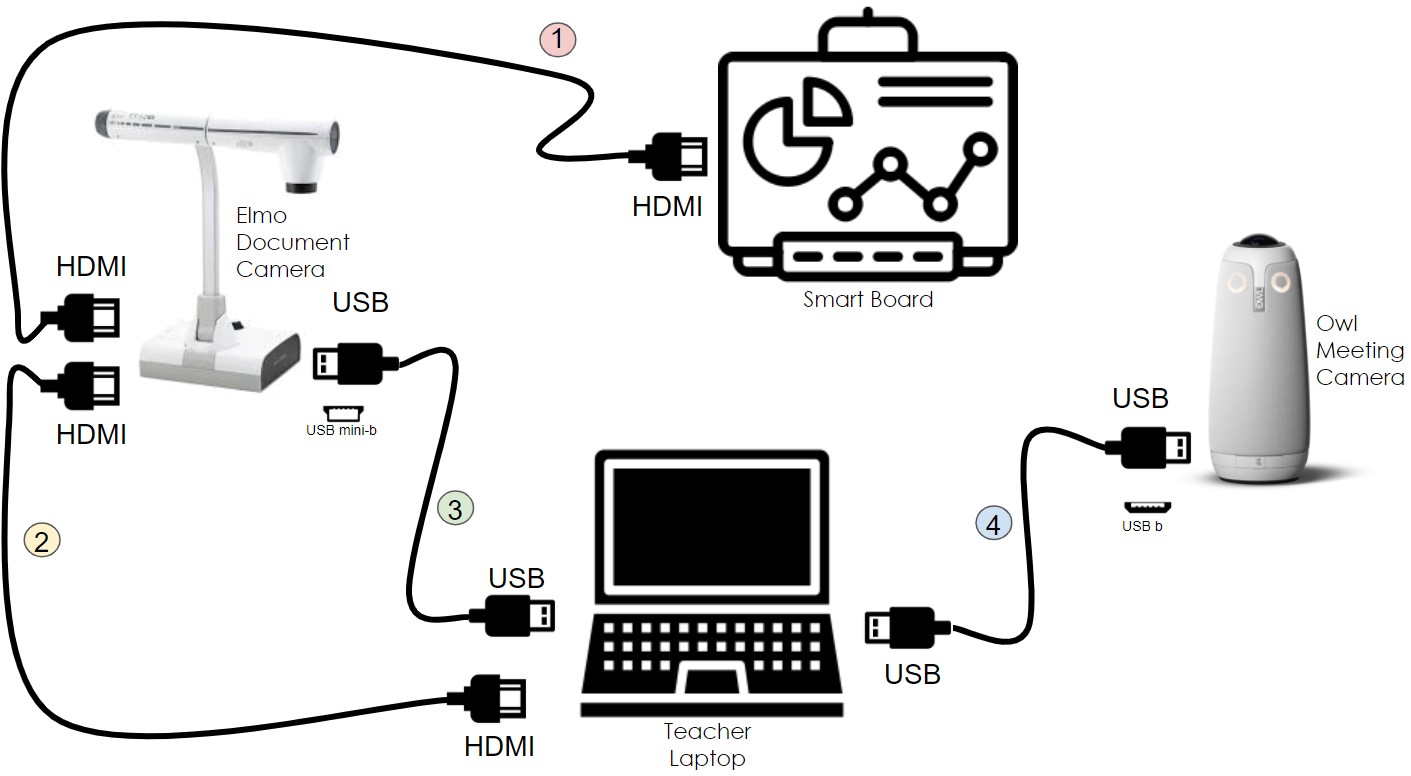
Plug In Cords
- Elmo to Smart Board
This cord passes the video from the doc cam, as well as from the laptop, are shown on the Smart Board. This connection is the one most likely to already be in place.
- Elmo to Laptop via HDMI
This cord passes the video from the laptop to the doc cam, so that the laptop can be shown on the Smart Board.
- Laptop to Elmo via USB
This cord passes the video from the doc cam to the laptop, so that students on Teams can see the doc cam view.
- Laptop to Meeting Owl via USB
This cord passes the video and audio both directions between the Meeting Owl and the laptop so that students on Teams can see the classroom and the classroom can hear students on Teams
Changing Cameras on Microsoft Teams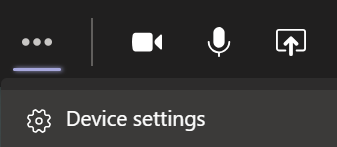
If the cords for the hardware are set up correctly, the teacher should be able to switch between showing the video from the Meeting Owl, the doc cam, and the built-in camera.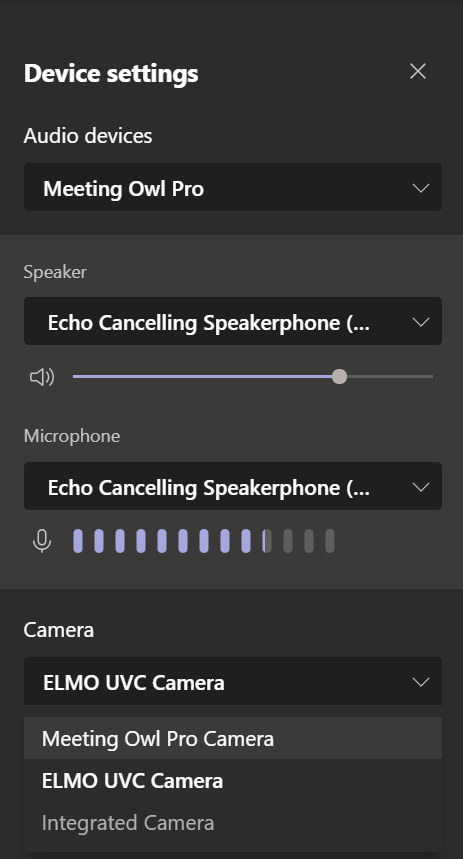
When first setting up the system, it is best to do this in Microsoft Teams’ Device Settings.
In Device Settings, select “Meeting Owl Pro” as the audio device and make sure that “Echo Cancelling Speakerphone (Meeting Owl)” is selected as both the speaker and the microphone.
Select “Meeting Owl Pro Camera” as the camera.
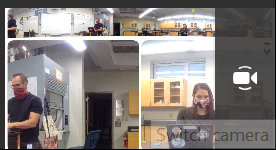
When running a meeting, this can be done easily using the camera icon next to the teacher’s camera view. EThe system will rotate between each available camera when the camera icon is clicked.
(With Elmo - if a teacher changes the camera to the Elmo, the Elmo then defaults to showing itself on the Smart Board. The teacher should click the button in the Elmo to switch back to projecting the laptop.)
In-Person Students - Using Microsoft Teams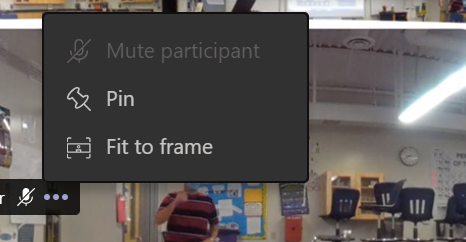
In-person students should connect to the classroom meeting using Teams to have access to the chat. These students should mute their audio out, their microphones, and their cameras. Teachers should suggest that students should “Fit to Frame” and also pin the classroom video.
Power? Need to charge.
Remote Students - Using Microsoft Teams
Remote students will continue to connect to classes as they have during remote learning. We have found that students using headphones or earbuds can hear audio from the Meeting Owl more clearly. Teachers should suggest that students should “Fit to Frame” and also pin the classroom video.
Breakout Rooms
Mixed groups?
Teacher Use of Mobile Device to Monitor Chat
Michael did this in our test
Notes from Concurrent Teaching experiment: https://docs.google.com/document/d/1Jkqkd5a94iXPsMQHf9-F8_xFMsMLztATew4BfsZApVA/edit
------------------------------------------------------------------------------------------------------------
Other Systems
Most other technology tools will continue to be used very similarly to their use in remote teaching.
Infinite Campus
Teachers will continue to use Infinite Campus for attendance and grading.
Google Classroom
Teachers will continue to use Google Classroom for assignment management. This will give both remote students and in-person students the same place to go to see what work there is to do in the class.
Pear Deck
Teachers can still use Pear Deck as a presentation tool for teaching. If in-person students are using their laptops in class, Pear Deck will give both remote students and in-person students a very similar experience in seeing and interacting with the lesson.
Flyer Connect
Teachers will continue to use Flyer Connect to communicate to families
Assessment Systems
DSST will continue to use multiple assessment systems. These tools will work well for students in a hybrid environment.
Edulastic
We will continue to use Edulastic for teacher-created assessments.
Illuminate
We will continue to use Illuminate for network-created assessments.
i-Ready
Text about i-Ready
ANet
Text about ANet
Comments
0 comments
Please sign in to leave a comment.