
Overview
If you or a student are in need of translating text you can do so with the Microsoft Translator any web browser. Below you will find steps and supports for using Microsoft Translator.
- Translating from a Website or Document
- Changing Languages of Translation
- Changing Direction of Translation
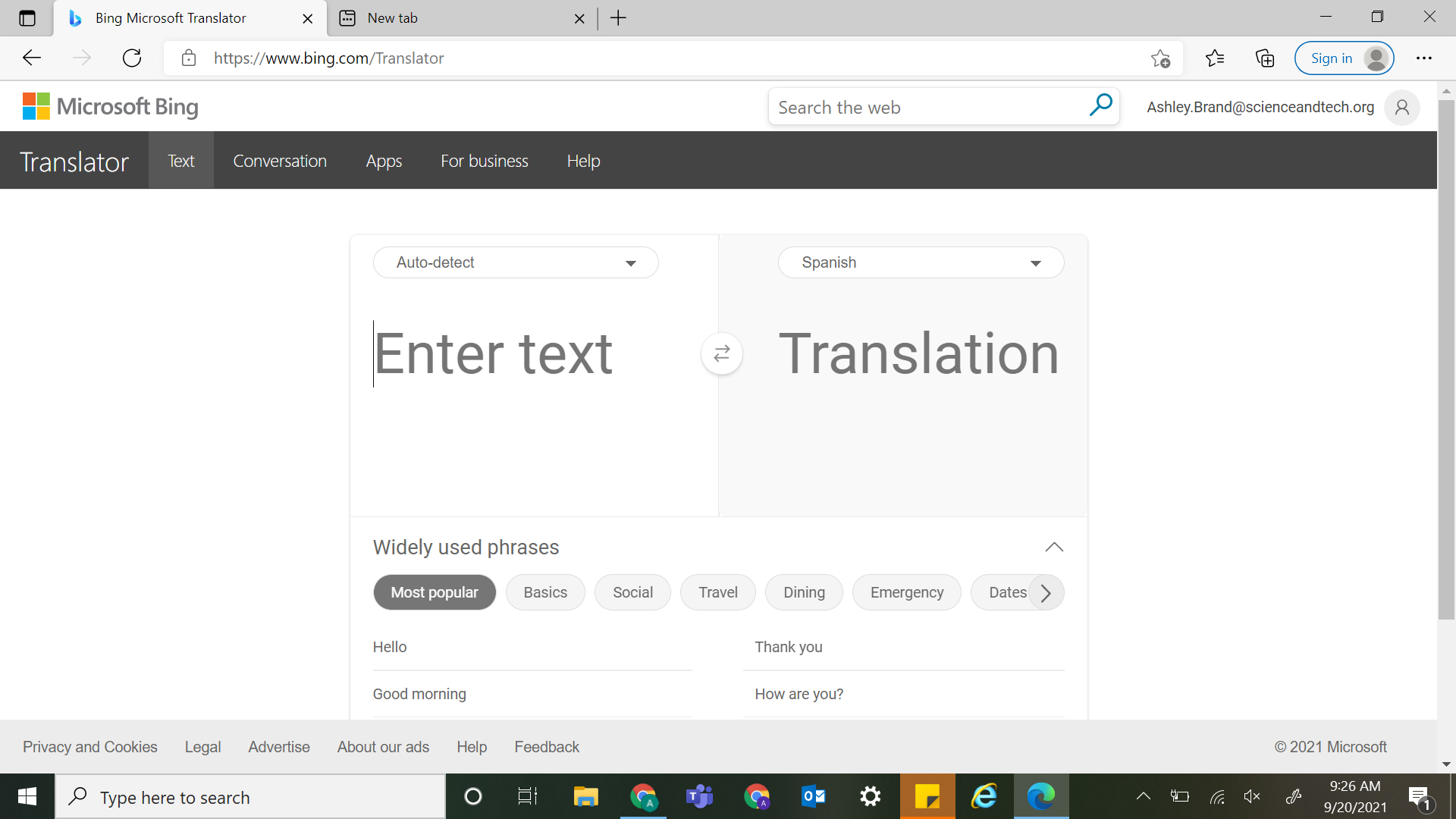
Translating Text from a Website or Document
Students and Staff will often need to translate documents or specific text from a website. Click the link here to open in a new tab
Your next step is to ensure that the languages are set appropriately. The default for input language is "Auto Detect" and the default for output language is Spanish. If you need information about how to change these settings you can find that below.
Finally, you will need to copy and paste the text from the documents or website you need to be translated. Microsoft Translator can only translate up to 1000 characters at a time. This means that you may need to translate in small chunks if you are looking at a large article, document, webpage, etc. If you try to translate text that is too long you will receive an error.

Once you have entered the correct amount of text you will see your text translated on the right-hand side. You will see on the bottom right-hand side of the translated material a few symbols. The "audio" (see the yellow highlight in the image below) symbol allows for the translated text to be read aloud. There is also a "copy" (see orange highlight in the image below) symbol which allows you to copy the translated material without having to highlight anything. Additionally, there is a pencil symbol that allows you to suggest an edit if you find there is an error in the translated material. 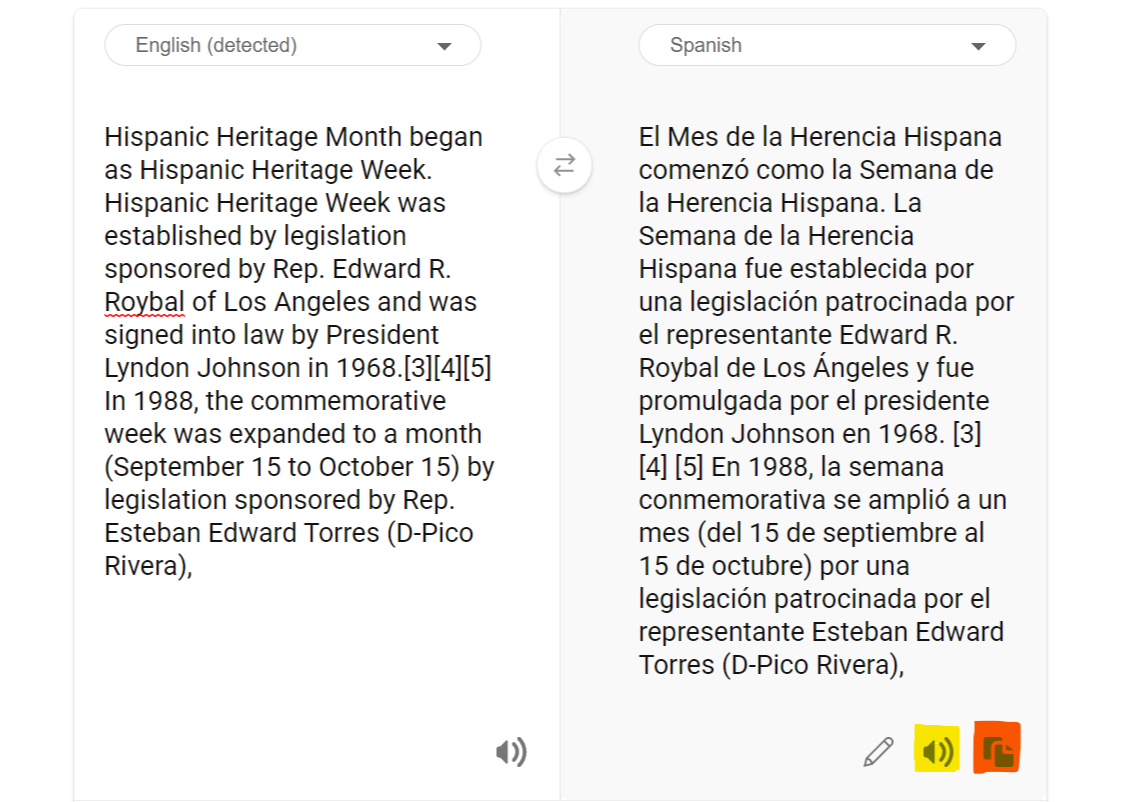
Changing Language of Translation
The default for input language is "Auto-Detect" and the output language is "Spanish". If you need to change this you can do so by using the dropdown menus to select the appropriate languages. Microsoft Translator has 90 languages that you can choose from.

Changing Direction of Translation
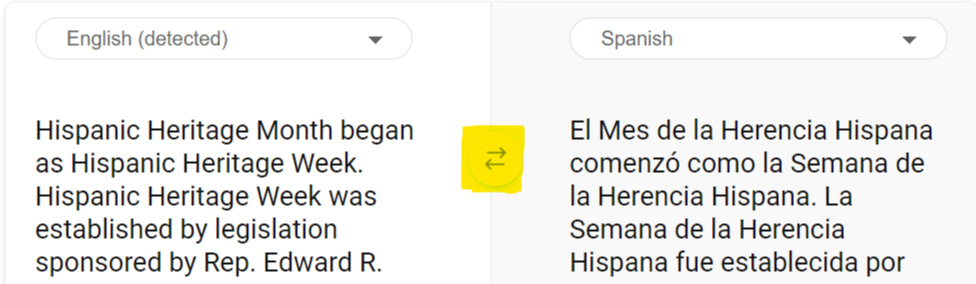
If you need to change the direction of translation, for example, you want to translate from Spanish to English, you can do so with the "swap" arrows button in the middle of the translation window. This will allow you to quickly change the input and output languages instead of using the dropdown boxes.
Comments
0 comments
Please sign in to leave a comment.