

Workday User Guide: Update your Education Information
Last Updated 2.28.2020
Purpose: The purpose of this user guide is to show team members how to update their education history in Workday.
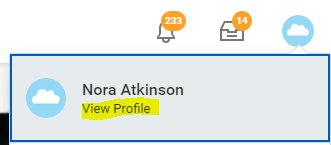
Step 1: Navigate to the top right corner of the page and click on the profile icon (either the photo you uploaded or the blue cloud). Then choose View Profile from the drop-down menu.
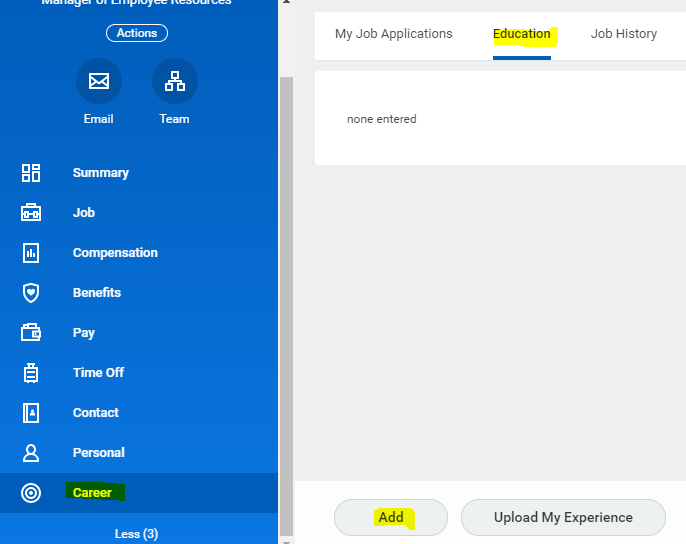
Step 2: Choose Career on the left blue menu and then select Education from the tabbed menu at the top of the Career screen. To enter your information, select Add at the bottom of the screen.
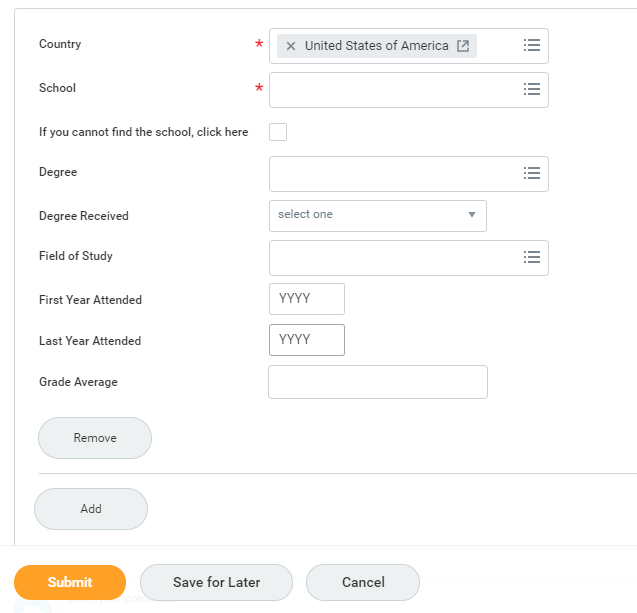
Step 3: Enter each level of education you hold - including high school degree, associates, bachelors, and graduate degrees. Please also enter any partial graduate credit you may have earned, even if you did not complete your degree.
- You can enter each degree by filling out each field and then choosing Add.
- If you earned a degree from the institution, you will get an orange alert asking you to confirm the year your degree was received.
- For each educational record, you must enter the first year you attended
- In the Field of Study space, choose your concentration/major from the drop down. If you do not see your major, please add your subject of study to the Comments section.
- Once you have entered all of your degrees and graduate credit, choose Submit.
Comments
0 comments
Please sign in to leave a comment.