
Overview
Wakelet is a web-based application that allows users to save, organize and present multimedia content with students, teachers, and learning communities.
It is free for educators and can be used in endless ways! Think about research activities, group projects, brainstorming, interactive Do Now activities, reading lists or choice boards, even as a class website!
It also has a built-in immersive reader, features to link your ed-tech applications and tools, and ultimately give you as the teacher all the flexibility and control.
Follow the steps and supports below to learn about and use Wakelet
- Creating an account and logging in
- Making your Wakelet "Collection"
- Sharing with students to collaborate
Creating your account and logging in
Go to https://www.Wakelet.com
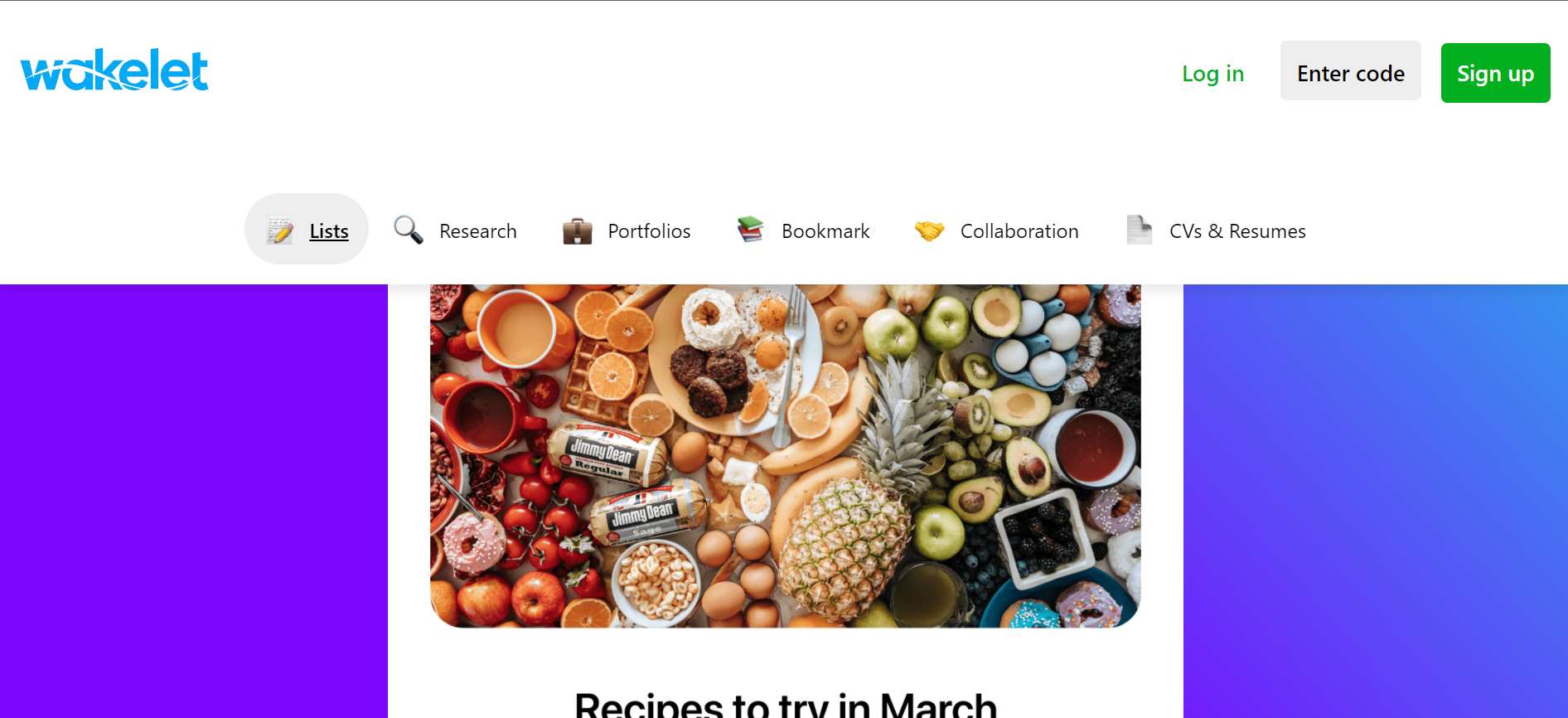
In the top right-hand corner click "Sign Up". A new screen will appear with a variety of options for creating your account. Click "Continue with Google"

You will now be prompted to log in using your Google credentials. Use your DSST Google credentials to sign up. If you log out you can log back in using these same steps but just click "Log in" instead of "Sign up".
Making your Wakelet "Collection"
Now that you are logged in you will see your Home within Wakelet, as pictured below. You will see the "Create a new collection" option. Each new creation within Wakelet is called a "Collection". 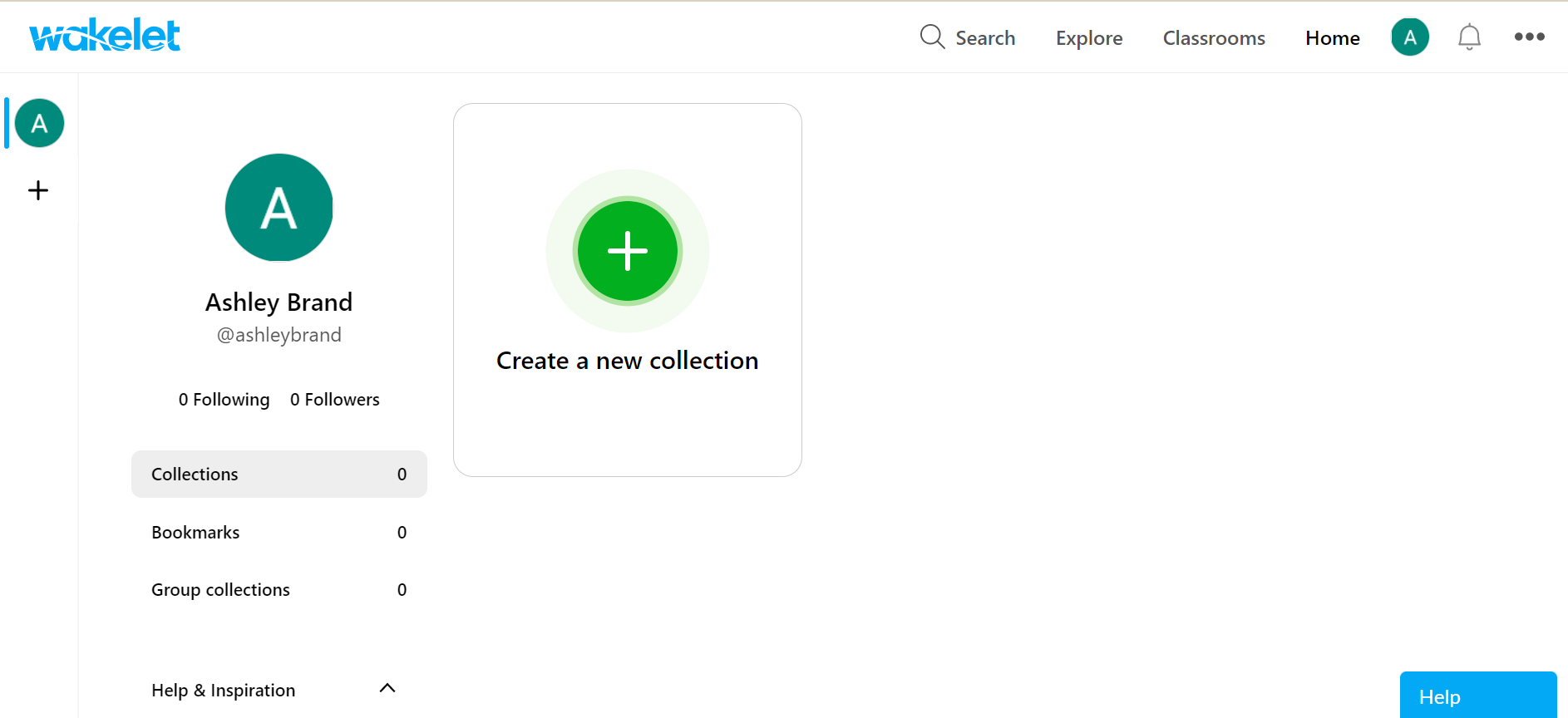
Remember that Collections can serve any purpose you like and can be designed specifically for your needs. When you click "Create a new collection" you will be presented with a variety of options. This can be overwhelming at first just as a warning.
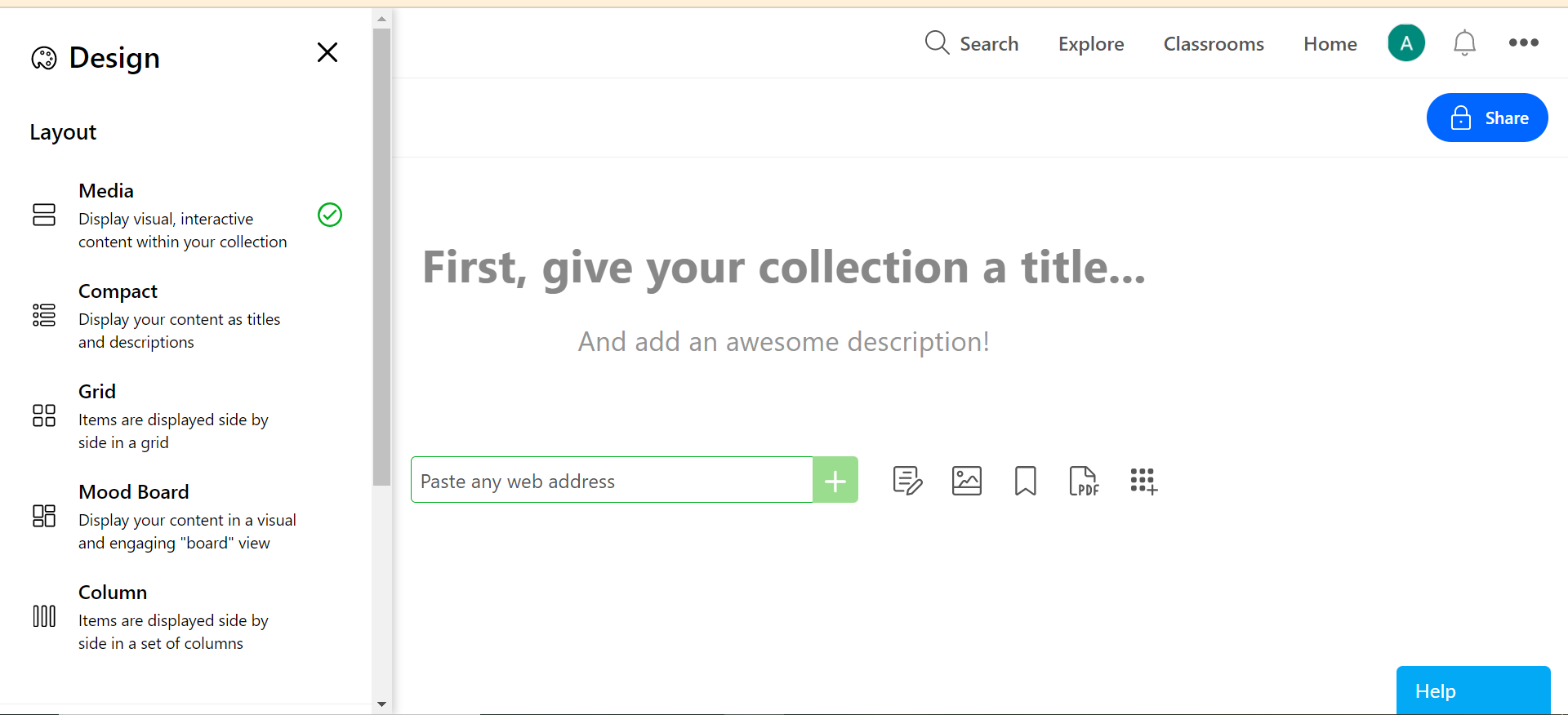
On the left-hand side, you'll be presented with layout options and a short description of them below. Choose the layout that best fits your needs. Each layout will have different features and options. For the remainder of the guide, we use the "Media" layout.
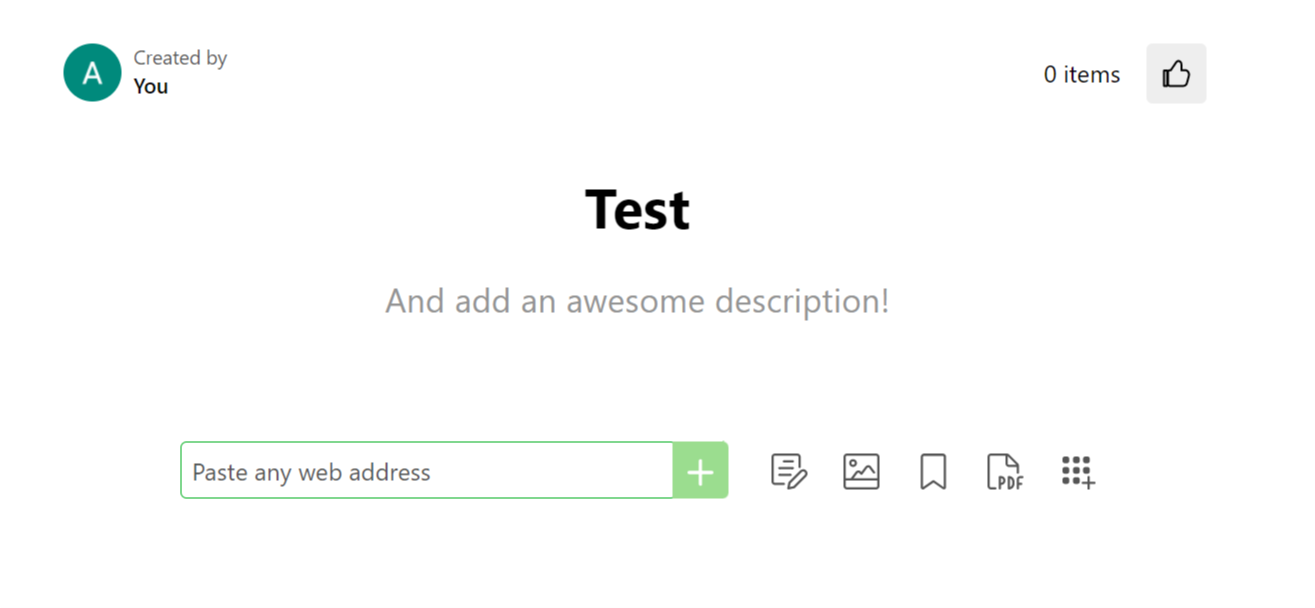
Next, you will need to give your Collection a title and you can add a description. Finally, you can start adding content! The content options depend upon what layout you chose for your Collection. For the "Media" layout you can add:
- Web Address
- Add Text
- Images
- Bookmarks
- Upload PDF's
- Add Apps
You can utilize this layout to begin a research project, introductory lesson for a new unit, choice boards, student group projects and so much more!
Sharing with your students to collaborate
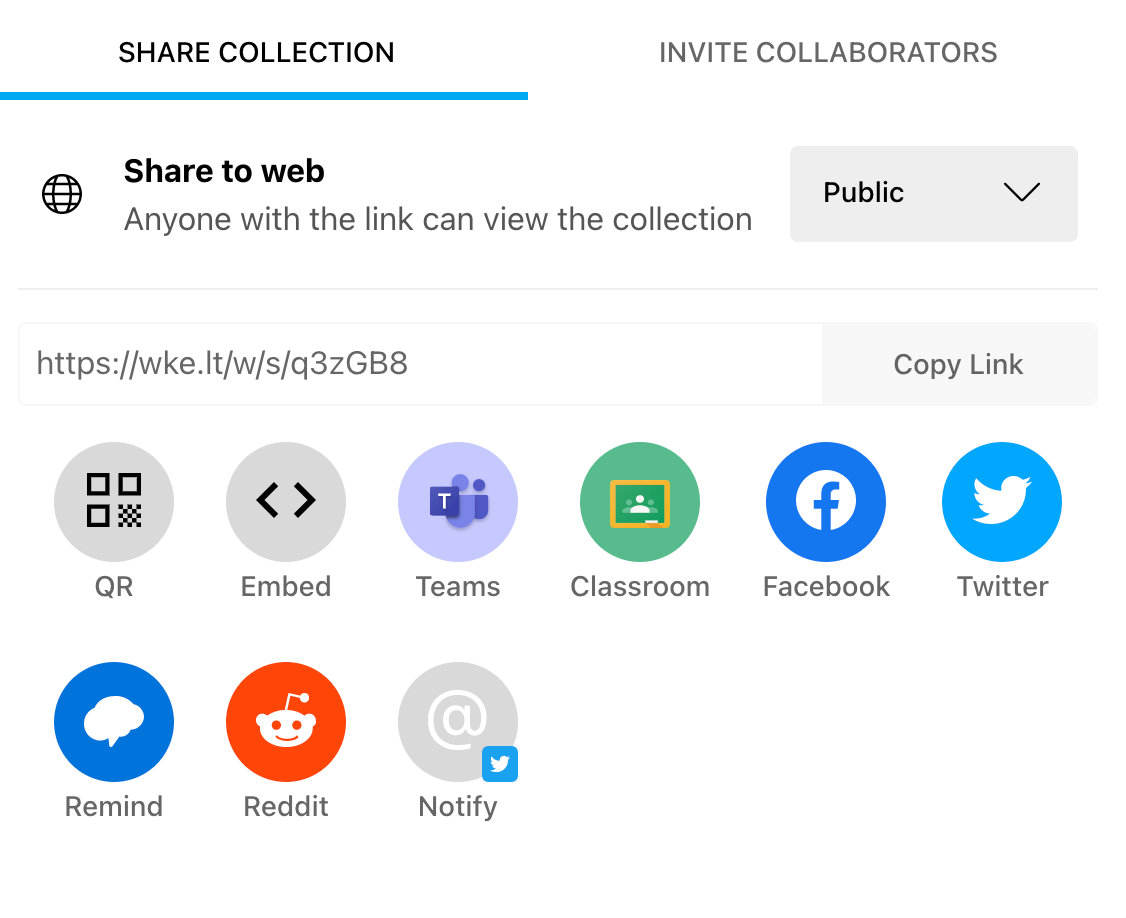
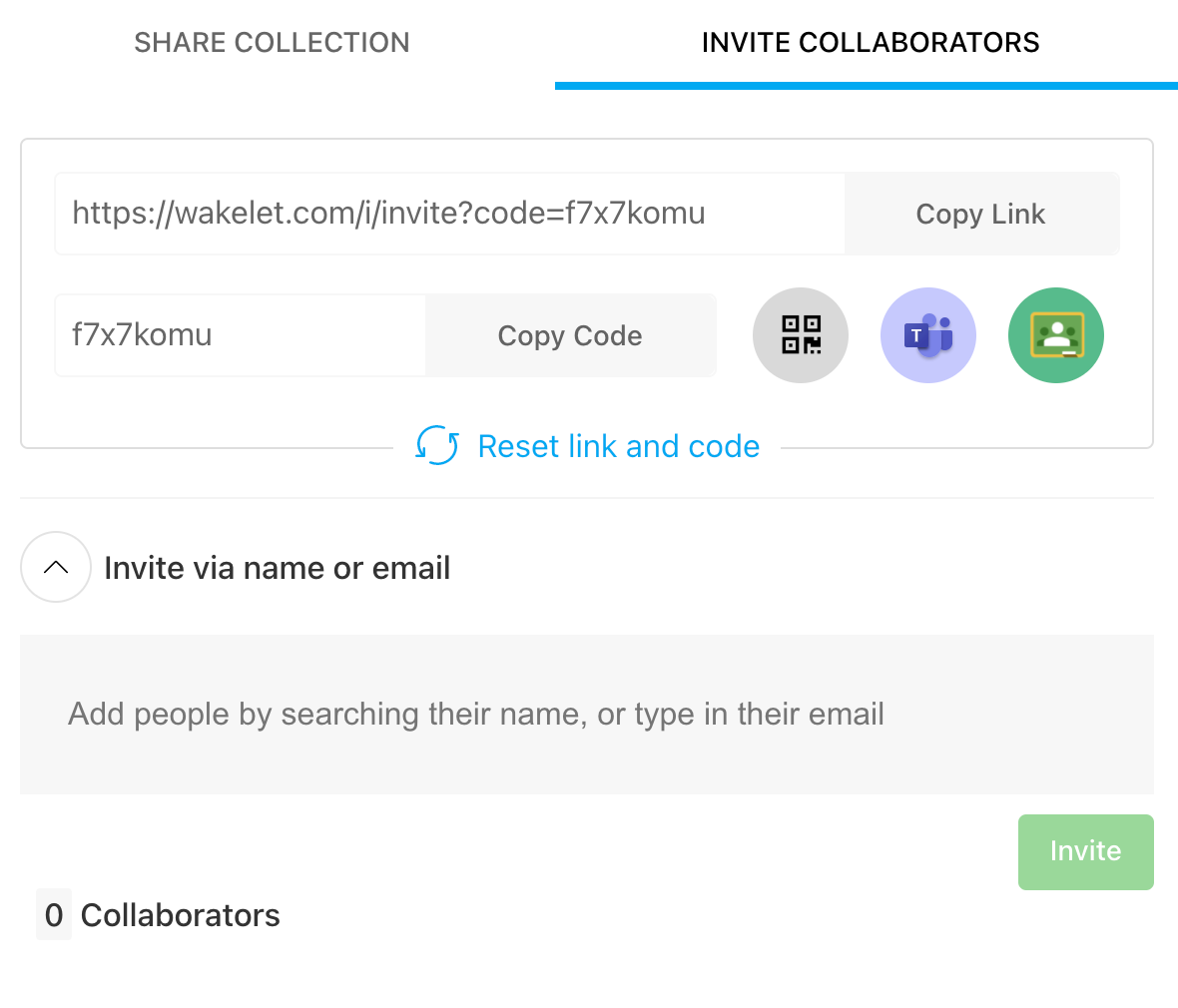
When you have finalized your Collection in Wakelet you can share this to your students, or adults, for collaboration and access. Click the blue "Share" button in the top right-hand corner. Now you will have two options: Share Collection or Add Collaborators.
- If you want your participants to be able to add comments, answer questions, or interact with the Collection you need to share the "Collaborators Link". You can also share a join code.
- If you simply want your participants to view and click links or review items in the Collection you can share
For both options, you will have a variety of share pathways and security features.
Comments
0 comments
Please sign in to leave a comment.