
Overview
Use this guide to filter to assessments that were created by your school and by other members of DSST.
Note: If you cannot find the assessment, it's because the teacher did not share the assessment to the School Library or the District Library. Please direct teachers to share their assessments to either the school library or District Library. Teachers and staff can also share assessments directly to the recipients without it going to the School or District library.
CLICK HERE for directions on HOW TO SHARE ASSESSMENTS.
1. Sign in to Edulastic through Clever
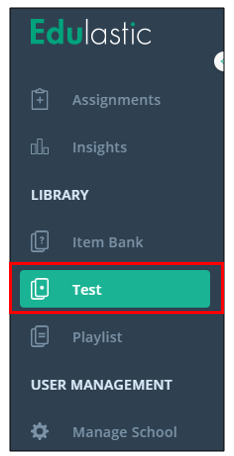
2. Go to the "Test Library" tab
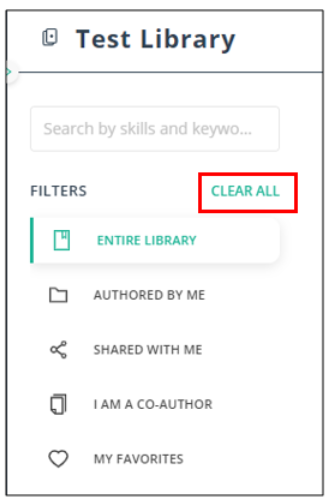
3. Clear your filters by clicking on "Clear All"
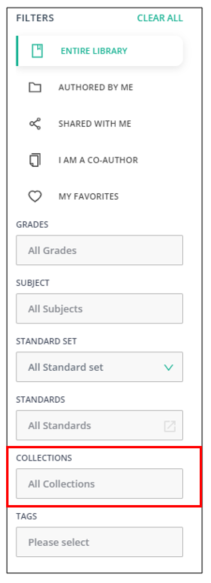
4. Go to the "Collections" filter, and choose "School Library", "District Library" or both.
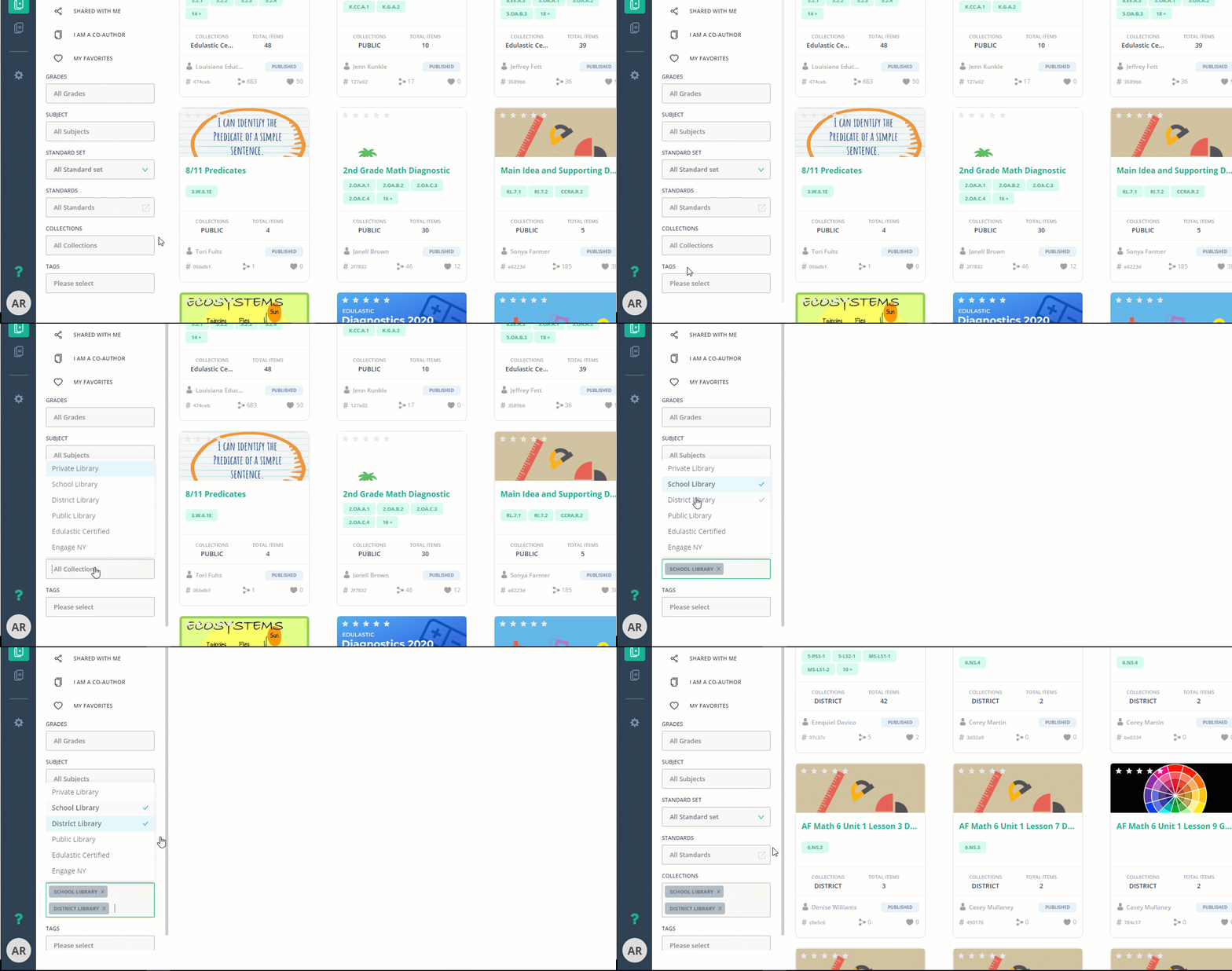
Note: The filters will take into effect immediately.
5. Continue to filter down (example, subject matter, name of assessment, grade) until you see the assessment you are looking for.
Comments
0 comments
Please sign in to leave a comment.