
Overview:
Edulastic holds a variety of standard sets within its system for various content areas and grade levels. At DSST we are able to add standards sets or individual standards as needed with the help of Edulastic's support team. There are two different pathways for this process that provide different data level reporting.
- Standards in Edulastic for Edulastic Insights and Reporting
- Standards in Edulastic and data shared with Polaris for analysis.
Depending upon which of these two pathways is needed there are different action steps. Below you find the processes and information for getting standard sets into Edulastic.
Standards in Edualstic for Edulastic Insights and Reporting
If an individual or a team simply needs a new standard set to be in Edulastic you can follow the steps below.
Step One: Create a new Standards sheet
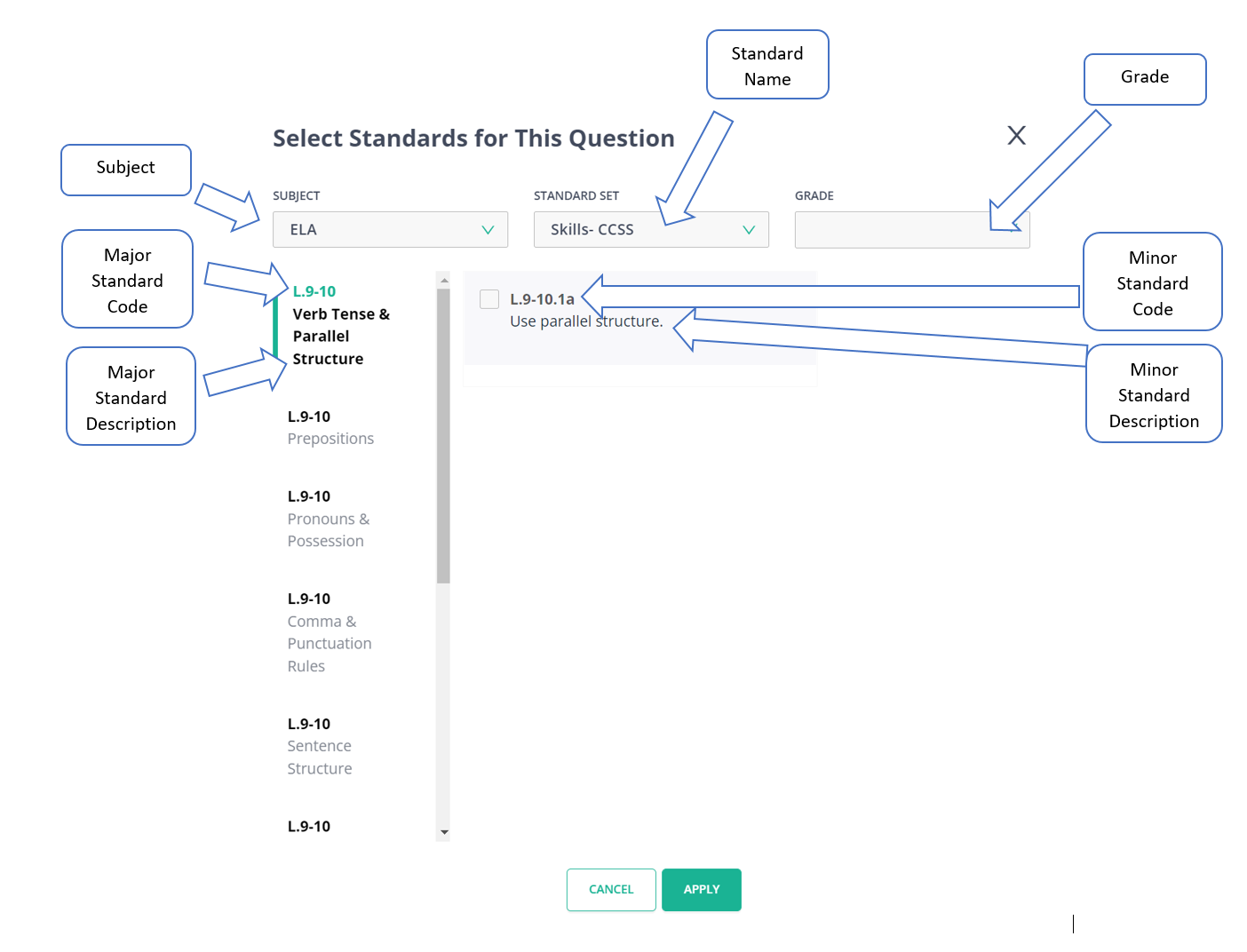
New Standards sets must have the following and in the image below you will see how they are presented in Edulastic's platform.
|
 |
You will need all of the information for the standard set in order to have them uploaded to Edulastic. Edulastic uses a Google Sheet to organize this information. You will need to fill out this document using the first row as the guide to outlining the standard set.
Step Two: Send the sheet to Edulastic
Once you have filled out the Google Sheet completely you should email the Edulastic Support Team at support@edulastic.com. Within the email, you will need to include the official name of the standard set (which should also be the name of the tab in the Google Sheet document). Edulastic's support team will manage the upload to Edulastic and send a confirmation when the process is finished.
Standards in Edulastic and data shared with Polaris for analysis
For standards in Edulastic to be available in DSST data systems such as Polaris, they must be imported to Edulastic as well as created on DSST-ODS which requires the creation of a crosswalk document. This document allows the DSST-ODS to make sense of the information coming from Edulastic which can then be sent to Polaris.
It is VERY important to understand the following before creating new standards sets in Edulastic.
- Minor Standard Codes must be unique and Standards can only have one parent but can have many children. For example, Minor Standard Code L.9-10.1a can only have Major Standard Code L.9-10 as its parent.
- It may not be associated with a second Major Standard Code. But Major Standard Code L.9-10 may have Minor Standard Code L.9-10.1a, as well as Minor Standard Code L.9-10.1b and others as its many children.
Follow the steps and supports below that outline this process.
Step One: Create a new Standards sheet
New Standards sets must have the following and in the image below you will see how they are presented in Edulastic's platform.
|
|
You will need all of the information for the standard set in order to have them uploaded to Edulastic. Edulastic uses a Google Sheet to organize this information. You will need to fill out this document using the first row as the guide to outlining the standard set.
Step Two: Send the sheet to Edulastic
Once you have filled out the Google Sheet completely you should email the Edulastic Support Team at support@edulastic.com. Within the email, you will need to include the official name of the standard set (which should also be the name of the tab in the Google Sheet document). Edulastic's support team will manage the upload to Edulastic and send a confirmation when the process is finished.
Step Three: Create Crosswalk Excel Document for DSST-ODS
You will need to locate the files that house all the standard sets between Edulastic and Polaris. On your DSST device open a file search and enter the following into the search bar:
\\dsst-ods\c$\Projects\EdFi\DSST\Development\TertiaryData\Standards\Edulastic
This is the location of the files that will need to be updated or if is a new standard set a new file will need to be added.
The crosswalk excel document must essentially translate the information from Edulastic so that the DSST-ODS can make sense of the information. Using the Edulastic Google Sheet information and the chart below you will need to fill out the Excel Sheet.
| Edulastic Column Name | DSST-ODS Column Name |
| Subject | Category 1 |
| Standard Name | Name of the File |
| Grade | Split into Min Grade Level and Max Grade Level fields |
| Major Standard Code | Parent ID |
| Major Standard Description | Category 2 |
| Minor Standard Code | Standard ID |
| Minor Standard Description | Description |
You should now have an Excel Sheet with the column titles (as outlined in the table above) and the corresponding information from your Edulastic Google Sheet. You need to ensure that your Excel Sheet follows the rules below.
- Minor Standard Codes must be unique and Standards can only have one parent but can have many children. For example, Minor Standard Code L.9-10.1a can only have Major Standard Code L.9-10 as its parent.
- It may not be associated with a second Major Standard Code. But Major Standard Code L.9-10 may have Minor Standard Code L.9-10.1a, as well as Minor Standard Code L.9-10.1b and others as its many children.
When you are finished you need to save the file in the location as a CSV file.
Step Four: Notify Systems Engineer
When you have saved the Excel Document in the location you will need to notify Richard McDaniel that there are new standards ready for import. He'll make sure they are loaded correctly and provide feedback if needed.
Comments
0 comments
Article is closed for comments.