
Google Chrome recently released an update that has changed the way users can switch between profiles and accounts. Many users may find that they do not need to change the way in which they use Google Chrome. For some users, however, this may cause major complications for navigating bookmarks and opening links between different accounts. There are steps that can be taken to adjust to this update.
Use the following sections to navigate and troubleshoot the profile update in Google Chrome.
Setting/Changing Default Profile or Account in Chrome
Switching between Profiles in Chrome
Creating Profiles in Chrome
You will most likely want to create separate profiles for each of your Google Accounts (for example DSST, DPS, Personal, etc). This will allow you to keep your account separate but make it easier for you to jump between them as you work.
Step One: Open Google Chrome browser
Step Two: Click on your profile picture icon on the top right of the window
Step Three: Click on the cog icon next to Other profiles
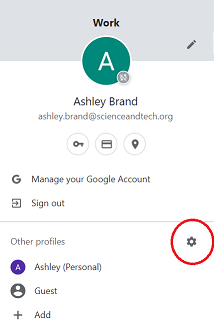
Step Four: Click on the plus sign in the "Add" box
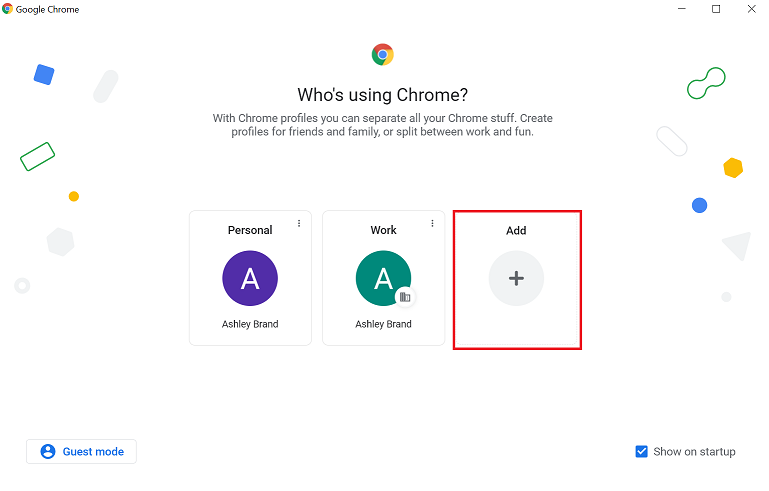
Step Five: Next you have the option to "Sign in" to an existing Google Account or to continue without signing in. If you have a personal Google Account and want to sync your bookmarks and other settings you can sign in to your existing account. Otherwise, you can "Continue without an Account"
Step Six: Name this profile. You can even select a theme color for this profile and add a profile picture. If you want to have a desktop shortcut check the box, otherwise uncheck it.
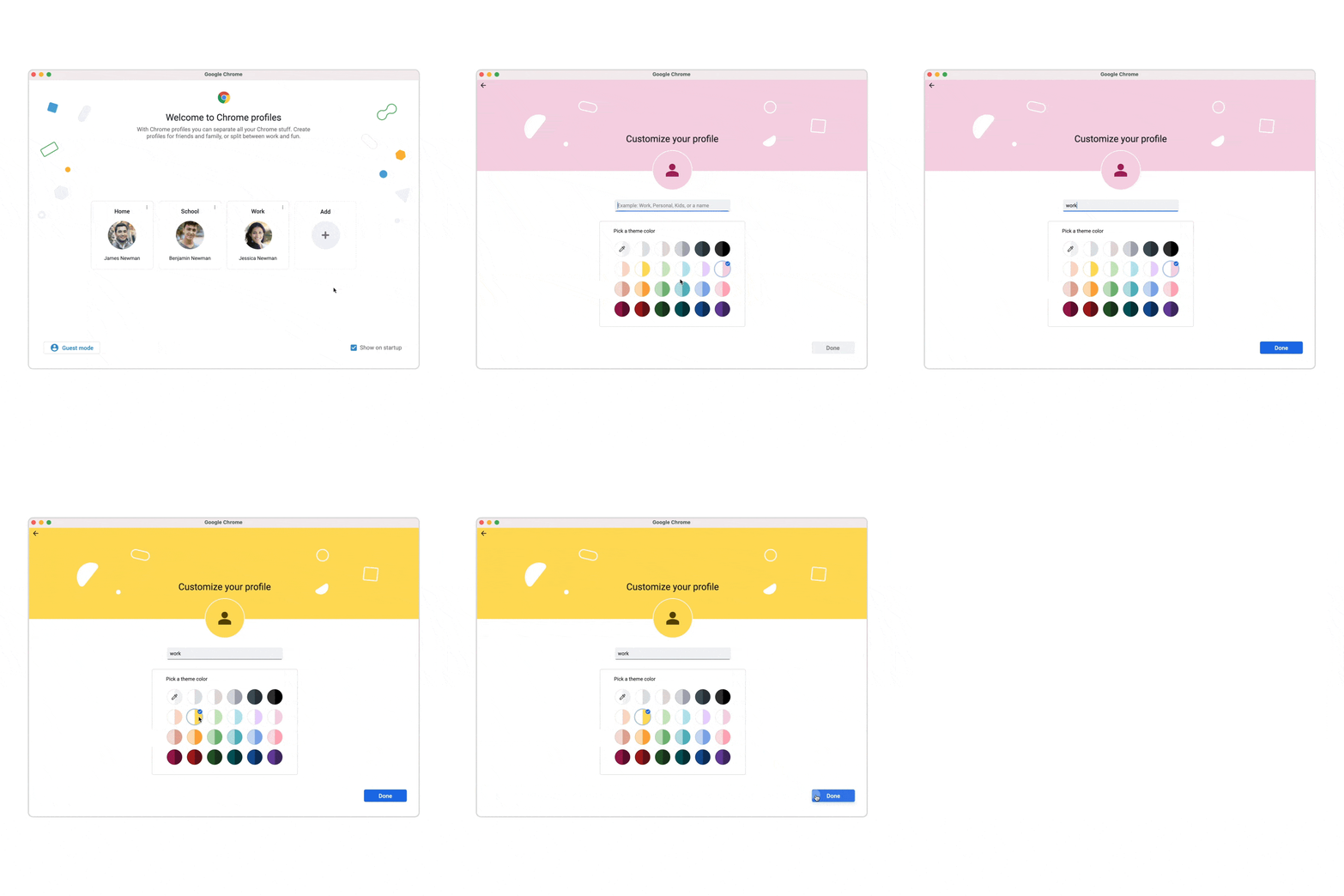
Step Seven: Select "Get Started". Next, you can add Bookmarks and set a background. If you want to sync and make sure that you get your passwords on other devices you use, click "Continue". Otherwise, choose "No thanks"
Setting/Changing Default Profile or Account in Chrome
The trick to setting the default Google account in Chrome is understanding how the default account is selected in the first place. There isn’t some setting buried in your Google account that lets you select this. Instead, Google uses the initial account you used to log in as the “default” Google account.
With this in mind if you already have logged into Chrome with an account and you are happy with your default then no further steps are required. However if you want to change your Default Profile or Account follow these steps below.
Step One: The first step to fixing this is signing out of whatever account you’re currently using in Chrome. Click on your profile icon in upper right hand corner and then click "Sign Out". IMPORTANT NOTE: If you are signed into multiple accounts you will need to log out of all of them. 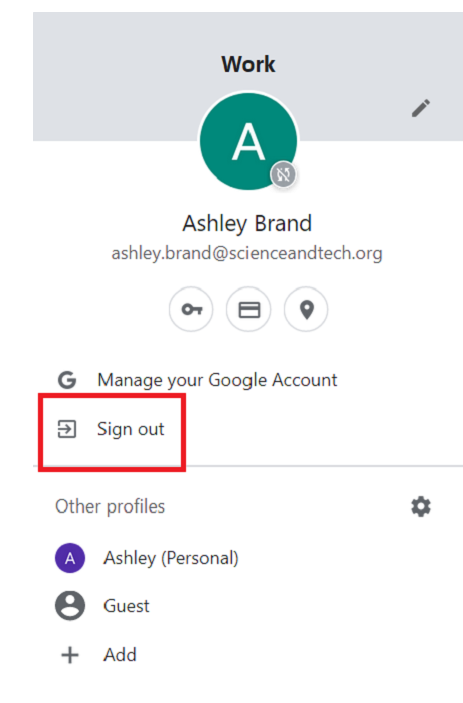
Step Two: Now that you aren’t logged into any Google accounts, you can sign in to your first account. This will be the default Google Account. Select "Sign in" at the upper right of the Google search page to do this
Step Three: Now, you’ll want to select or add your default Google account. If you’ve never logged into it before, you’ll need to select "Use another account". Otherwise, select the account you want to have as your default.
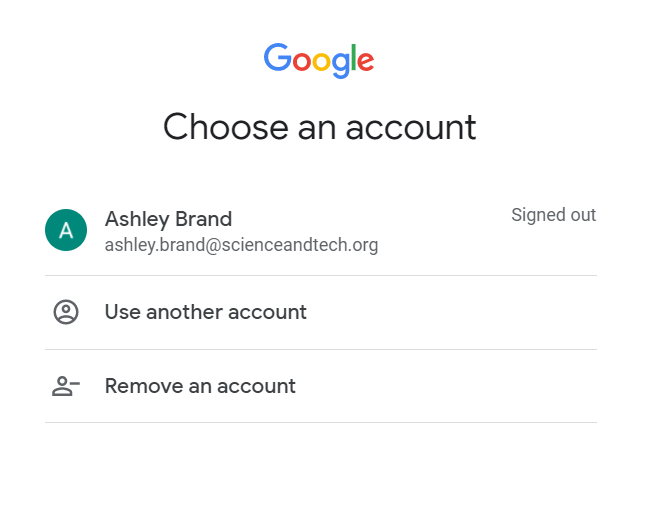
Step Four: Once you log in, you’ll see the default profile image displayed for that new account. This account is now your default Google account for all Google services you use, like Gmail or Google Calendar.
Note: If you wanted to, you could sign into a secondary account by selecting the profile image again and selecting that other account. Once you sign into the second Google account, the original account you signed into remains the default. This means that you’re signed in to the second Google account for the current Google app you’re using
Switching between Profiles in Chrome
Switching between Profiles while you're working allows you to separate various work accounts as well as personal accounts. Google's Update simplifies the process of switching between profiles with just a few clicks.
Step One: Click on your account icon at the top right of your Google Chrome browser.
Step Two: You will see "Other Profiles" listed below the profile you are currently on. Select the profile that you wish to use. This will open up a new browser window for that specific profile. If you've turned on your "sync" you should also see the bookmarks, settings, and customizations for that profile and account.
Deleting a Profile
If you don’t want to use a profile, you can choose to delete it as well.
Step One: Click on the profile icon at the top of the browser window.
Step Two: Click on the cog to "Other profiles"
Step Three: Click on the three vertical dots of the profile you want to delete
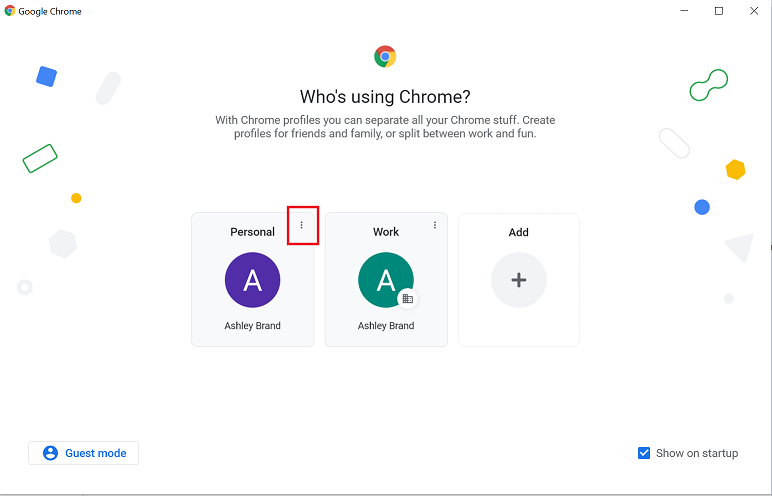
Step Four: Click "Delete"
Step Five: You will be asked if you wish to delete the profile and the subsequent data. Click "Delete"
Comments
0 comments
Please sign in to leave a comment.