
Purpose: This user guide outlines for Managers of People the steps required to terminate a team member or end the contract for a contract worker.
Sections
When would this happen? All employees should submit a resignation. However, if the employee is unable to submit a resignation because they have already left then the manager will need to terminate the employee following this process. Managers can only terminate team members who have voluntarily resigned. Talent Operations will continue to manage all Involuntary terminations. Contractors cannot resign and they must be terminated by the manager.
Entering a Termination for an Employee
The following steps outline how to terminate an employee, please scroll down to the next section if you need to terminate a contract worker.
- Step 1: On your home-page, click on your My Team Management Application
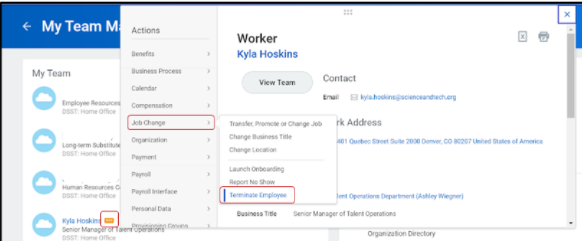
- Step 2: Navigate to the team member who you are terming, and click on the Related Actions button (orange lego bar). Select “Terminate Employee”.
- Step 3: On the next screen, “Terminate Employee” enter the details of the termination in all required fields (see table below for more details) by clicking the pencil icon on the top right corner of each section.
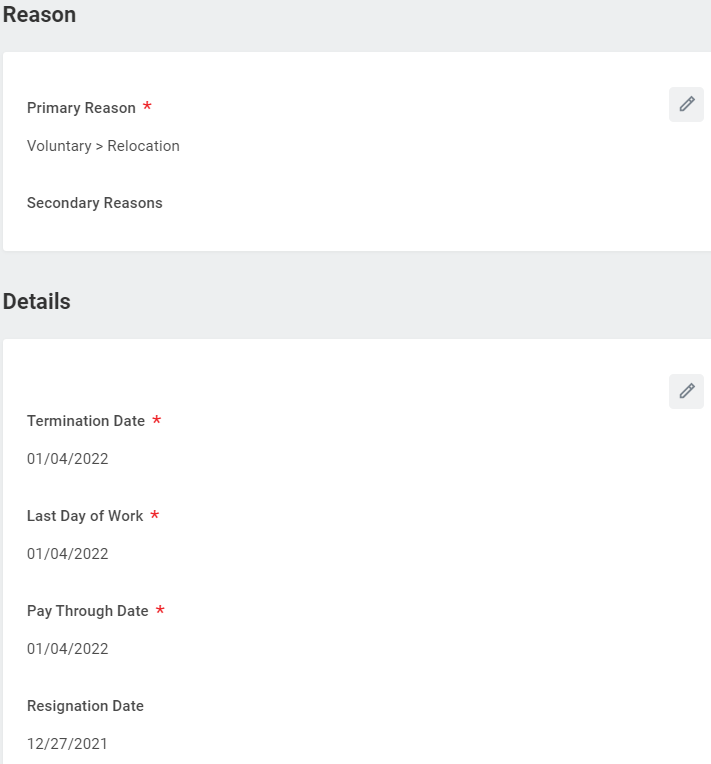
Field Details for the Terminate Employee Page
|
Field Name |
Required |
Details |
|
Primary Reason |
Yes |
Select Voluntary and review the field options. Select the option that best fits the situation. Common options are: Opportunity in Education, Opportunity in Higher Education, or Personal/Family. |
|
Secondary Reason |
No |
If the team member provided more than one reason for leaving, you have the option to add another Voluntary reason in this field. |
|
Termination Date |
Yes |
Enter the date of the team member’s termination in this field. |
|
Last Day of Work |
Yes |
This field will auto-populate after you enter the term date. If for any reason, the last day of work is before the term date, please indicate that here. The last day of work cannot be after the term date. |
|
Pay Through Date* |
Yes |
This field will auto-populate after you enter the term date. If the Pay Through Date is different then the term date, please indicate that here. The Pay Through Date can be before or after the term date. *Note: for school-year staff members (paras, teachers, social workers) who complete the school year but are not returning, the pay through date should be June 30. For year round staff (Office Managers, Office Assistants, Admin), the pay through date is the last day of work for staff (for the 19-20 school year, this date is June 5, 2020). |
|
Resignation Date |
No |
This field is optional, but you may enter the date that the team member provided their resignation in this field. |
|
Close Position |
No - but should be done for DSST processes |
Keep Position Open: If you plan to recruit for this position, then keep the box unchecked (this is the default setting). If the box is unchecked, you will see “No” under Close Position, which means that the position will not be closed and a message will be sent to Talent Acquisition letting them know of the opening! Close Position: If this position will no longer exist on your team, then click the pencil icon, and check the box under Close Position. |
|
Available for Overlap? |
Yes |
Although not required to complete the termination process this field is important if you want to have an overlap between your new hire and old team member. Please check the box under Available for Overlap. Note: If the termination is in the past or current date, then you will not be able to check this box because there isn’t an opportunity for overlap. |
|
Comment |
No |
Add any additional details that you would like the Talent Operations team to see |
- Step 4: After entering all information on the “Terminate Employee” screen click Submit at the bottom of the page. Once successfully complete you should see a confirmation screen (note: from the confirmation screen you can see who will be first in the process listed as “up next” as well as the full process under “details & process).
-
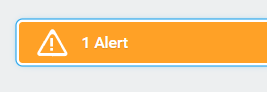
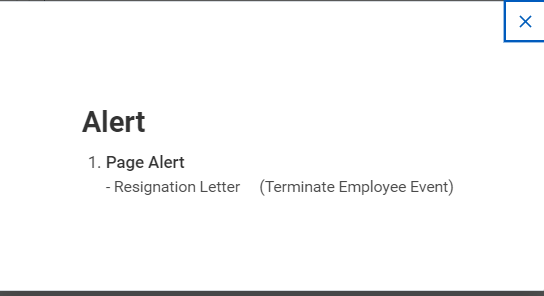
- Step 4.a: If the employee did not submit a resignation then the screen will refresh and you will see a yellow bar that says “Alert” on the right side of the screen. If the employee has already left and is not able to submit a resignation but you have a resignation letter for the employee please email it to humanresources@dsst.zendesk.com. Click Submit again for the termination to be complete.
Entering a Termination for a Contractor
- Step 1: On your home-page, click on your My Team Management Application
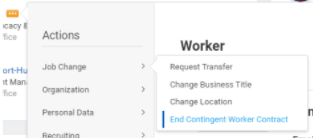
- Step 2: Navigate to the team member who you are terming, and click on the Related Actions button (orange lego bar). Select “End Contingent Worker Contract”
- Step 3: On the next screen, “End Contingent Worker Contract” enter the details of the termination in all required fields
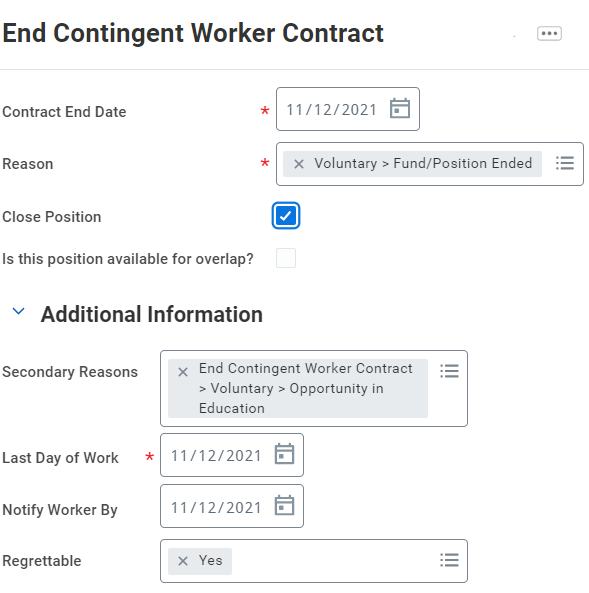
Field Details for the End Contingent Worker Contract Page
|
Field Name |
Required |
Details |
|
Contract End Date |
Yes |
Enter the end date for the agreement with the contract worker |
|
Reason |
Yes |
Select Voluntary and review the field options. Select the option that best fits the situation. Common options are: Fund/Position Ended, Opportunity in Education, Opportunity Outside Education, or Personal/Family |
|
Close Position |
No - but should be done for DSST processes |
Close Position: If this position will no longer exist on your team check the box next to Close Position. Keep Position Open: If you plan to recruit for this position, then keep the box unchecked (this is the default setting). If the box is unchecked a message will be sent to Talent Acquisition letting them know of the opening! |
|
Available for Overlap? |
No - but should be done for DSST processes |
Although not required to complete the termination process this field is important if you want to have an overlap between your new hire and old team member. Note: If the contract end date is in the past or current date, then you will not be able to check this box because there isn’t an opportunity for overlap. |
|
Secondary Reason |
No |
If the team member provided more than one reason for leaving, you have the option to add another Voluntary reason in this field. |
|
Last Day of Work |
Yes |
This field will auto-populate after you enter the contract end date. If for any reason, the last day of work is before the term date, please indicate that here. The last day of work cannot be after the contract end date. |
|
Notify Worker By |
No |
This field will auto-populate after you enter the contract end date. The contractor will get an email notification letting them know that their contract has ended. If you want them to be notified sooner you can enter a new date. |
|
Regrettable |
No |
Put “Yes” if we wanted the contractor to continue with us but they decided not to extend or complete their contract Put “No” if we did not want the contractor to continue working with us past the last day of work |
|
Comment |
No |
Add any additional details that you would like the Talent Operations team to see |
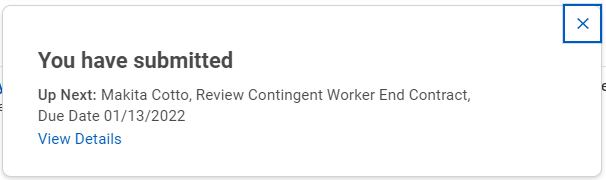
- Step 4: After entering all information on the “End Contingent Worker Contract” screen click Submit at the bottom of the page. Once successfully complete you should see a confirmation screen (note: from the confirmation screen you can see who will be first in the process listed as “up next” as well as the full process by clicking on “View Details”).
Comments
0 comments
Please sign in to leave a comment.