
Overview
As a DSST employee, you have access to a wide variety of systems across the network. This includes Clever, Outlook for Email, Workday, Polaris, and much more. Generally, DSST employee log-ins follow the convention firstname.lastname@scienceandtech.org.
Whenever you are looking to access a system the first place to start is The Helix at https://helix.dsstpublicschools.org/. The Helix is the hub for DSST Employees and one of the easiest places to access many of the systems used across the network.
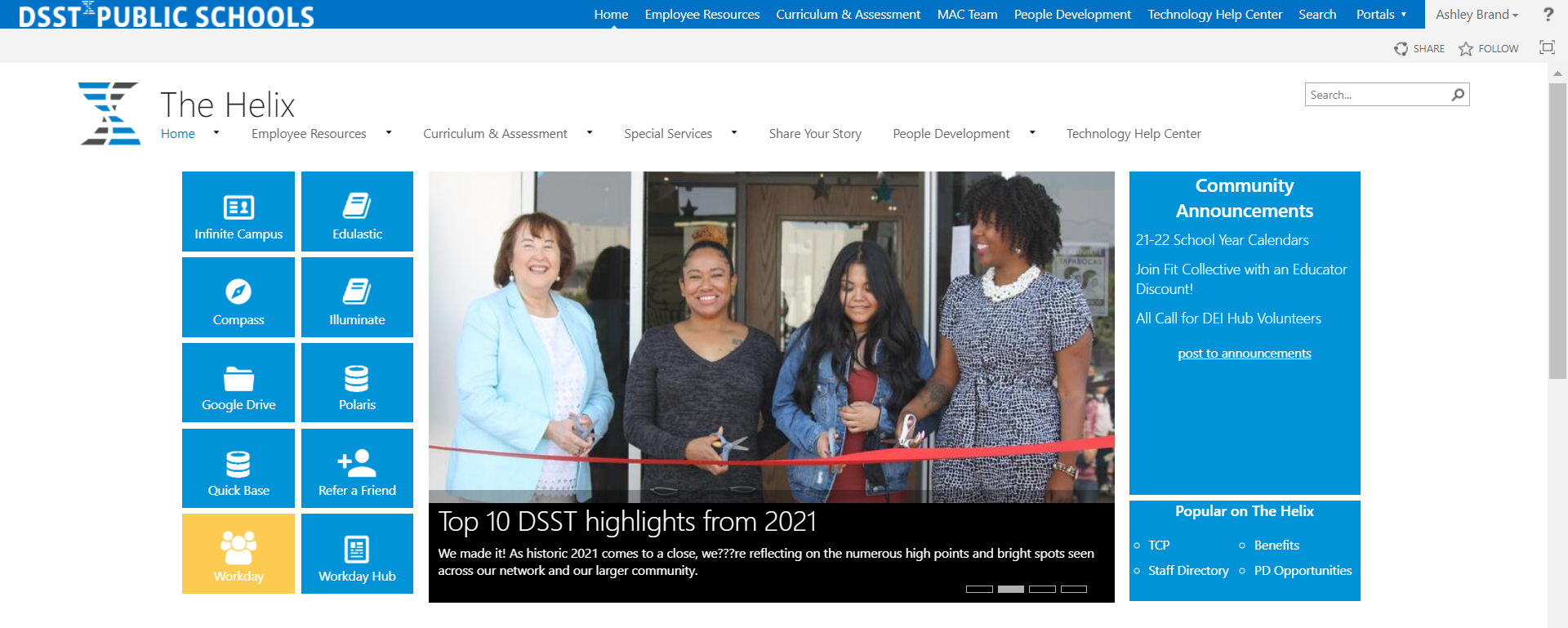
The direct links have also been included if you wish to Bookmark any of these sites on your browser for faster access. Follow the steps and supports below to access DSST Systems.
Outlook for Email
You can access your Outlook account online at https://mail.dsstpublicschools.org/ or on your DSST computer with the installed application. Most individuals log in to their computer application with a Help Desk tech as part of the onboarding process.
Your username will be firstname.lastname and your password will be your DSST password (These are the same credentials used to log in to your DSST computer).
Polaris
You can access Polaris by going to The Helix at https://helix.dsstpublicschools.org/.
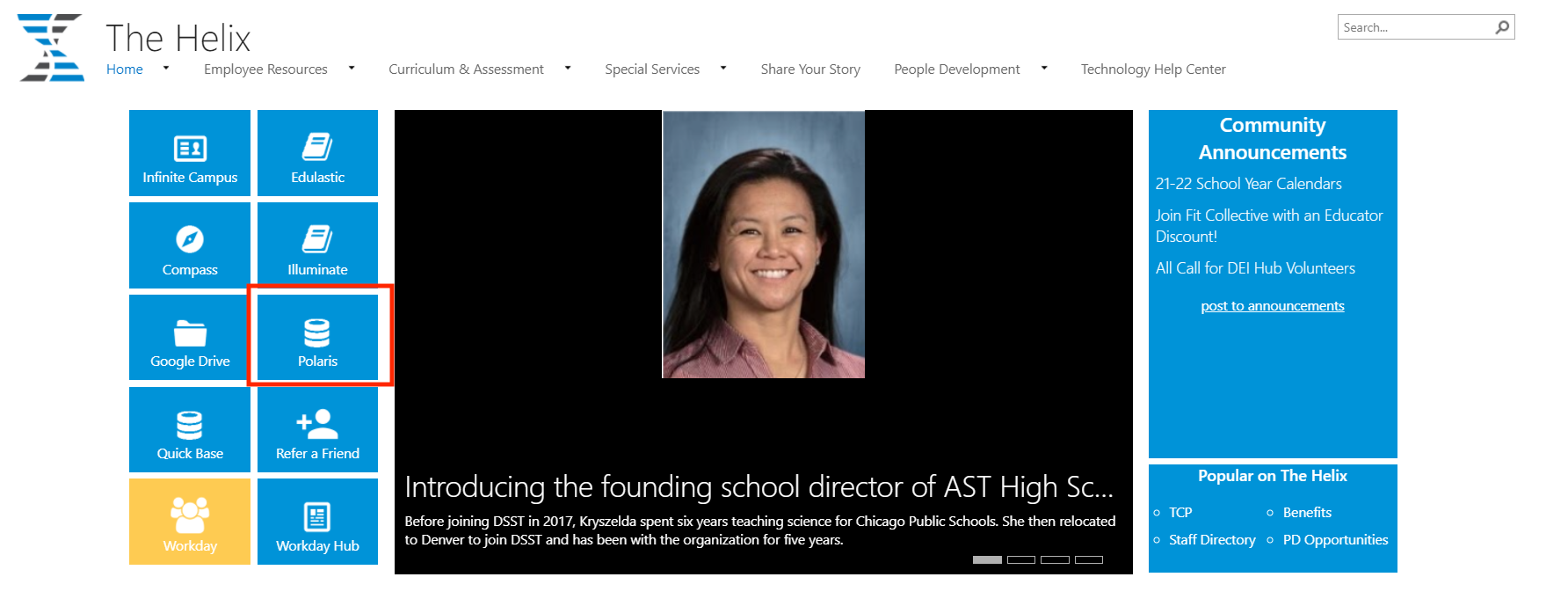
On the left-hand side, you will see the hub for applications, one of those is Polaris. Click the Polaris button and a new window will open in your browser. You should now see a login screen.

Your username will be firstname.lastname and your password will be your DSST password (These are the same credentials used to log in to your DSST computer).
Compass
You can access Compass by going to The Helix at https://helix.dsstpublicschools.org/.
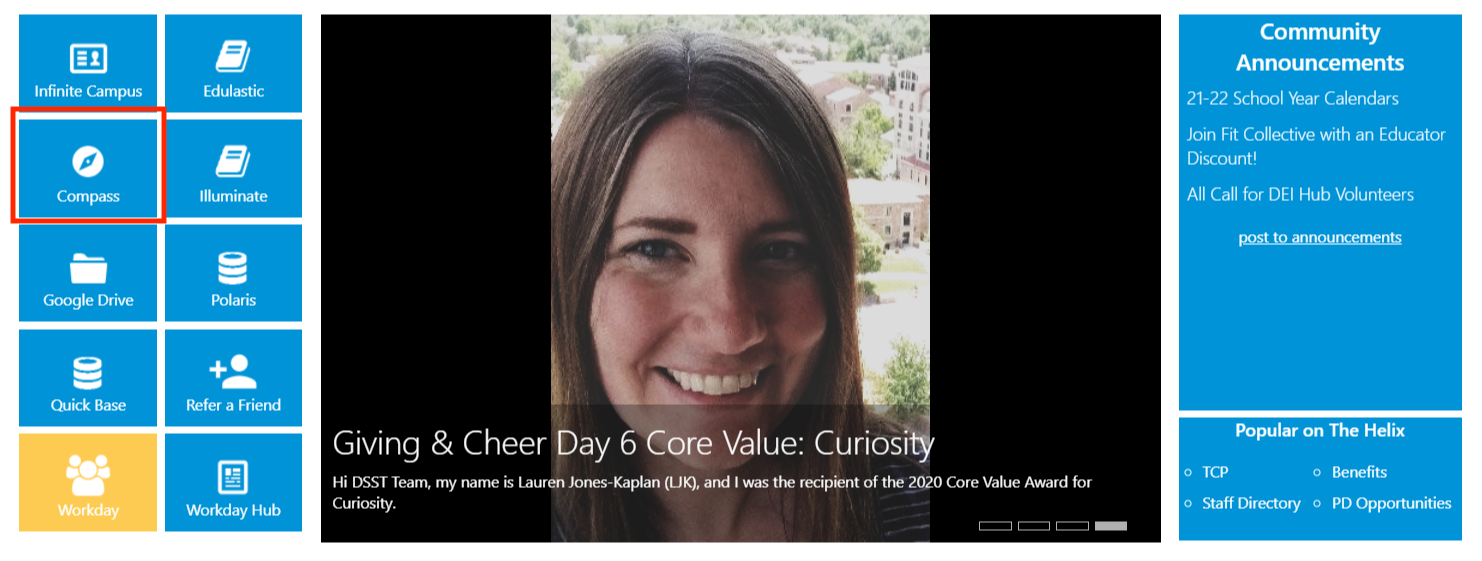
On the left-hand side, you will see the hub for applications, one of those is Compass. Click the "Compass" button. You can also reach Compass here https://compass.dsstpublicschools.org/.
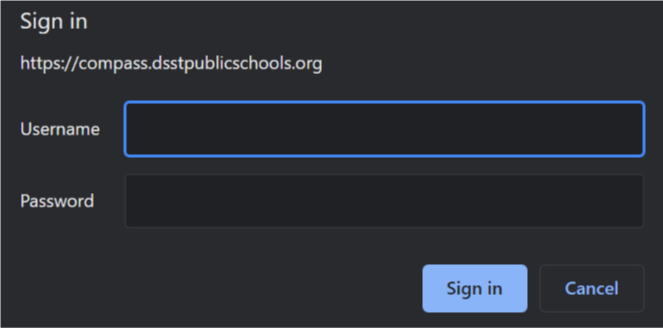
The first time you reach Compass (or if you are logging in on a non-DSST device) you will be prompted to log in using your DSST Credentials.
Your username will be firstname.lastname and your password will be your DSST password (These are the same credentials used to log in to your DSST computer).
Workday
You can access Workday by going to The Helix at https://helix.dsstpublicschools.org/.
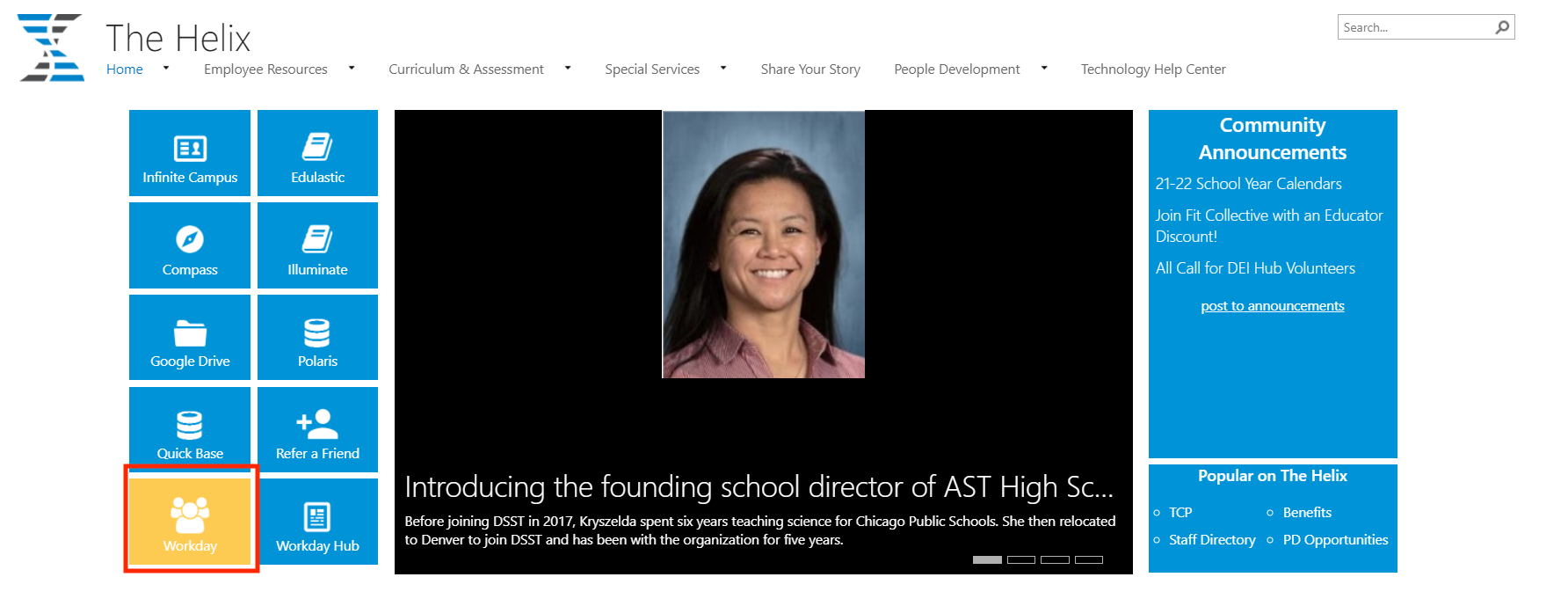
On the left-hand side, you will see the hub for applications, one of those is Workday. Click the "Workday" button (please note that the Workday Hub is not the location for logging into Workday). You can also reach Workday here https://wd5.myworkday.com/wday/authgwy/dsstpublicschools/login.htmld.
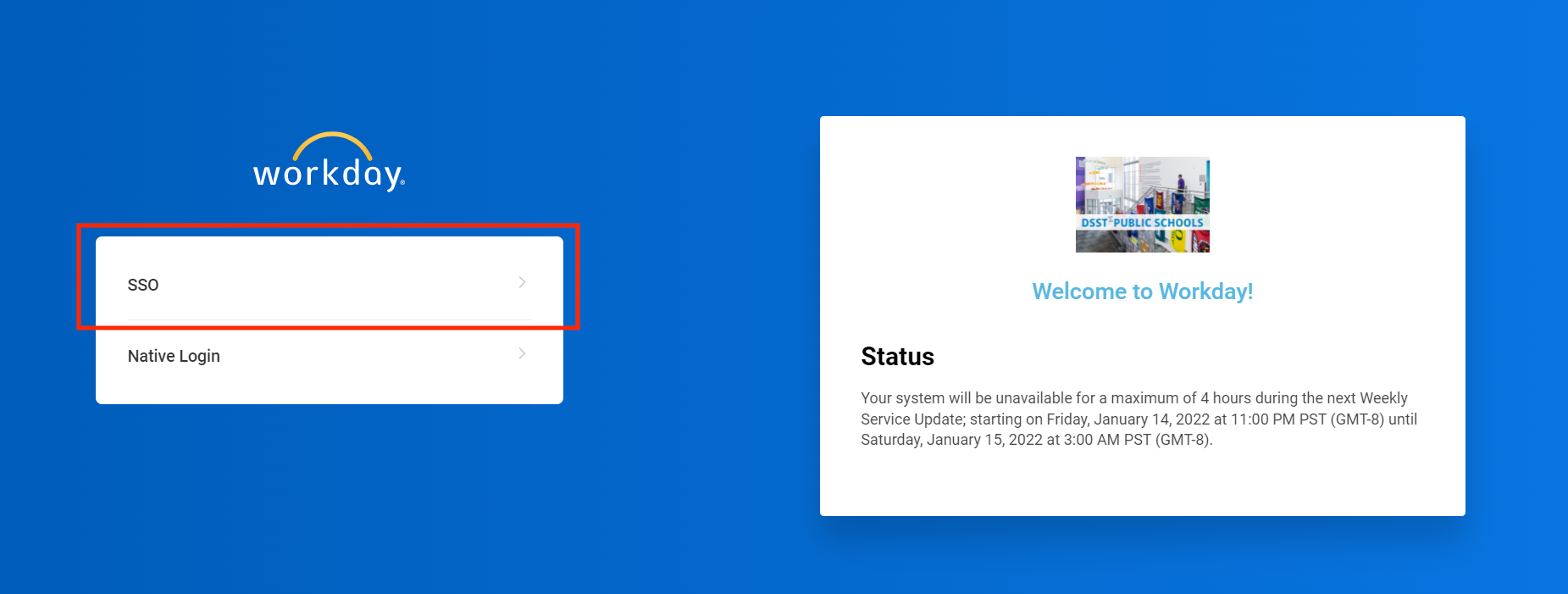
You will now see the Workday log-in page. If you are a fully hired DSST employee you will select "SSO" or "Single-Sign-On". "Native Login" is typically used for new employees in onboarding or those in the interview process.
Google Suite and Google Drive
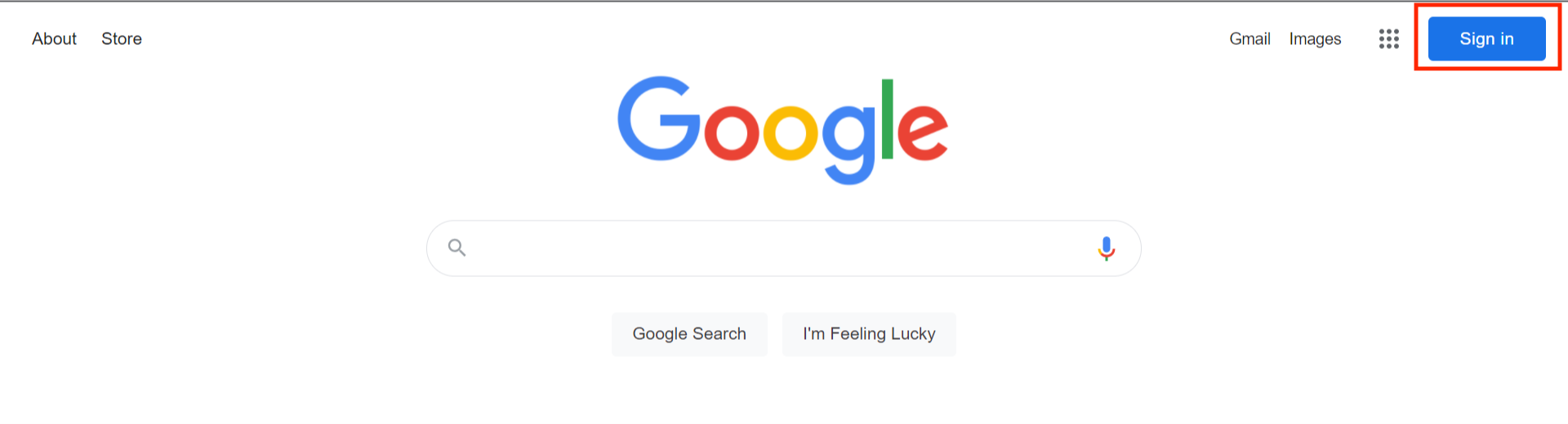
In order to log in to Google Suite and Google Drive, you will first need to go Google directly. You can click here to do so. If you are not logged into any Google account you will see a blue "Sign in" button in the top right-hand corner of your screen that you need to click on.
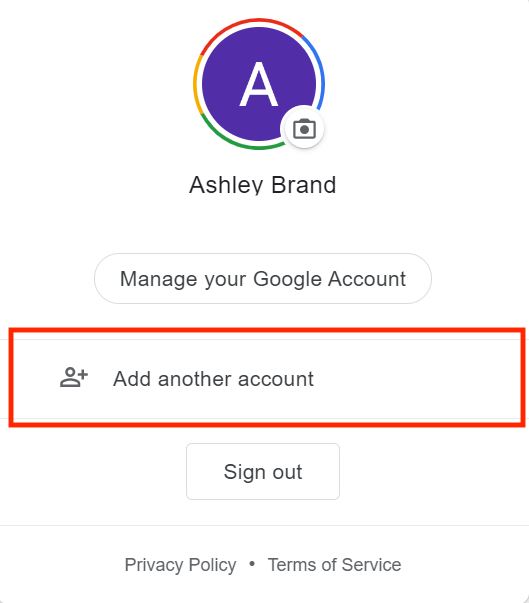
If you are already signed into a Google Account you will need to click your Profile Icon/Picture and select "Add another account".
You will then be prompted to enter your email address, which follows the convention firstname.lastname@scienceandtech.org. After typing in your email address click the blue "Next" button.
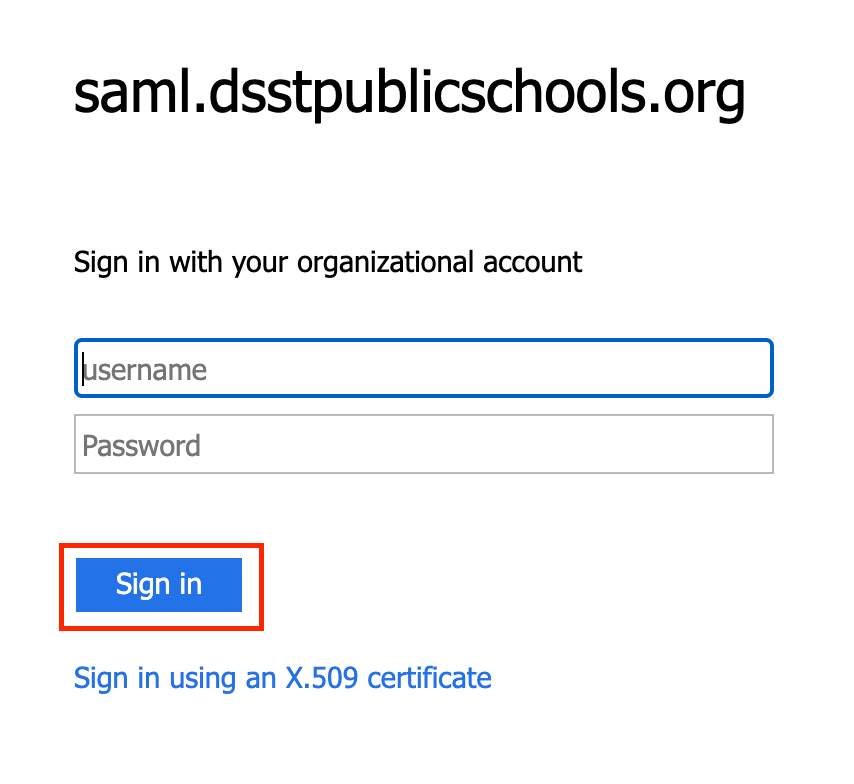
You will now be redirected to DSST login page, as seen below. Here you will type in your DSST credentials: firstname.lastname@scienceandtech.org and your DSST password (this is the same information used to login to your DSST computer).
Microsoft Teams
DSST uses Microsoft Teams for messaging, calls, and meetings across the network. Your DSST computer has teams installed and it will automatically open when you log in or turn on your computer. You can also access Microsoft Teams online by signing in here.
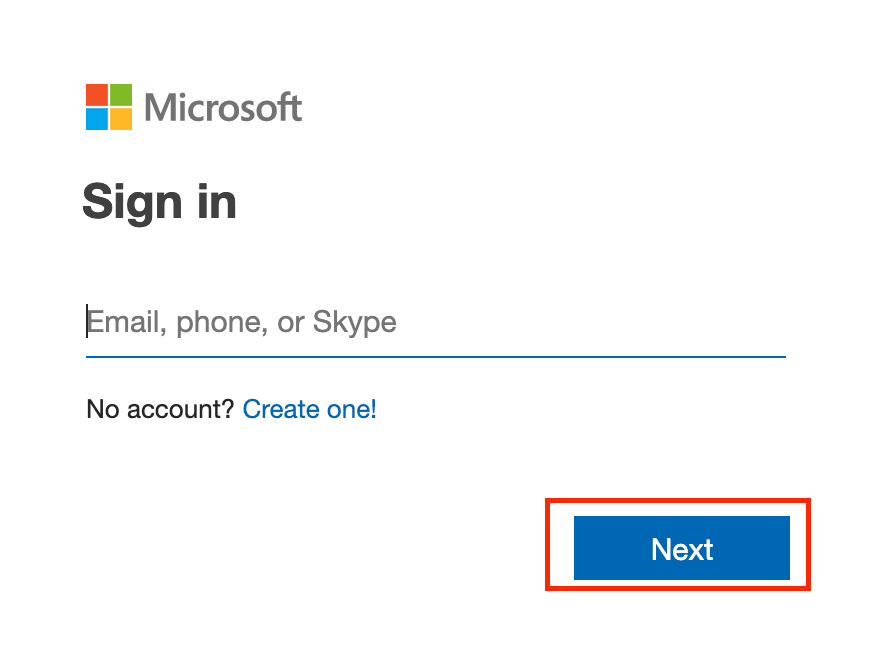
If you are logging in to Teams for the first time, accessing online, or you have been logged out you will be prompted to enter your email for a Microsoft login. Enter your DSST email, firstname.lastname@scienceandtech.org, and click next.
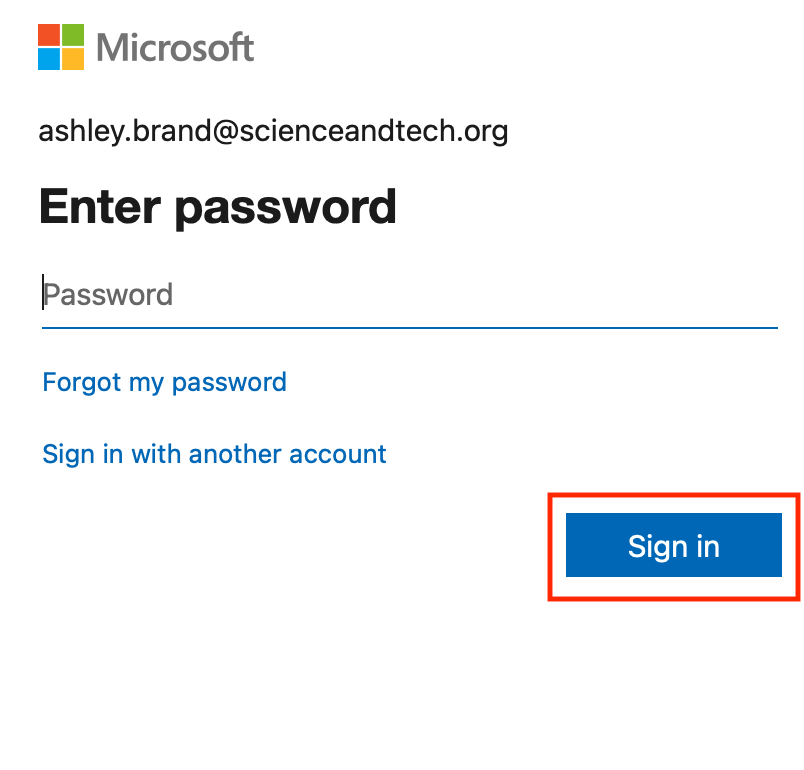
You will then be prompted to enter your password. Remember, this is the same password you use to log in on your DSST computer. Enter the password and click "Sign In"
Comments
0 comments
Please sign in to leave a comment.