
Overview:
There are a variety of ways to share assessments in Edulastic. You can utilize the shared library as well as share assessments with individual teachers. Outlined below are the various pathways and situations you may find yourself in when sharing assessments. Choose from the steps and supports below to find or share assessments in Edulastic.
- 1. Sharing Assessments to a Shared Library
- 2. Finding Assessments in a Shared library
- 3. Sharing Assessments with an Individual
- 4. Finding an Assessment Shared with You by an Individual
Sharing Assessments to a Shared Library
Every assessment should be shared with the School Library or the District Library according to your Coach's preferences.
The default settings allow teachers to save their assessments to the Private (Individual) library. You must publish your assessment before you can share the assessment.
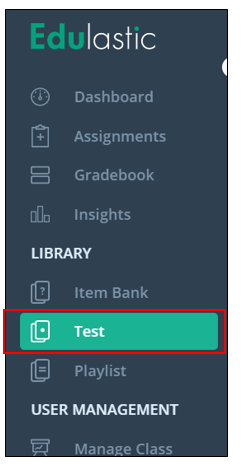
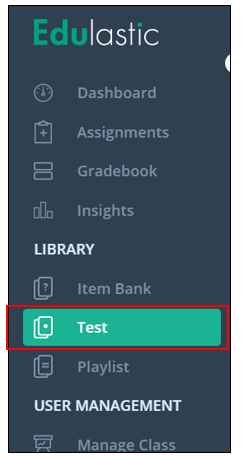
1. Go to the "Test" Library.
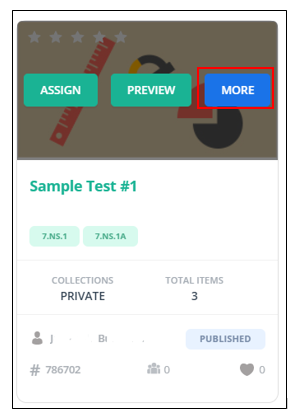
2. Find the assessment that you would like to share. You can simply click on the assessment or click on "More".
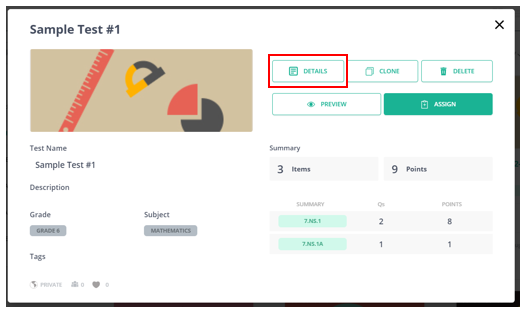
3. Click on "Details"
4. Click on the "Share" button.

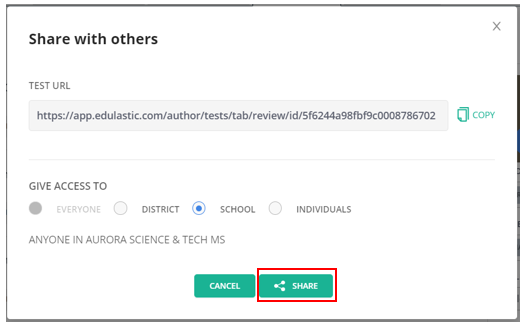
5. Switch the section from "Individual" to either School or District according to your Coach's preferences.
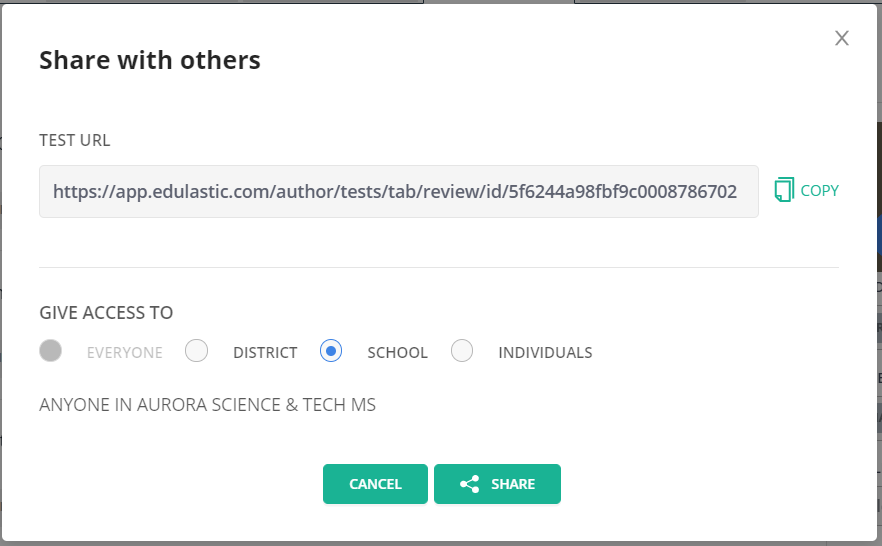
6. Click "Share".
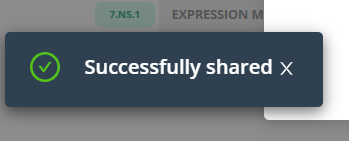
You will get a message that your assessment was successfully shared at the bottom right corner.
Finding Assessments in a Shared Library
1. Go to the test library.
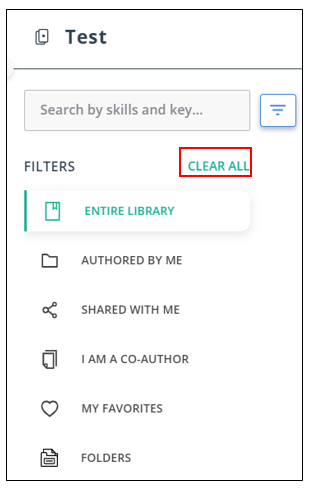
2. Click on "Clear All" to clear all the filters.
Note: Sometimes staff can't find their assessments because there are too many filters chosen and if the assessment wasn't set up the way the filters are set, they won't show up. For example, if you have a test tagged for 6th grade, but have your filters set for 6th and 7th grade, the assessment won't show up since that assessment wasn't tagged for 6th and 7th grade. Widen out your search by using fewer filters. Think, "less is more".
3. Scroll down until you see the "Collections" field
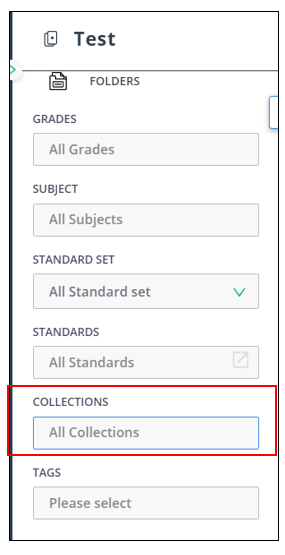
4. Choose either School Library or District Library to see the assessments.
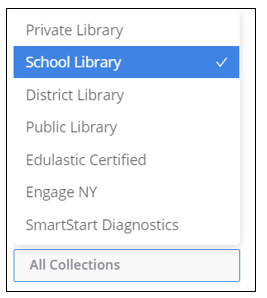
5. Continue to use the filters as necessary.
Sharing Assessments With an Individual
1. Go to the "Test" Library.
2. Find the assessment that you would like to share. You can simply click on the assessment or click on "More".
3. Click on "Details"
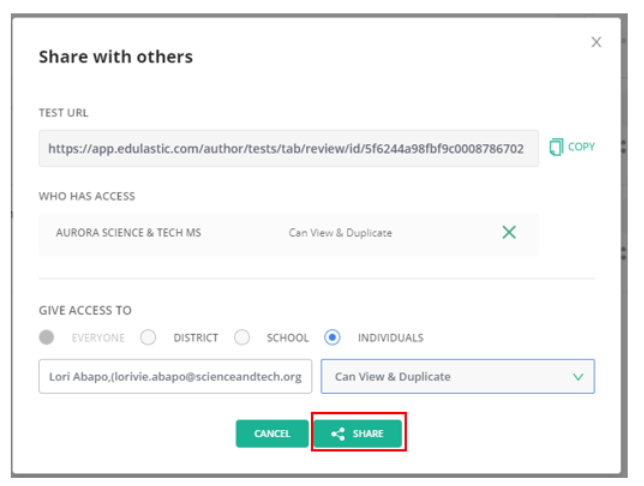
4. Click on the "Share" button.
5. The default will be chosen to "Individuals" and you can keep that setting. Type in the person's name and their email should auto-populate.
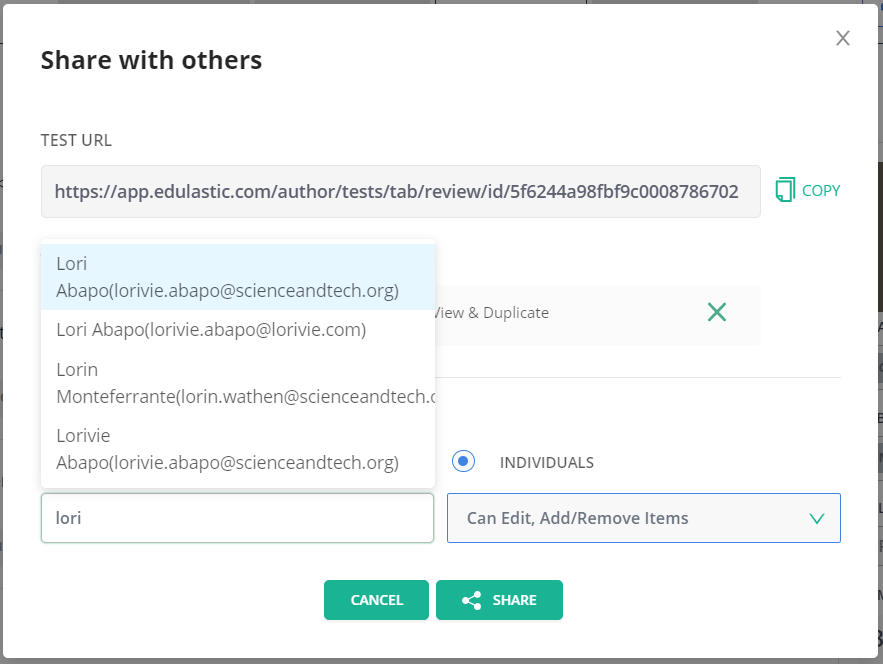
6. Choose whether or not if you want that individual to Edit, Add/Remove Items, or to View and Duplicate the questions.
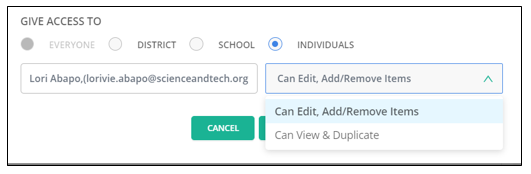
Note: If their name does not show up, that means they 1) is an admin. You can still give them the link to the assessment, but the recommendation is that you share your assessment to the School or District Library so they have access to the assessments or 2) they do not have access to Edulastic. If they are not an admin and need access to Edulastic, email helpdesk@scienceandtech.org.
7. Click "Share".
Finding an Assessment Shared with You by an Individual
1. Go to the test library.
2. Click on "Clear All" to clear all the filters.
Note: Sometimes staff can't find their assessments because there are too many filters chosen and if the assessment wasn't set up the way the filters are set, they won't show up. For example, if you have a test tagged for 6th grade, but have your filters set for 6th and 7th grade, the assessment won't show up since that assessment wasn't tagged for 6th and 7th grade. Widen out your search by using fewer filters. Think, "less is more".
3. Click on "Shared with Me".
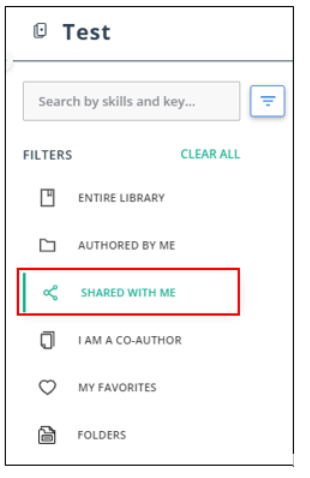
You should see all the assessments that have been shared with you.
Comments
0 comments
Please sign in to leave a comment.