
Below you find resources to help troubleshoot any problems or pops up during iReady Testing.
- What is the difference between reassigning vs. resetting a test?
- What do I do if a student didn't finish testing but they need to complete lessons?
- I can't find a diagnostic for a student, help?
- I need to unhide an assessment for a student to complete, how do I do that?
- How do I extend the testing window?
- How do I change the diagnostic language as a teacher or as an admin?
- How do I assign student instructions?
Reassign vs. Reset a Test
When would you need to reassign a test?
- If a student has completed an assessment and needs to start over completely.
Who can reassign a test?
- Home Office staff and SAL's
How do you reassign a test?
Hiding Assessments
You might find that a student has not finished a diagnostic assessment but you need them to begin completing lessons. In this case you will need to "hide" the diagnostic assessment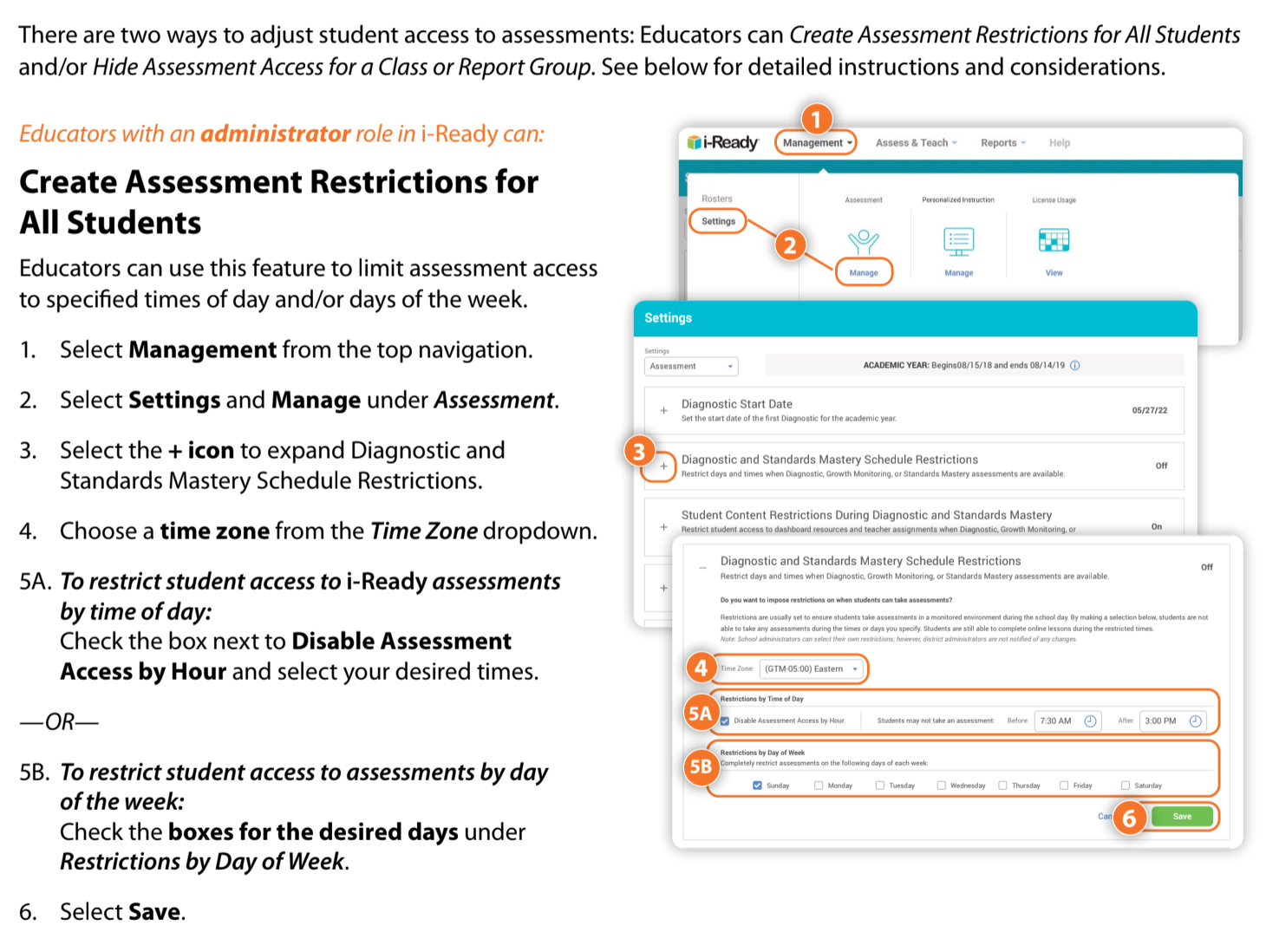
Unhiding as Assessment
There may be times where you are unable to find a test for a student. In some cases it may have been previously hidden.
Follow this walkthrough video to "unhide" and assessment
Extending the Assessment Window
Follow this walkthrough video to learn how to extend an assessment window
Changing Diagnostic Language
- As a teacher:
- Rosters
- Students > Manage
- Open the + next to student name
- In the settings tab, click “Edit Student Settings”
- Slide “Spanish Math Diag” from OFF (gray) to ON (blue)
- Save
- As a Home Office or SAL Admin
- Management
- Rosters
- Students > Manage
- Select school from dropdown
- Open the + next to student name
- In the settings tab, click “Edit Student Settings”
- Slide “Spanish Math Diag” from OFF (gray) to ON (blue)
- Save
Assigning Student Instructions
You can follow on the with this walkthrough video or follow the steps below.
- Management
- Rosters, student
- Open the + next to the student name
- In the “settings” tab, click Edit Student Settings”
- Slide the Reading Instruction to ON/BLUE
- Then SAVE.
Comments
0 comments
Please sign in to leave a comment.