
Overview
Teachers and staff may find that they need to assign a student a specific lesson in iReady, oftentimes out of the traditional iReady order. Follow the steps and supports below to assign a particular lesson to a student.
Step One: Log in to Clever and select the iReady App.
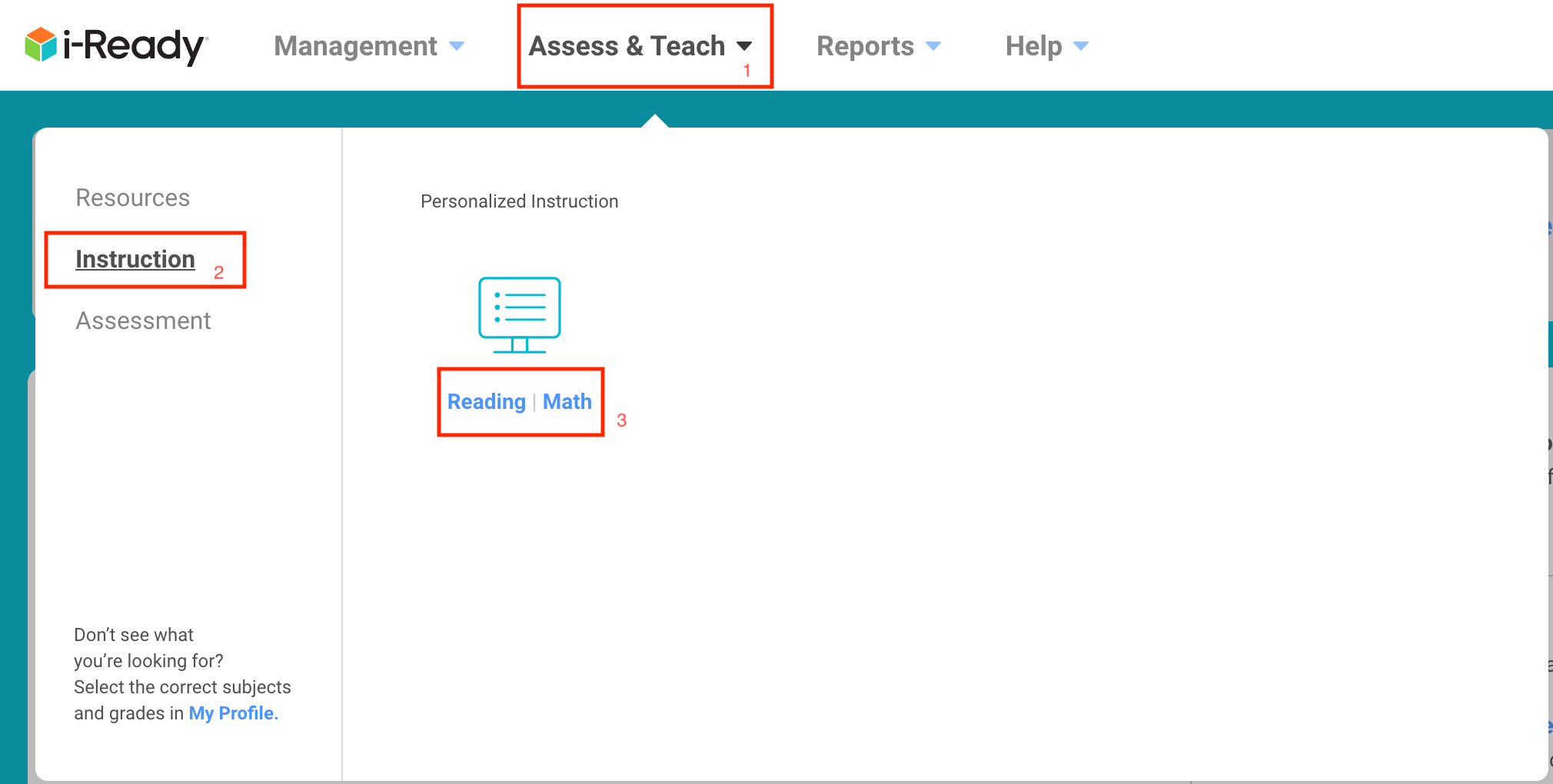
Step Two: At the top of the screen locate and click on "Assess & Teach" and click on "Instruction" on the left hand side. At this point you will be able to choose which content of focus- Reading or Math. For this we needed "Reading"
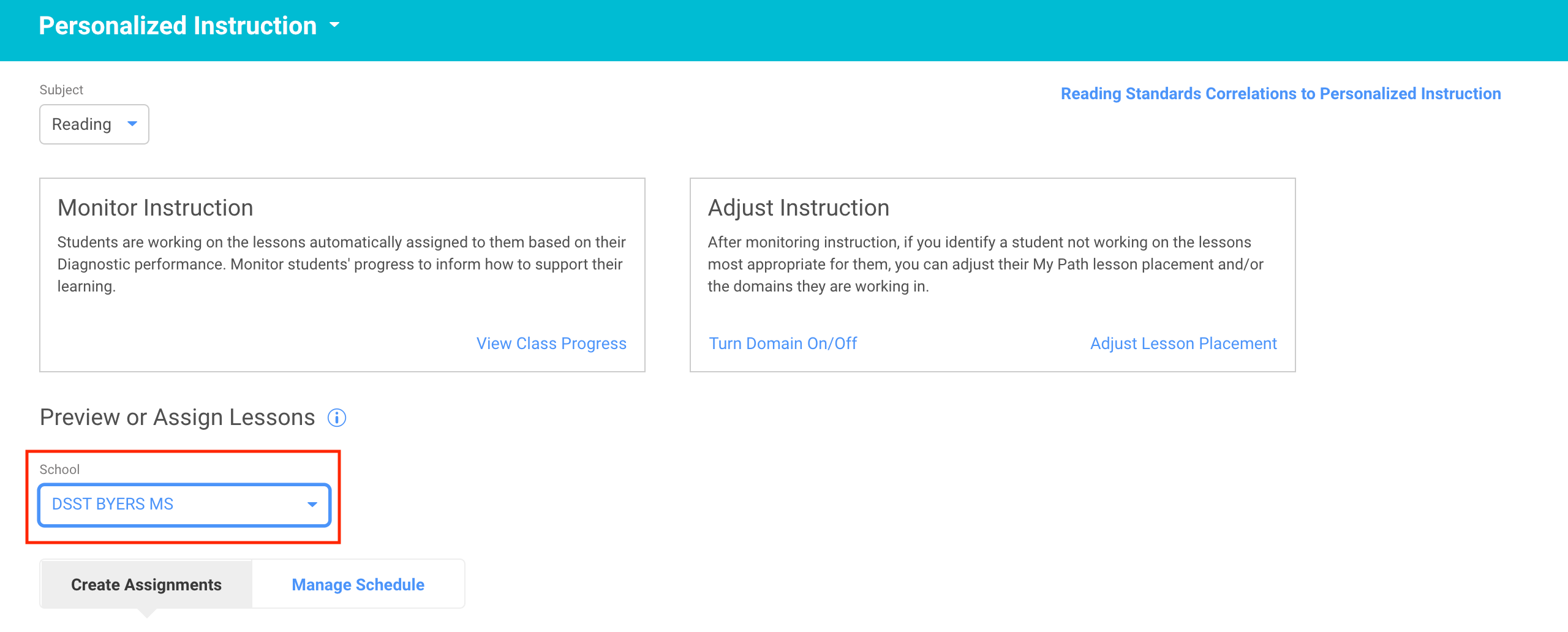
Step Three: You will now see the "Personalized Instruction" page. Here you can select the school where you will need to assign the lesson(s).
After selecting the appropriate school the lessons available from Pre-K and up will appear. You can narrow the list by Lesson Name, Grade, or Domain. Grade is most likely the easiest pathway to search for lessons. When you locate the lesson or lessons needed from the list check the box next to it. You will then be able to "Assign Lesson"
Step Four: The "Assign Lesson" Window will appear and prompt you to make a few selections. Who would you like to assign the lesson to- an entire school, class, a specific report group or specific students. In this case we need to select a particular student.
After clicking the green arrow to move forward you will see a "Grade" drop down menu. Select the grade of the student and scroll down to find the specific student. Click the green arrow to move forward and you will see the final step which is scheduling and confirmation. You will be able to outline dates of access and finally "Assign".
Comments
0 comments
Please sign in to leave a comment.