
Overview
After an iReady diagnostic teachers and staff can download a Student Diagnostic Report to review student data. Follow the steps and supports below to learn how to download a Student Diagnostic Report.
Step One: Log in to Clever and select the iReady App.
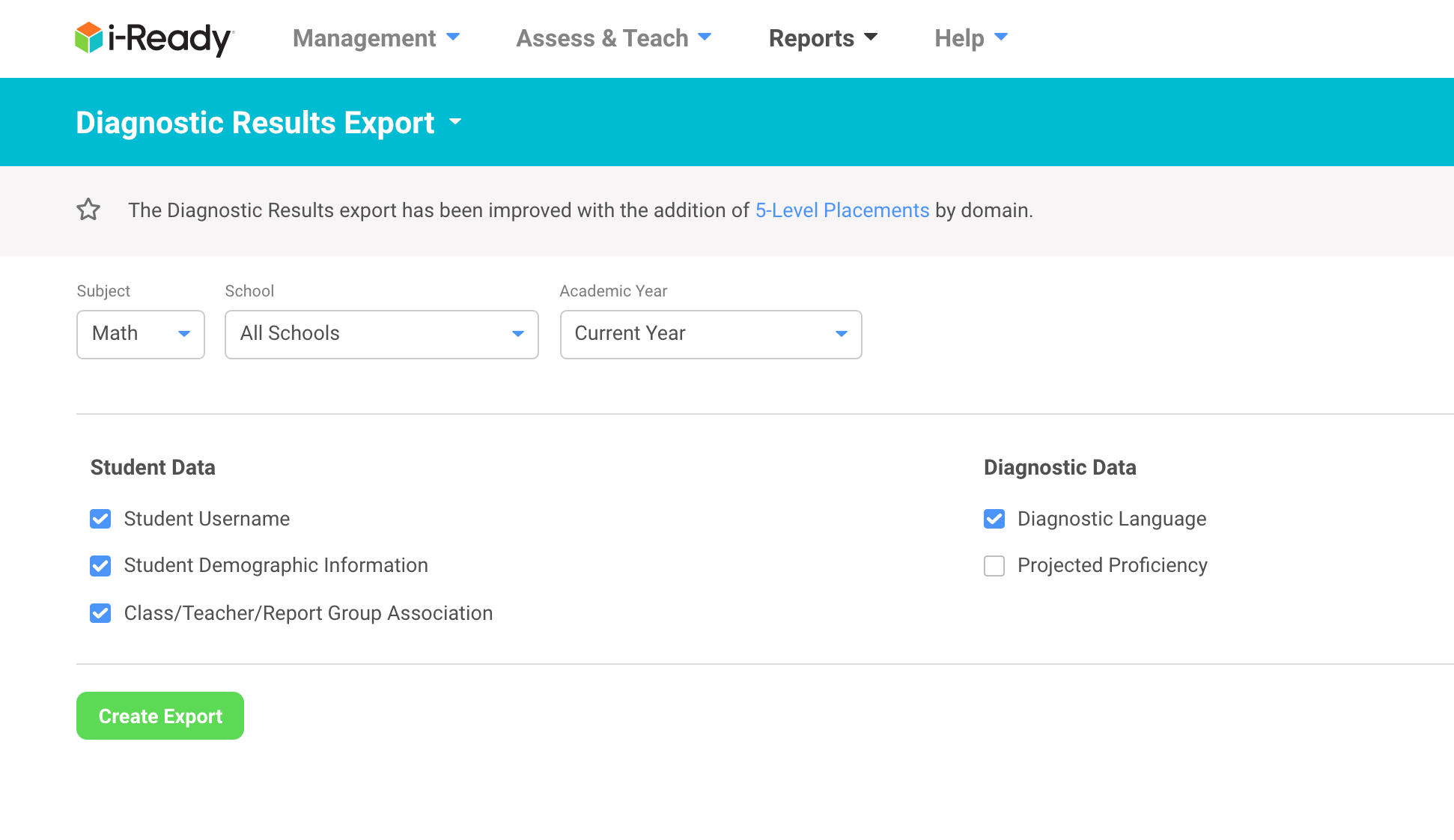
Step Two: On the iReady Dashboard click "Reports" at the top. Under "Diagnostic" you will see "Diagnostic Results Export". You have the option to choose either "Reading" or "Math". In this particular case we needed to select "Math"

Step Three: You will now be presented with options for filters for your report. You can narrow your filters by: school, academic year, student data and information and diagnostic data. When you have finalized your selections you click "Create Report".
Step Four: Your next screen will display the message pictured below. You can click "View Export Queue" to get to your report for download. 
Step Five: You will now see your "Export Queue". You should see your most recent report on the list and on the far right-hand side and download symbol. Click the "Download" symbol to download your report. 
Step Six: Your report will download to a CSV File for Excel with a plethora of information (beyond what is pictured below). 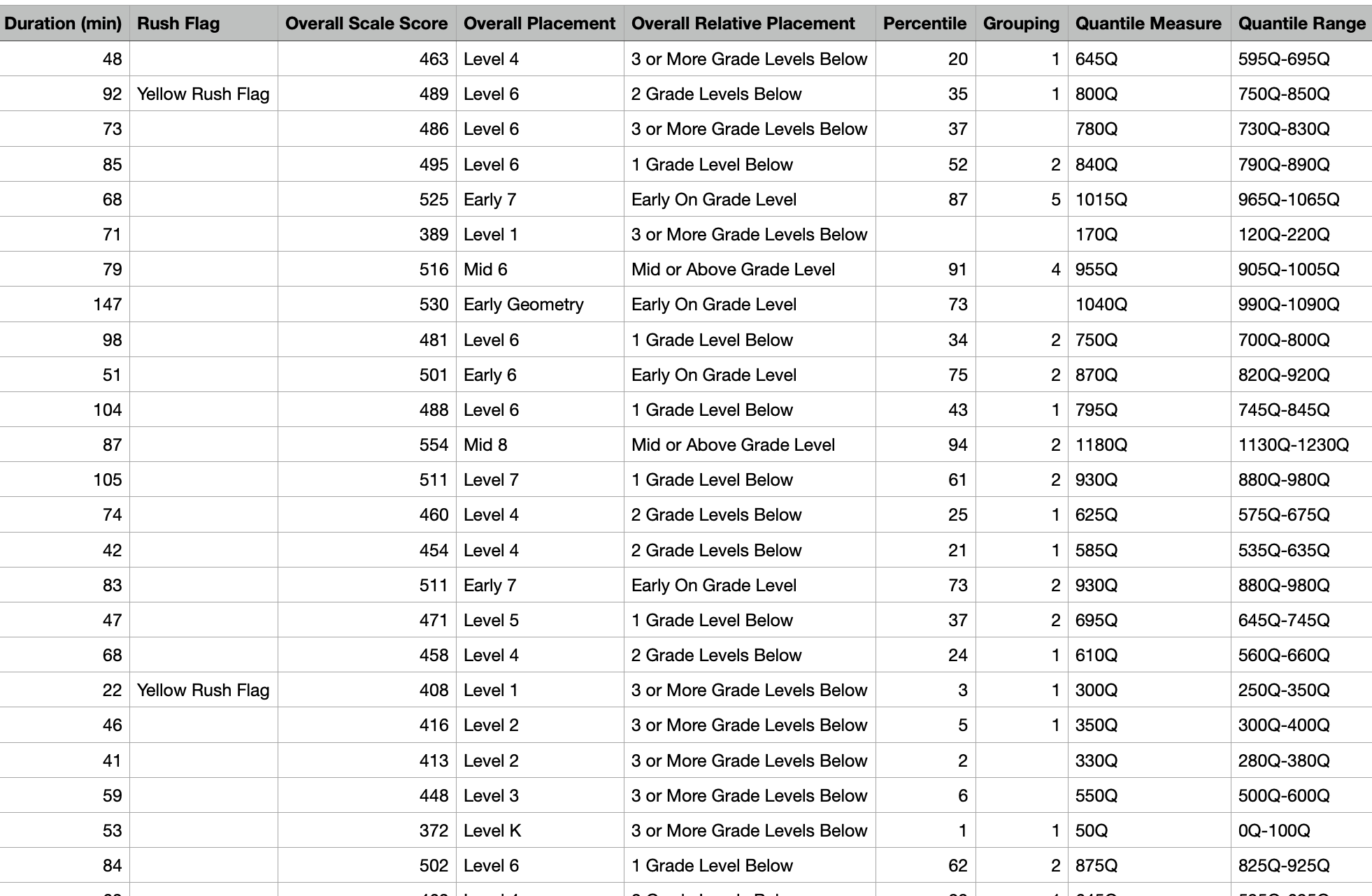
Comments
0 comments
Please sign in to leave a comment.