
Overview
The Advisory tool is designed to help teachers target areas of improvement for the students they mentor. Follow the steps and supports below to learn about these IC Updates and new tools available to you.
- How to gain access to the Advisory Tool
- Section Summary View
- Assignments and Grade Details
- Student Profile
- Student To-Do
- In Progress Grades
- Attendane
How to gain access to the "Advisory Tool"
The Advisory tool can be enabled for teachers in two ways. Teachers need the Advisory tool right to access the tool.
Section Summary View
Step One: Log into Infinite Campus and locate the "Advisory" tab on the left hand side. 
Step Two: You will now see the "Section Summary View" which shows all the information for students in your advisory section (see image below, note that student names have been blocked for privacy). The first screen of the Advisory tool displays a list of students in the Section selected at the top. All students in the section are listed, along with counts for the number of missing and late assignments and the number of non-passing grades across all of the students' sections. Filter the students listed using the filter buttons above the table. Sort the table by clicking row headers.

You will also see numbers under the types of assignments. That is determined by:
- Missing: Assignments flagged as missing.
- Late: Assignments flagged as late that do not have scores. Note: assignments marked as late by typing an "L" for the score are not included in this count.
- Non-Passing Grades: Grades for tasks or standards that are not flagged as Passing on the score group or rubric. This column first looks at posted grades and then considers in-progress grades where grades have not been posted. Counts are shown for the term selected.
Step Three: If you wish to look closer at a particular student, click a row to view that student's profile.

Assignment and Grade Details
Within the student's profile (pictured above) you can take a closer look at the assignments that need to be completed. Use the steps below to access the assignment and grade details.

Student Profile
The Student section provides basic information about the student, including student number, grade, and date of birth. Click on the student's name to view more information.
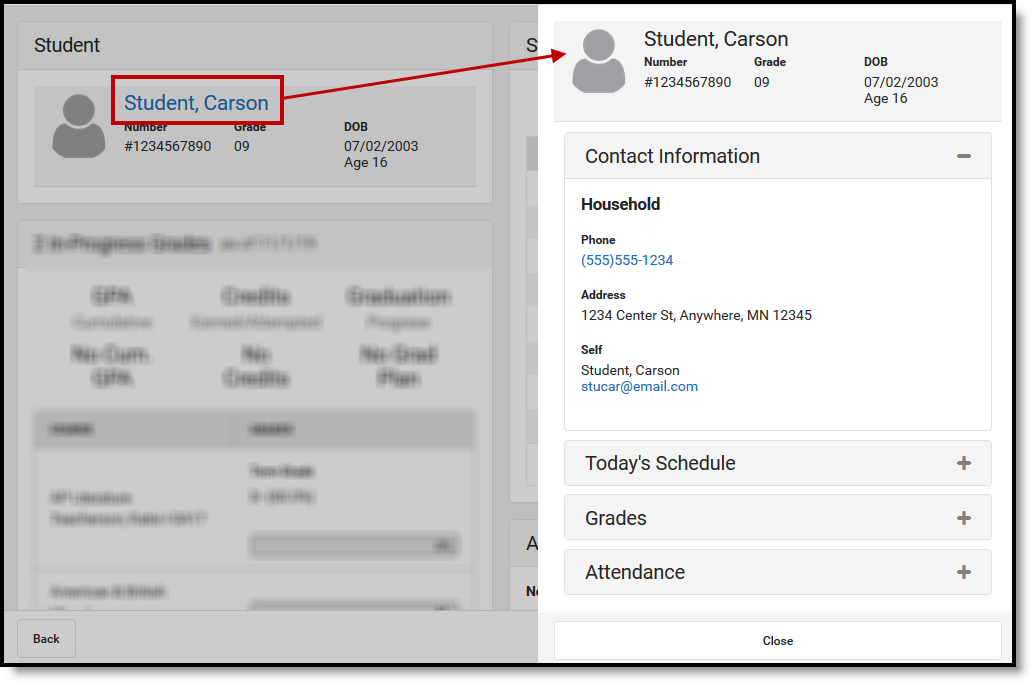
Click a student's name to view more information, including contact information, schedule, grades, and attendance.
Expand a section to view student information:
| Section | Description | Example Image |
|---|---|---|
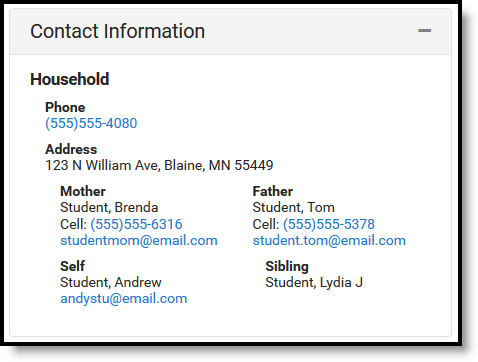
| Contact Information | Contact Information is based on the student's Household. The emergency contact priority is shown below the individual's name, if entered. |
|
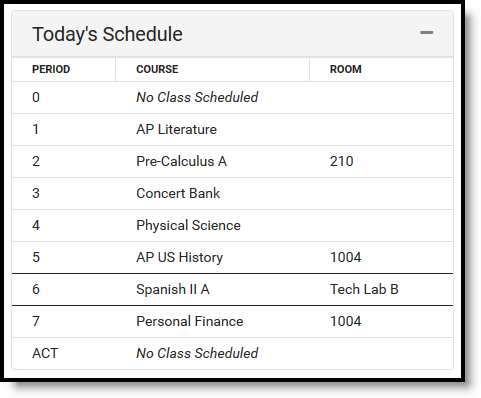
| Today's Schedule | The student's schedule is listed with Room numbers. The section where the student is currently scheduled is indicated with a border. |
|
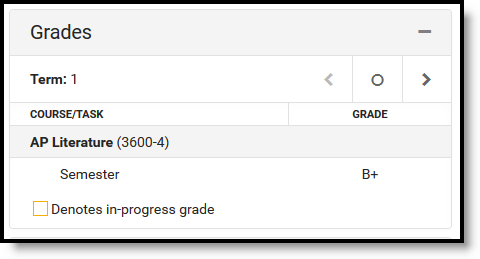
| Grades | Grades are only shown for the current section, from which the student's information was accessed. |
|
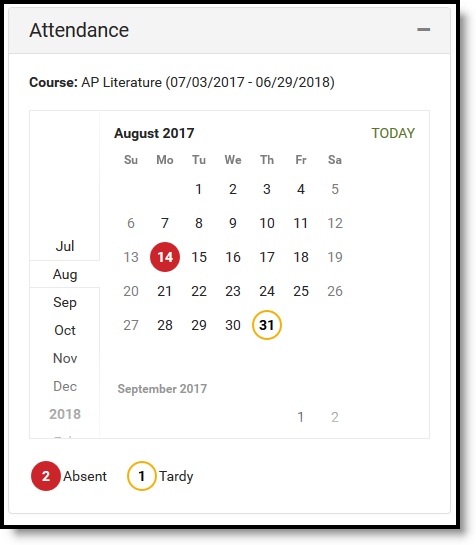
| Attendance | Attendance is shown for the current month, for this section only. Absences and tardies are totaled in the legend at the bottom. Scroll within the calendar to view other months. |
|
Student To Do
The To Do section lists the student's assignments based on the option selected. Use the dropdown list to show all assignment past due, overdue assignments from the last 30 or 7 days, or assignments due in the next 7 days. Use the arrows below the list to page through the list, if available.
Assignments considered past due have a due date prior to today, are not scored, and do not have the Turned In flag marked. This list is not dependent on the Late flag.
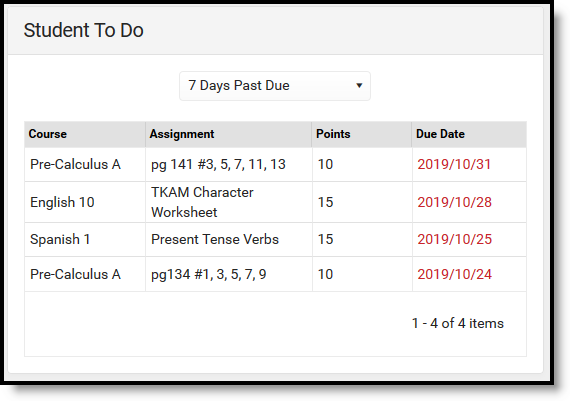
View assignments that are past due or those due in the future.
Assignments from any of the student's sections may be listed, not just assignments in the current section or sections taught by the current teacher.
Click an assignment to view more information.
In Progress Grades
The In-Progress Grades section displays grades for the student's courses in the current term.
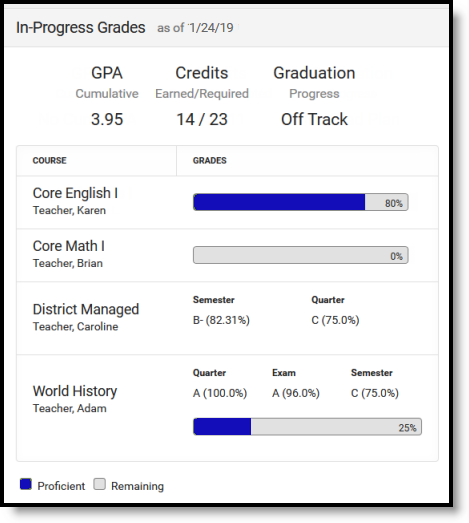
Grades and progress through standards are shown below the summary.
Above the grades, the GPA, Credits, and Graduation Progress are displayed.
- Cumulative GPA values are found on the Grades tab. See the GPA Calculations in Campus for the actual calculation.
- The Credit information indicates if the number of credits the student has earned out of the number required. This data is found on the student's transcript.
- Progress towards graduation reports based on the Progress tab in Academic Planning.
Grades are listed by course. For grading tasks, the student's in-progress grade is shown for each task aligned to the course. For standards, a progress bar indicates the percentage of standards aligned to the course for which the student has a posted grade.
Click on a grade for a grading task to view a list of assignments and scores. Click the progress bar for a standard to view the standards for the course and the student's proficiency for each, whether in-progress or posted.
Attendance
The Attendance section can be filtered to show attendance totals for the year, the last 30 days, or the last 7 days. The total number of full day and period absences and of tardies display above the calendar. Full day absences are calculated using the whole/half day minutes entered on the calendar and do not follow state-specific attendance calculations.
Filter the calendar view by full day absences, period absences, or tardies. When filtered by absences, days are color-coded by excuse.
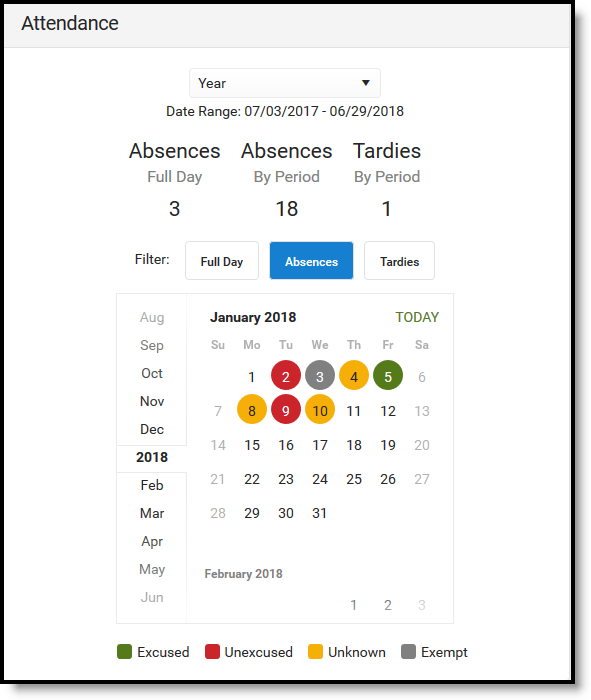
Attendance events display in the calendar and are color-coded.
Click an attendance event to view more information. If attendance letters have been sent to the student, a list of when letters were sent is shown. Letters cannot be viewed or generated from this tool.
Comments
0 comments
Please sign in to leave a comment.