
Overview
One of the features of Edulastic is duplicating or cloning an assessment. It should be noted that cloning an assessment too many times can create significant problems for users. Every clone of an assessment or clone of questions creates a new instance of the same assessment. Cloning assessments are only recommended when absolutely necessary. Follow the steps and supports below to learn more about cloning or duplicating assessments in Edulastic.
- Why would I clone or duplicate an assessment?
- How do I clone or duplicate an assessment?
Why would I clone or duplicate an assessment?
Cloning or duplicating assessments is most commonly used in these few ways.
- A user created a test in the previous year and wishes to reuse it with edits
- A team member shared a test that you wish to use with edits
Network Managed Interim Assessments or Finals should NEVER be cloned. These assessments have very particular data streams and clones can cause a great deal of correction work by the Software Development team.
Additionally, there are some settings in Edulastic that can prevent users from cloning an assessment. If you do not have the option to duplicate or clone this setting may be in place.
How do I clone or duplicate an assessment?
Step One
Log into Edulastic and locate the assessment you wish to clone or duplicate. If you need support finding an assessment that was shared with you click here.
Click on the assessment you wish to clone and the preview window will appear. You should see a "Clone" button as shown below. Select "Clone"
Step Two
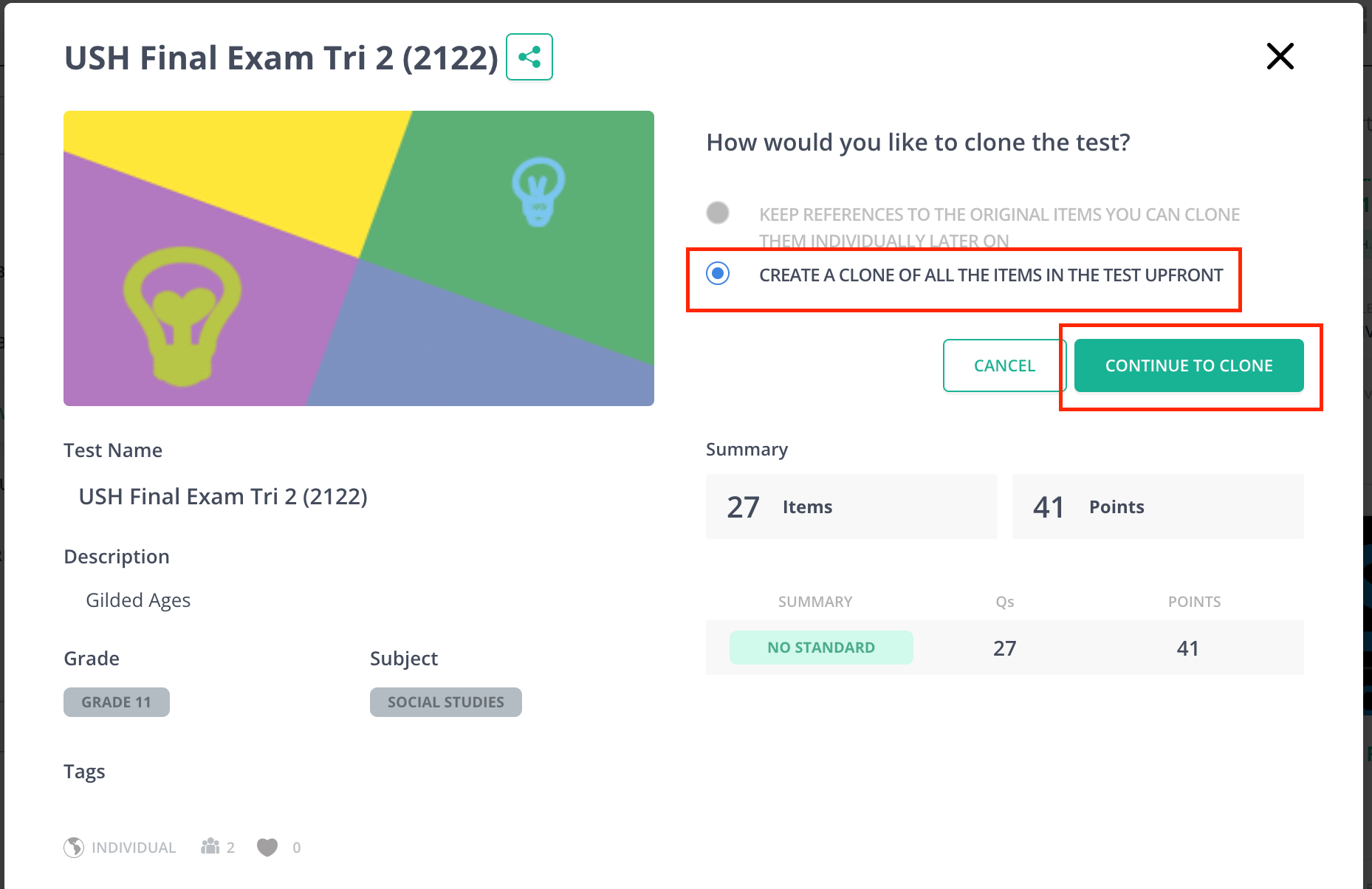
This is one of the most important steps when cloning assessments. ALWAYS select "Create a Clone of all the Items in the Test Upfront". Then select "Continue to Clone".
Step Three
You will now see the Test Details and Description page. Here you can edit the assessment and make all necessary changes. If you want to know more about editing assessments click here

Comments
0 comments
Please sign in to leave a comment.