
Context
Qualtrics is a platform that allows you to create and send surveys. DSST uses Qualtrics for network surveys such as the Mid and End of Year Survey, and the Network Pulse Survey. Any survey that will require a Polaris dashboard to display survey responses, will be required to be sent using Qualtrics. If you do not need a dashboard, you can still use Qualtrics (or Google Forms) to send your survey.
In this article you will find information on:
- How to create a survey
- How to edit an active survey
Please note: If you want your survey data to be reported in a Polaris Dashboard, please complete this form prior to following the steps below.
Steps
Create a Survey
1. This linked article provides you with the key steps to create your survey. If your survey responses will be displayed in a Polaris dashboard, also read this article!
|
|

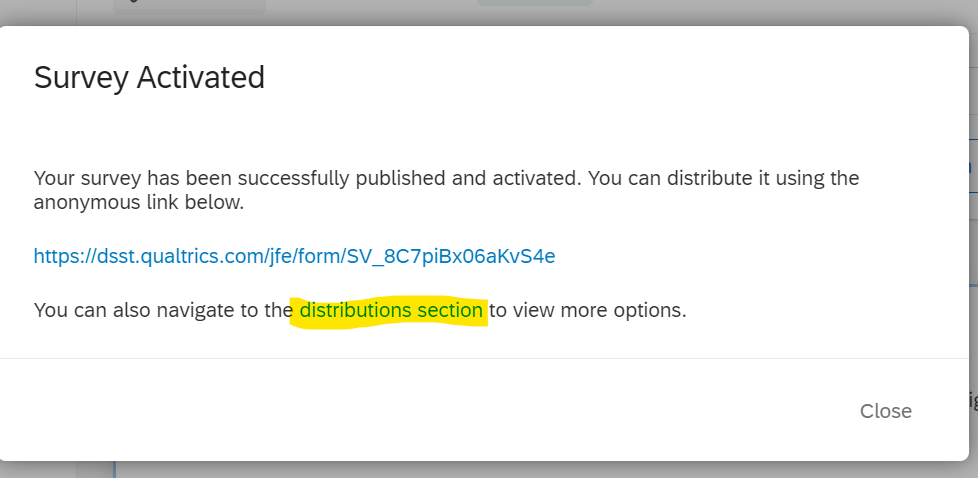
2. Once you publish your survey you will see the pop-up box below. If you want to track your respondents, click on the "distributions section."
Edit Your Active Survey
You can still make changes to your survey even after it’s activated, but you’ll want to be cautious about making changes if you have already collected real data. Certain survey alterations can invalidate or delete parts of your already collected survey data. This article will describe which changes will delete data, and which changes will not delete data.
What will your respondents see after you make a change? Changes will only be presented to respondents after you click the Publish button. Then, only respondents who didn’t start the survey until after you published will see new changes you’ve made to the survey.
If you want respondents who started before you published to experience the changes, then they will need to start their survey over.
-
If you distributed the survey through email or personal links, send them a new individual link.
-
If you distributed the survey through the anonymous link, ask them to clear their browser cache, open an incognito window, or try to take the survey in a different browser.
Want more survey tricks & tips? Read this article!
Ready to distribute and track your survey responses? Read the articles below!
- How to distribute a survey
- How to track survey responses
Comments
0 comments
Please sign in to leave a comment.